


-
Install the Print Options plugin. Either search for it under
Plugins→Add New, or download the latest release from our GitHub page and upload the zip underPlugins→Add New→Upload Plugin. -
Activate it. A Print Options menu appears in your WordPress admin
sidebar.
No account, no API keys. The plugin creates its own anonymous identity on activation and talks to our service on your server’s behalf.
-
Open
Print Options→ Option Sets and click New from template. Pick a template — Business Cards, Flyers, Stickers, Thesis Binding and more — adjust the choices and prices, and click Save. -
Now assign it. Open any product for editing, and in the product data panel
you will find a Print Options tab next to Attributes and Variations.
Select your option set from the dropdown and Update the product.
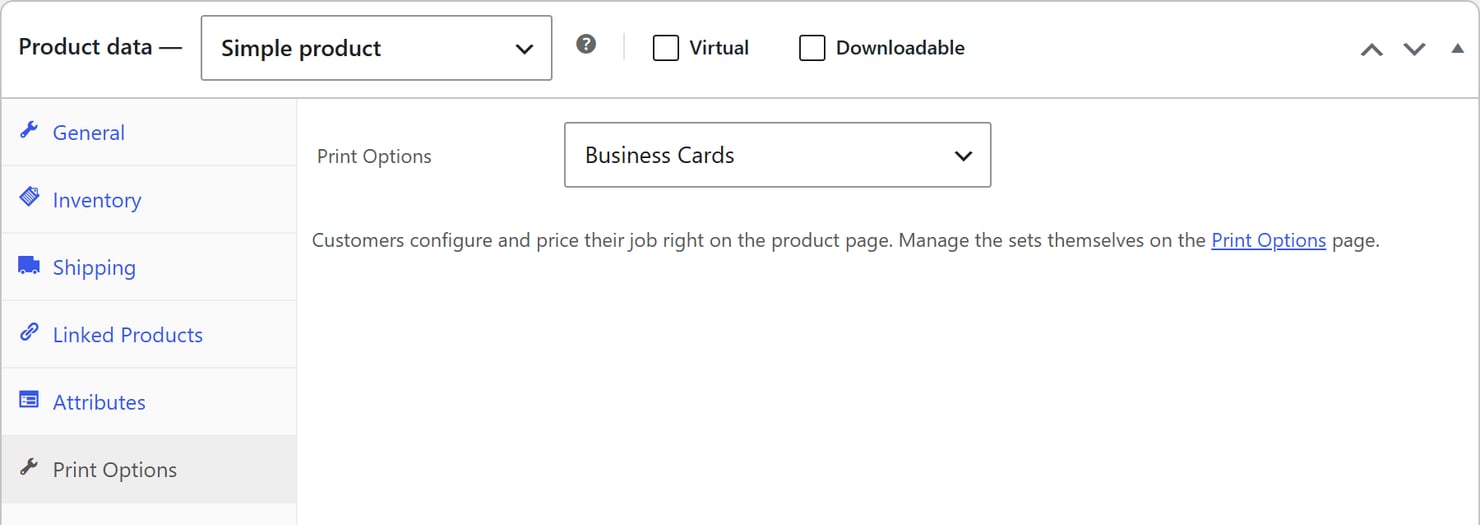
- Visit the product on your storefront. The configurator renders with live pricing, and adding to cart uses the price our servers verify — not the one in the browser.
Managing your options
A set that is assigned to products cannot be deleted — remove it from those
products first. That is deliberate: deleting it out from under a live
product would break its page.
Prices and currency
Option sets are priced in your WooCommerce store currency. The configurator’s total is a live preview; the price charged is always recomputed server-side when the item enters the cart, and the full specification is stored on the order for your production team.The WooCommerce product’s own regular price is not used for a product
with an option set, and is hidden on the storefront. Leave it at 0 (or any
placeholder): the option set is the price.
Orders and shipping
- A configured job is one cart line carrying every option, and the order screen shows a Download file button under each line with an uploaded file. See Cart & orders.
- Enter the weight of one copy on the WooCommerce product. The plugin ships a configured job at that weight times the number of copies. See Shipping weight.
- To have the cart’s quantity column show the real copies, switch the option set’s cart quantity to Real quantity. See The cart quantity.
Hooks for developers
Troubleshooting
If the configurator doesn't appear on your product page:- Check the options are published to that product. On Shopify, the Products page in the app shows which products carry options; on Wordpress, check the product's Print Options tab.
- Shopify only — check the theme block.
Online Store→Themes→Customize→ the product template → the Print Configurator block must be added once. Without it there is nothing to render. - Make sure the product is purchasable. A product that is out of stock or unavailable will refuse the add to cart, whatever the options say.
- If it still doesn't show, reach out on our Discord community.