

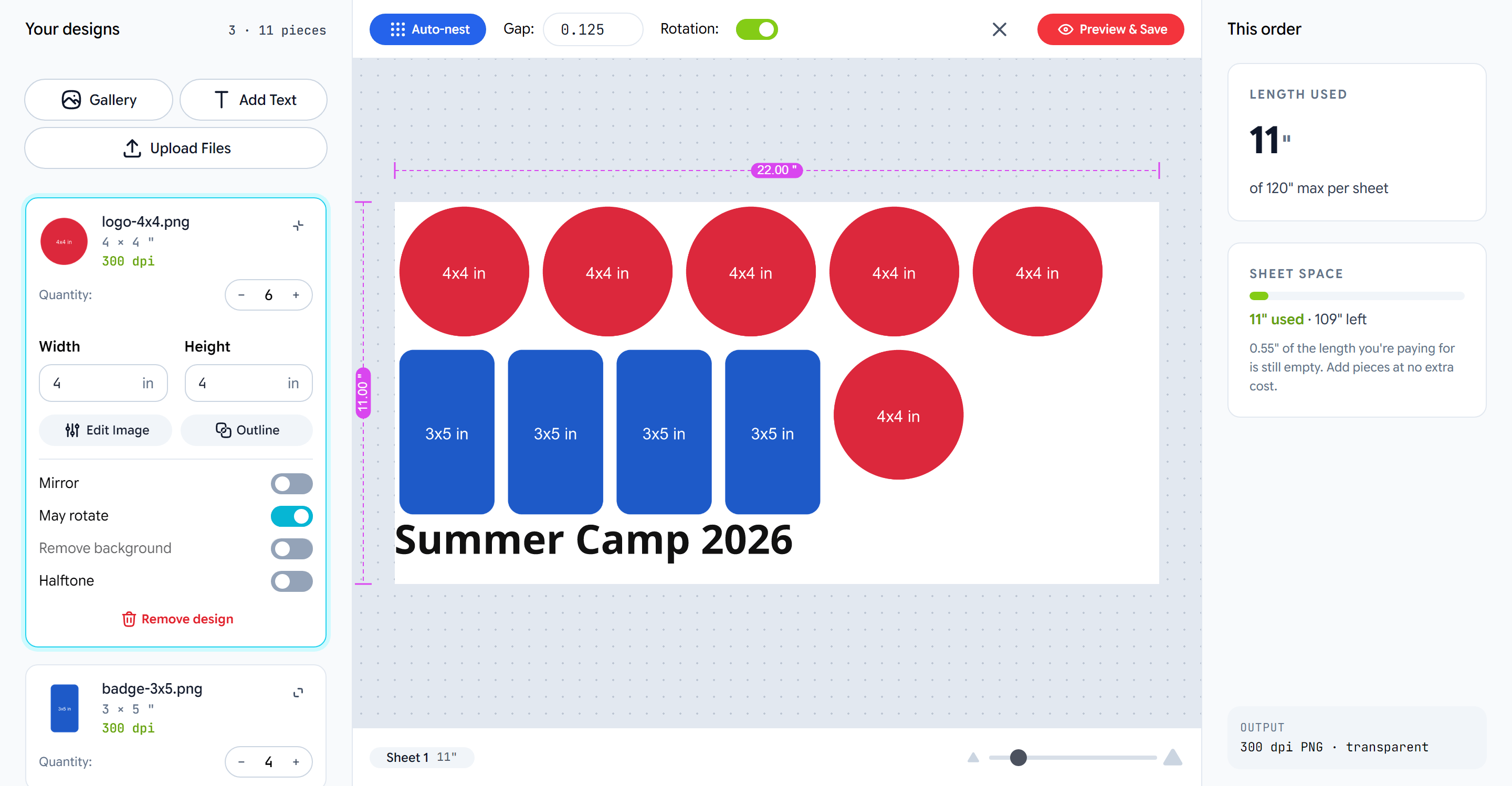
Adding designs
The list starts with your welcome message and three ways in:- Upload Files — one or many at once. Each file becomes a row with a thumbnail, its size at the shop’s resolution floor, and a resolution verdict.
- Add Text — types a text piece in your fonts. See Design tools.
- Gallery — picks a graphic from the folders you allow, or searches the Print.App graphics library. See Design tools.
Size, quantity and options
Opening a row shows its controls:The resolution check
Every raster design shows its resolution at the current size, in green when it passes and red when it does not. A design under the floor is also marked on the sheet and listed in the summary with the largest size that passes: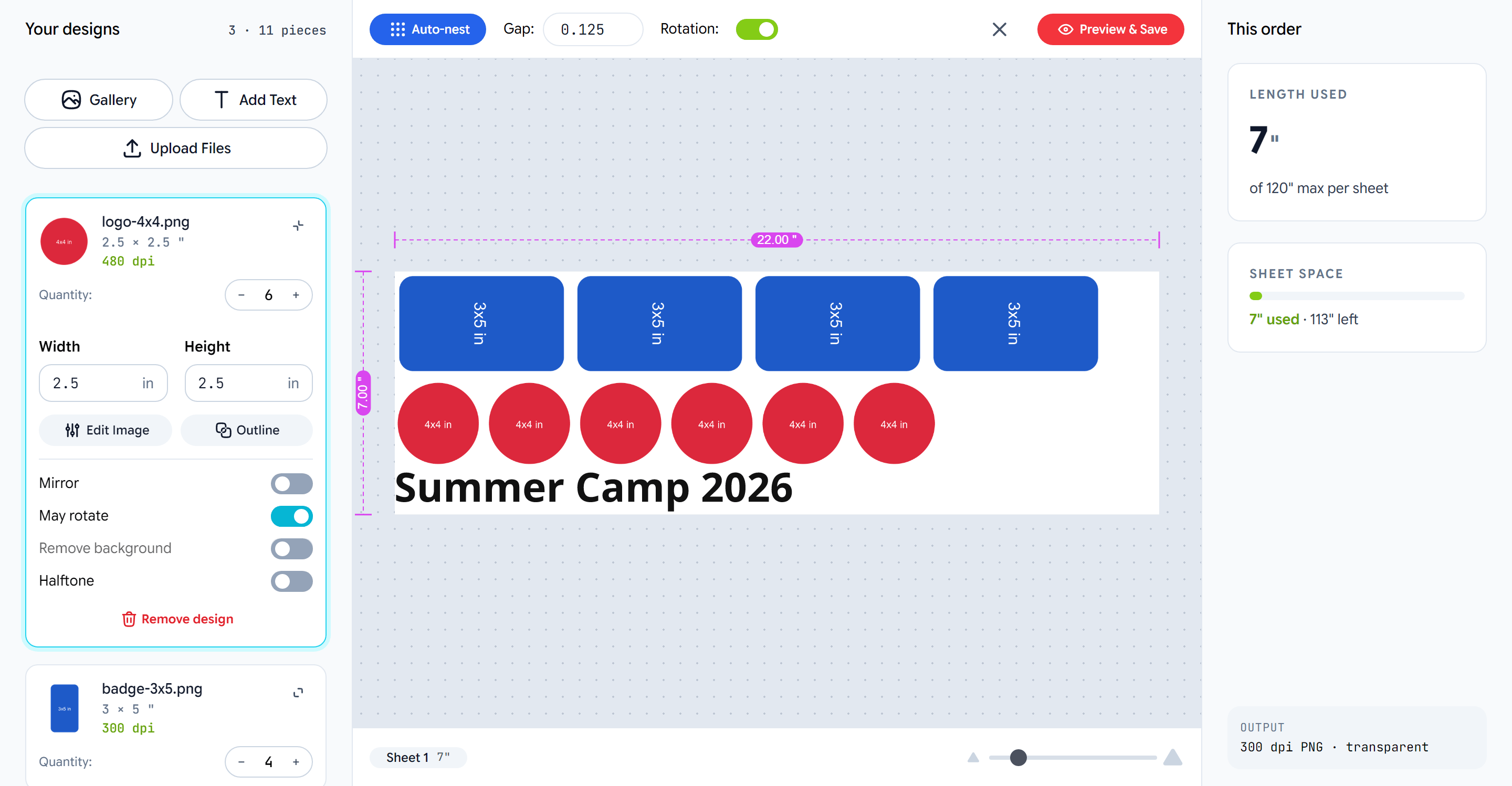
Auto-nesting
Every change to the list re-packs the sheet on its own after a moment. When the shop allows, the customer can change the gap and switch rotation off for the whole sheet. An order longer than one sheet continues on Sheet 2; the tabs at the bottom switch between sheets. If the shop allows it, pieces can also be selected, moved and resized on the sheet itself. A resize there changes the design’s size in the list and re-packs. A move stays where it was dropped, and a Re-pack button appears in the top bar to put the sheet back into its packed layout. The same button appears when a pack fails, as the retry. On a sticker sheet every design shows its border and a magenta cut line around it. A design’s size in the list is its artwork’s size; the sticker adds the border on every side. The sheet is view-only: sizes and copies are set in the list.The summary
- Length used — the billed length of the sheet against the maximum.
- Sheet length — shown when the shop lists sheet lengths or lets customers enter one. Auto fits the sheet to the designs; a listed or typed length makes the sheet at least that long. If the designs need more, the sheet grows and the summary says so.
- Sheet space — a bar of the film used, and how much of the length the customer is already paying for is still empty. Pieces added there cost nothing more. When a copy of one of the designs fits in that space, Fill with copies adds as many copies as fit without billing more film (pick the design when there are several).
- Price — the store’s live price, when the shop has connected it.
- Blockers — designs that stop checkout, with what to change.