Use AI to build print-ready design templates for your store. Describe what you sell, pick from up to 3 directions, and keep a real, editable template your customers personalize.
What is Template Studio?
Template Studio uses AI to build print-ready design templates for your store. You give it a brief, it drafts 1 to 3 different directions, and the one you keep gets a finishing pass and is saved into your Designs, ready to map to a product.
It designs templates, not pictures. A kept design is a normal Print.App template: your customers open it in the editor, change the wording and photos you left open to them, and you receive a print-ready file with the order.
01 Brief
Christmas party invite, 5x7 in, festive red and green
02
03 Template
LockedGuest nameDate & venue
3 customer fields
Artwork locked
Bleed & safe zone
QR code module
Tested font pairing
Saved to Designs
Editable
In your admin you'll find it under Designs: click Create New Design and choose Template Studio, or open it straight away.
What a Kept Design Includes
Customer fields and locks: Names, dates and wording from your brief become sample text your customers replace. The parts that should stay as designed are locked.
Bleed and safe zones: Set for the product and size, so nothing important is trimmed off.
Die-cut shapes and cut lines: For stickers, labels and other shaped products.
Folds and multi-page layouts: Folded cards, leaflets and products printed on more than one side.
A palette, fonts and artwork: Each direction has its own palette, one of twelve tested font pairings from the Print.App font catalogue, and artwork from the Print.App graphics library. If your brief names another font, Template Studio tells you which pairing it used instead.
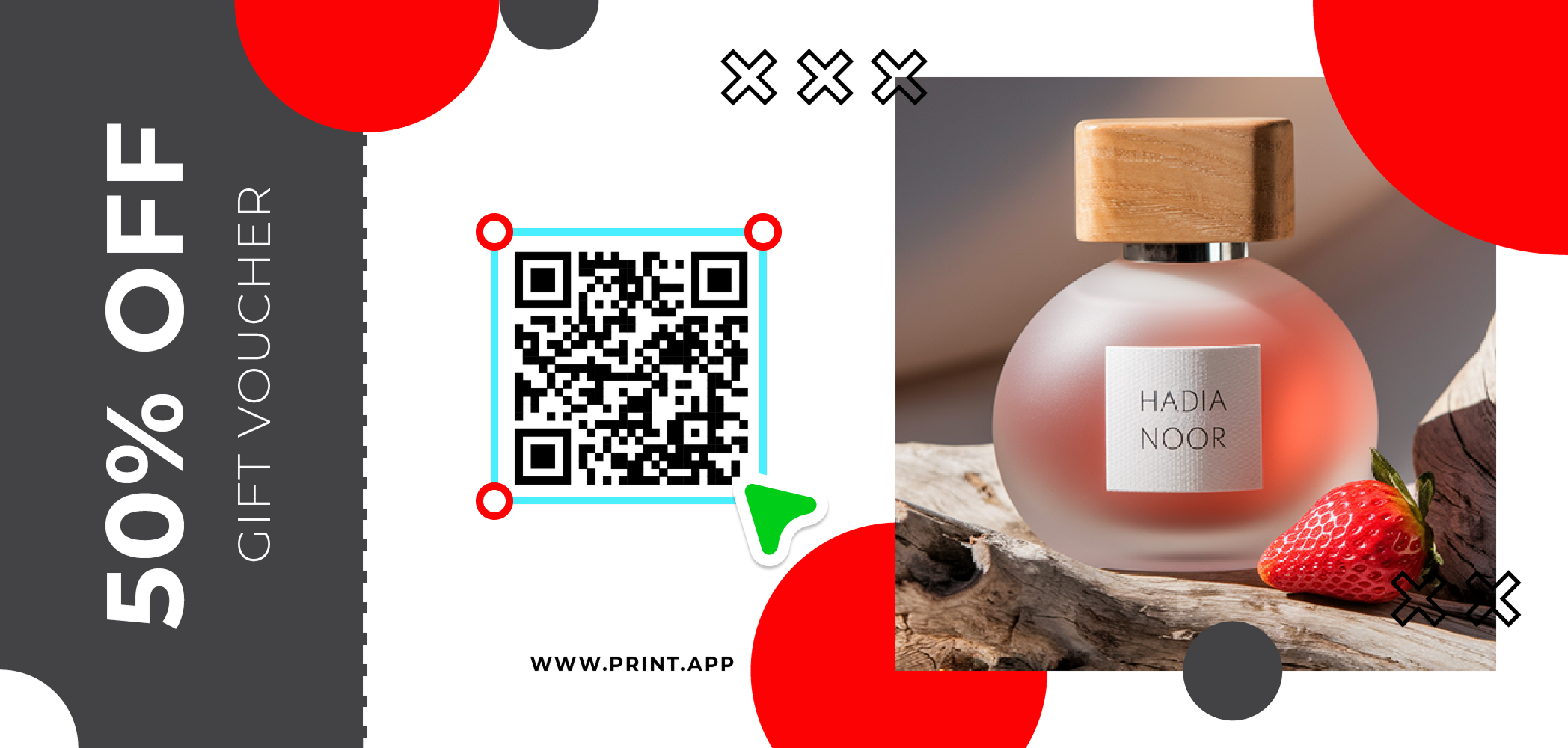
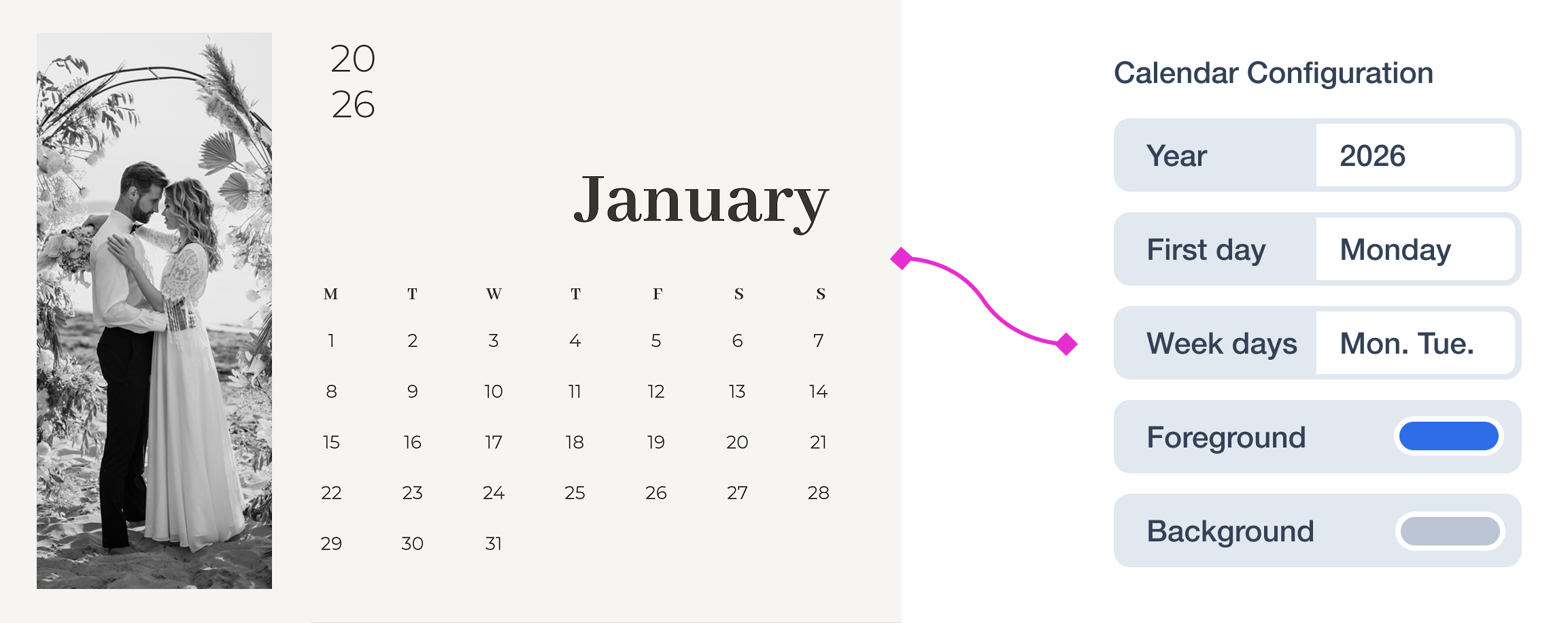
Print modules: QR codes, calendars, curved text, photo shuffle and numbering, set up as working modules your customers can use.
How to Use It
Open Template Studio in your admin (or open Designs, click Create New Design and choose Template Studio).
Write the brief in one of three ways, below.
Choose how many variations to draft: 1, 2 or 3. Each one takes a different direction.
Review the drafts. Keep the ones you like, try a direction again, or add a note for the finishing pass.
Open the kept design in the editor if you want to adjust it, then map it to a product.
Three Ways to Write the Brief
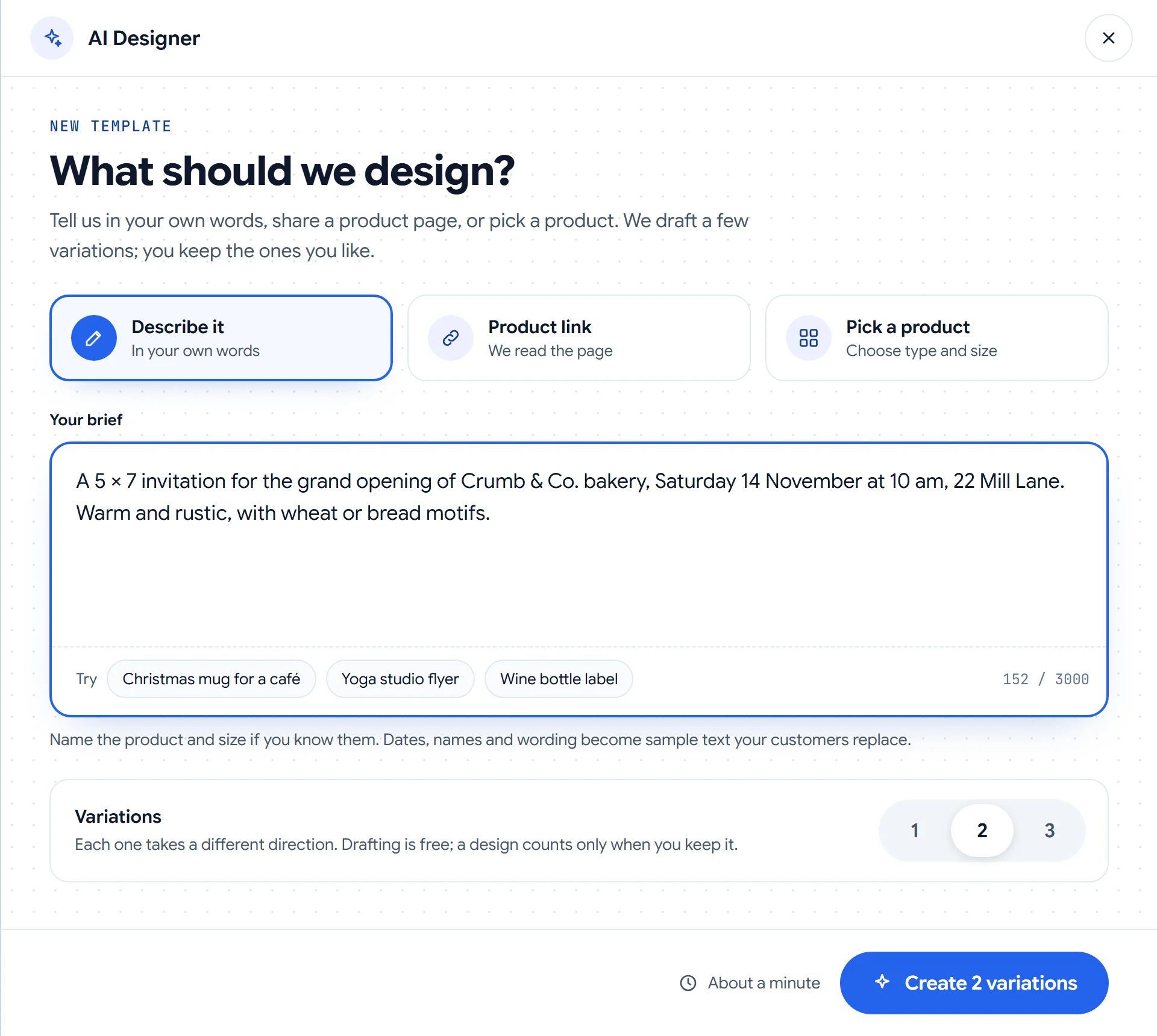
Describe it: Tell Template Studio in your own words. Name the product and size if you know them, plus the occasion, the wording and the look you want.
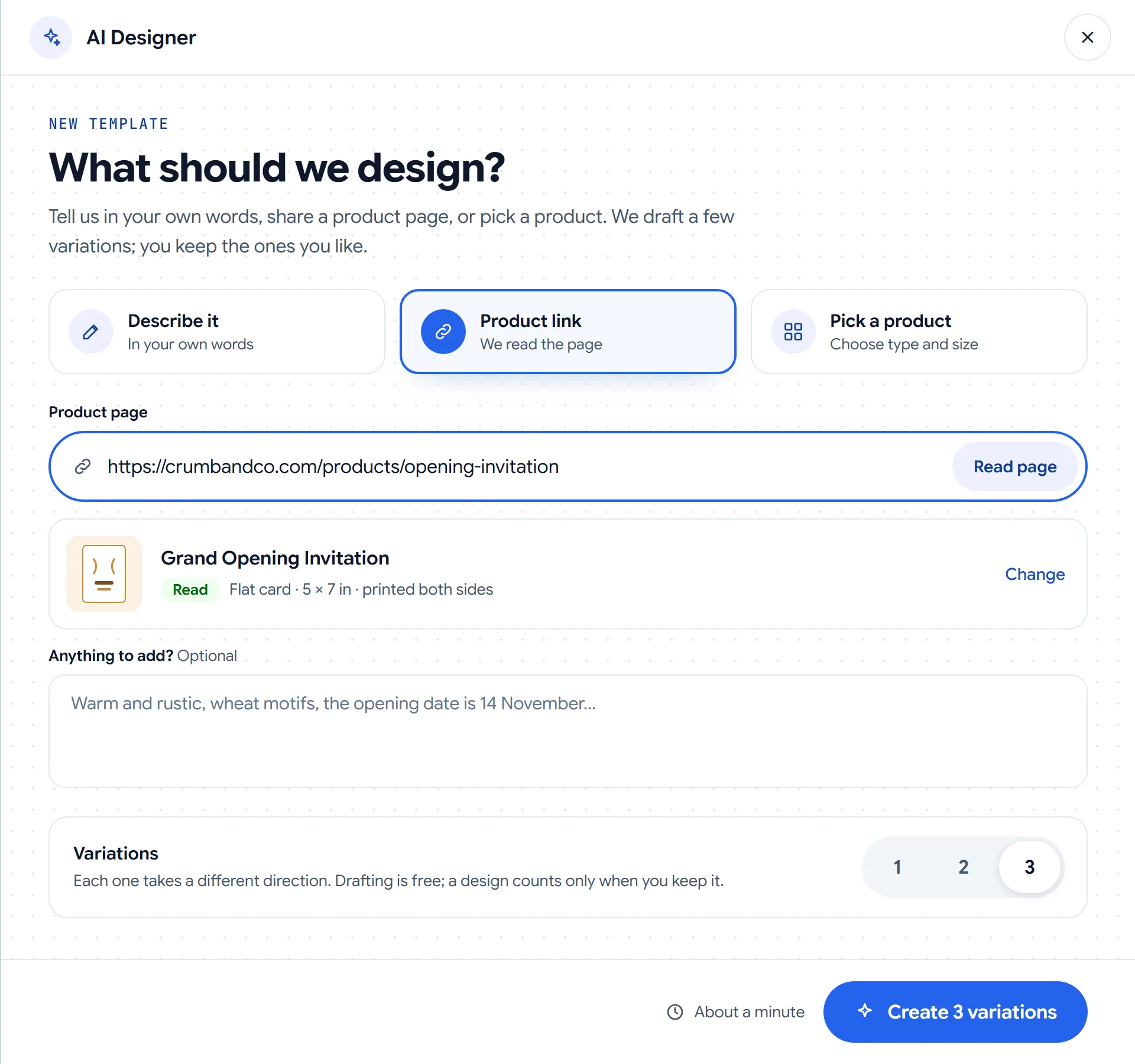
Product link: Paste the link to one of your product pages. Template Studio reads the product, its size and the sides it is printed on, and you can add anything else in a note.
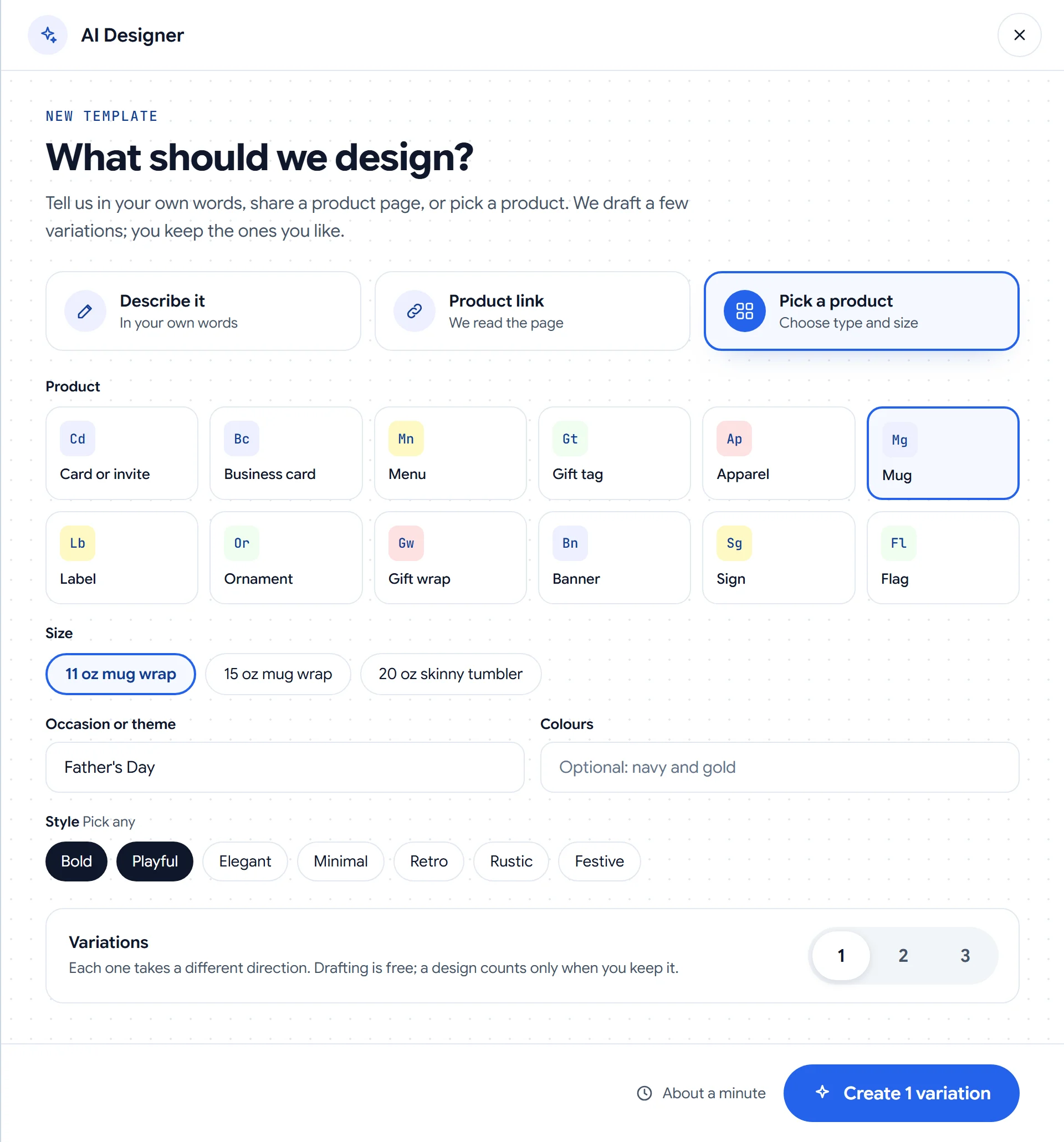
Pick a product: Choose the product and size, then add an occasion or theme, colors and one or more styles: bold, playful, elegant, minimal, retro, rustic or festive.
Drafts, Directions and the Finishing Pass
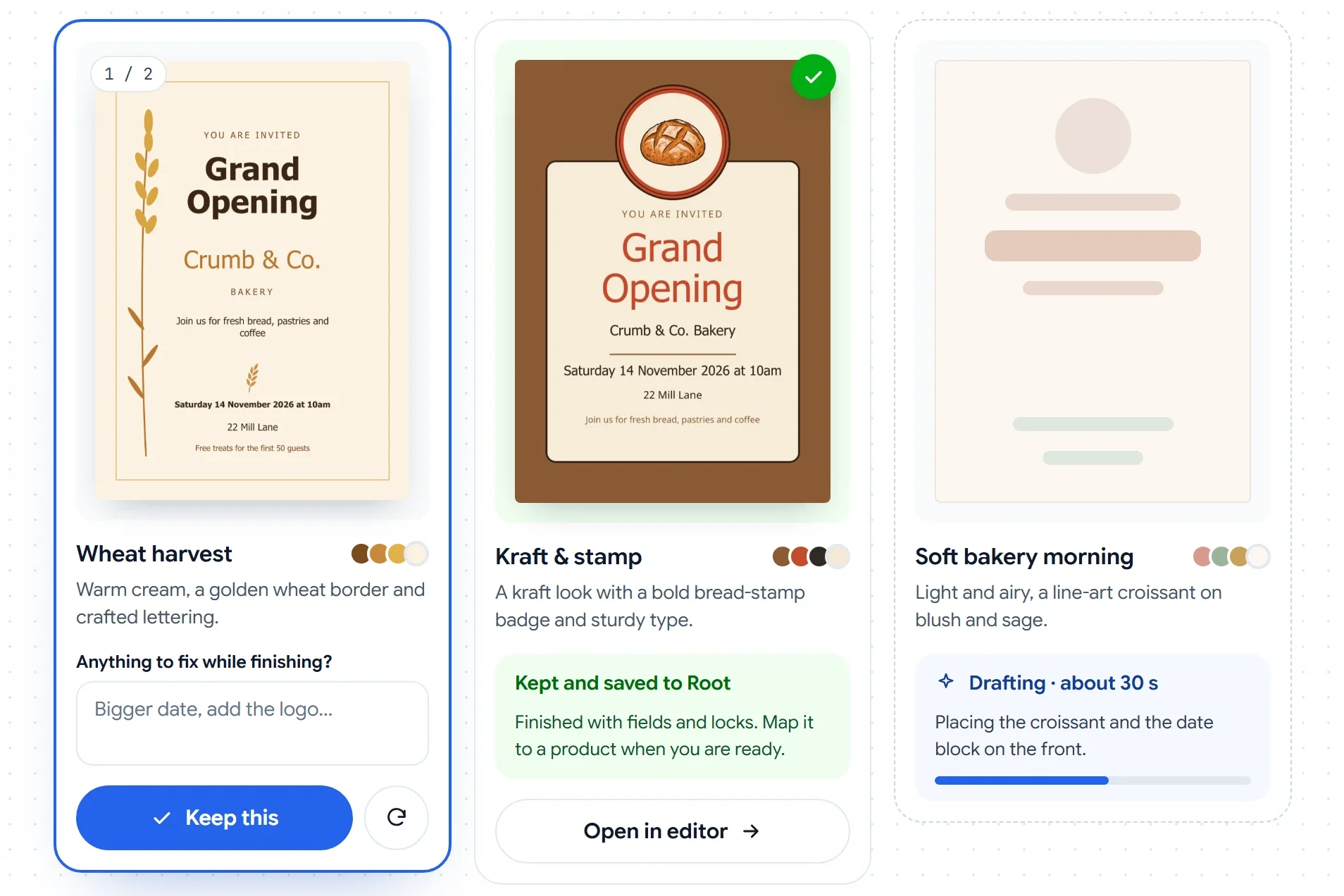
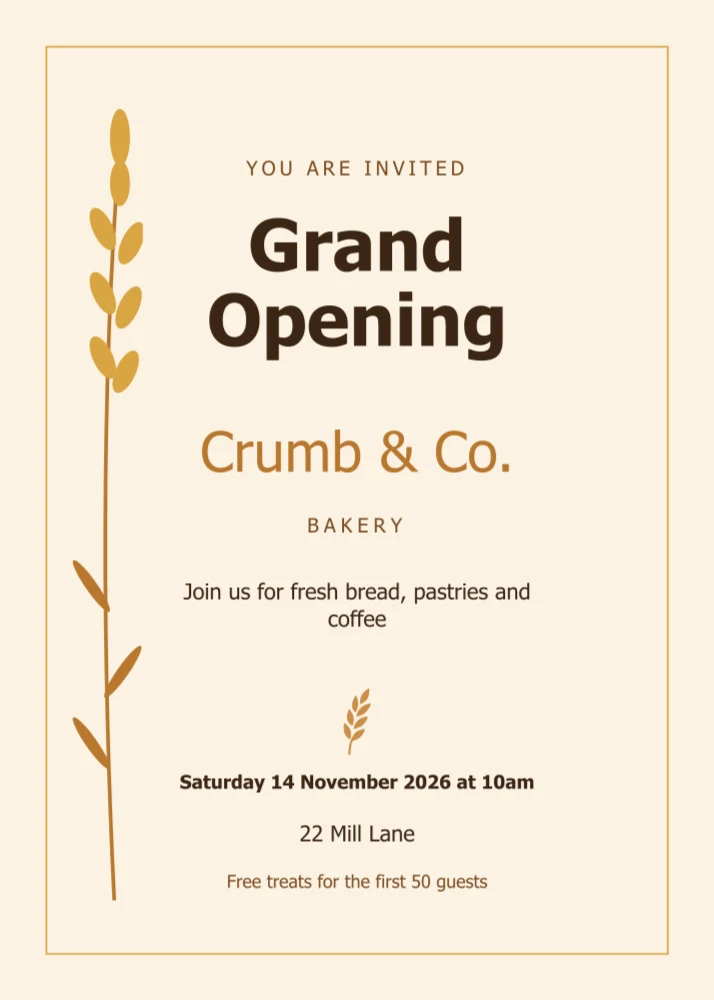
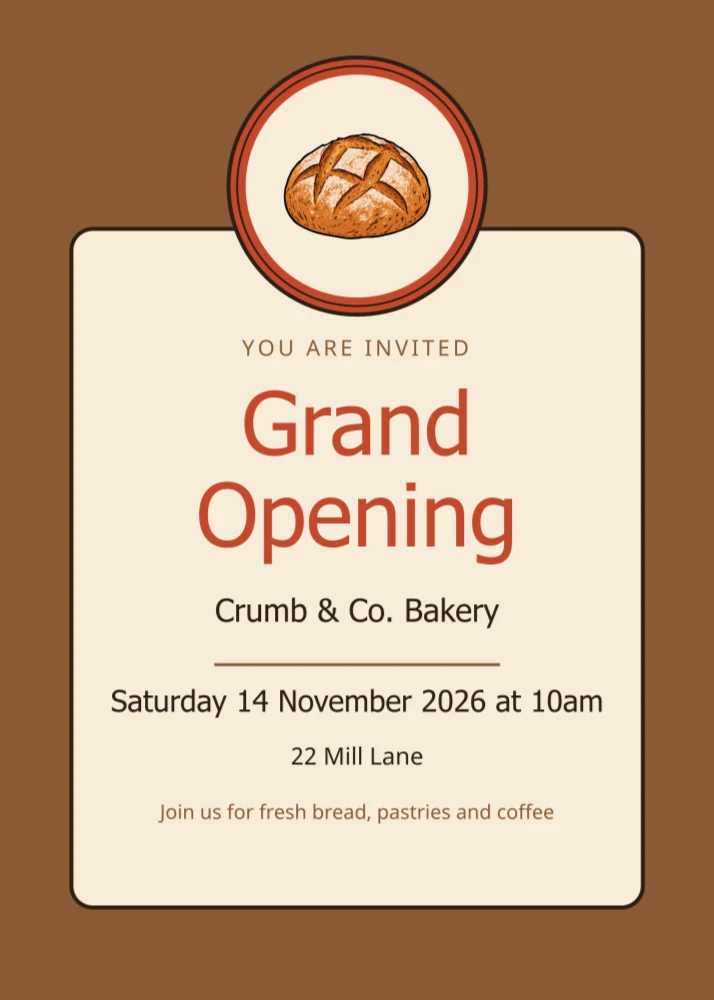
Each variation takes its own direction, with its own palette, layout and type. These are two directions from the same bakery brief:
Wheat harvestKraft & stamp
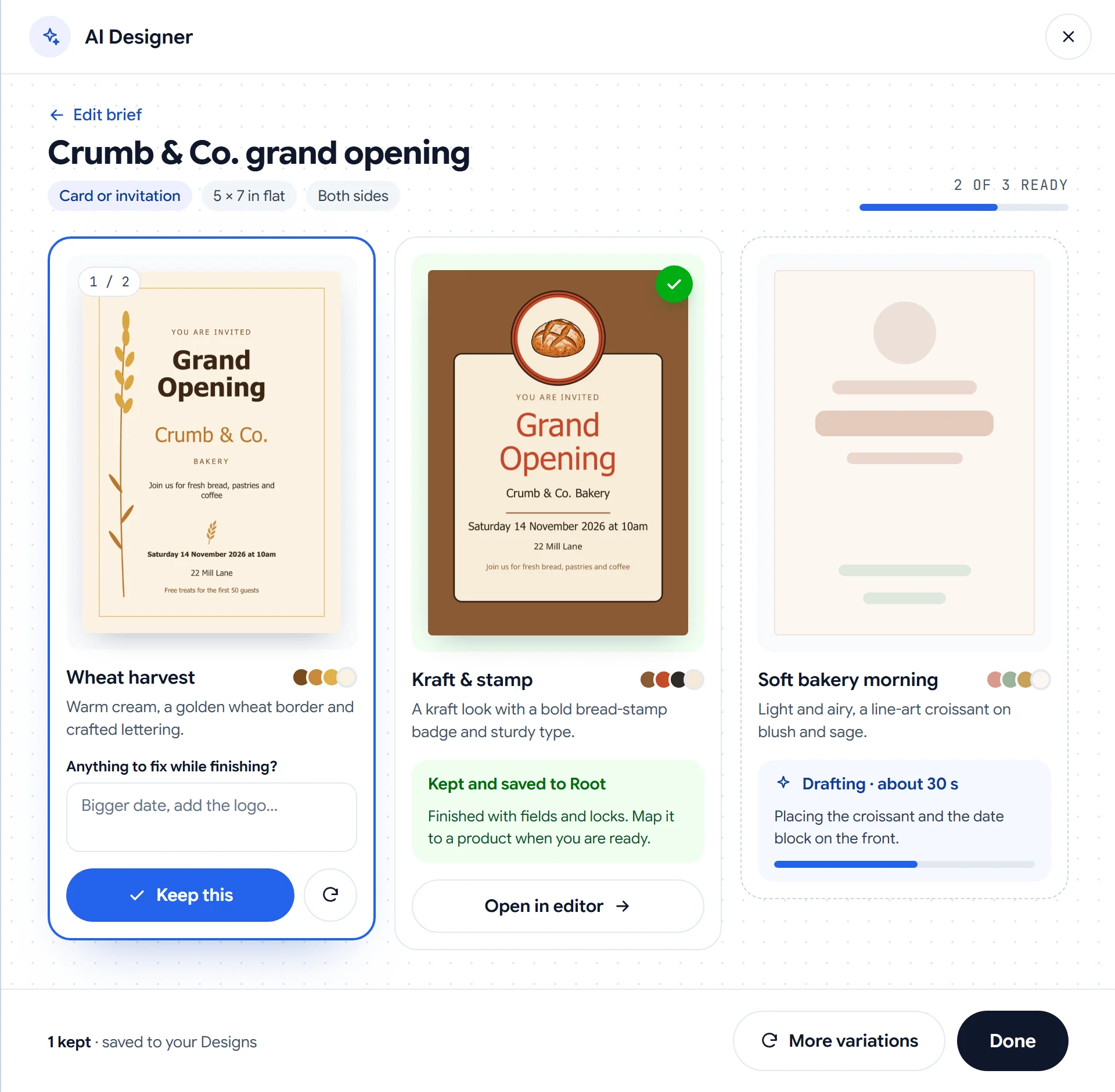
When a draft is ready, you can:
Keep it: Template Studio gives the draft a finishing pass, sets up its fields and locks, and saves it to your Designs.
Fix it while finishing: Add a short note before you keep a draft, such as "make the date bigger", and the finishing pass takes care of it.
Try again: Redraft a direction you don't like, or ask for more variations from the same brief.
Three directions from one brief: ready, kept and still drafting.
Each kept design includes 3 changes, so you can still ask for adjustments after it is saved.
Pricing
Template Studio is optional. Designs you build yourself in the editor stay free and unlimited.
Drafts are free to try. You are only billed for a design you keep.
Your first 5 kept designs are free, once per store.
After that, each kept design is $0.25 with 3 changes included, billed on your normal Print.App invoice or as a Shopify usage charge. There is no subscription.