

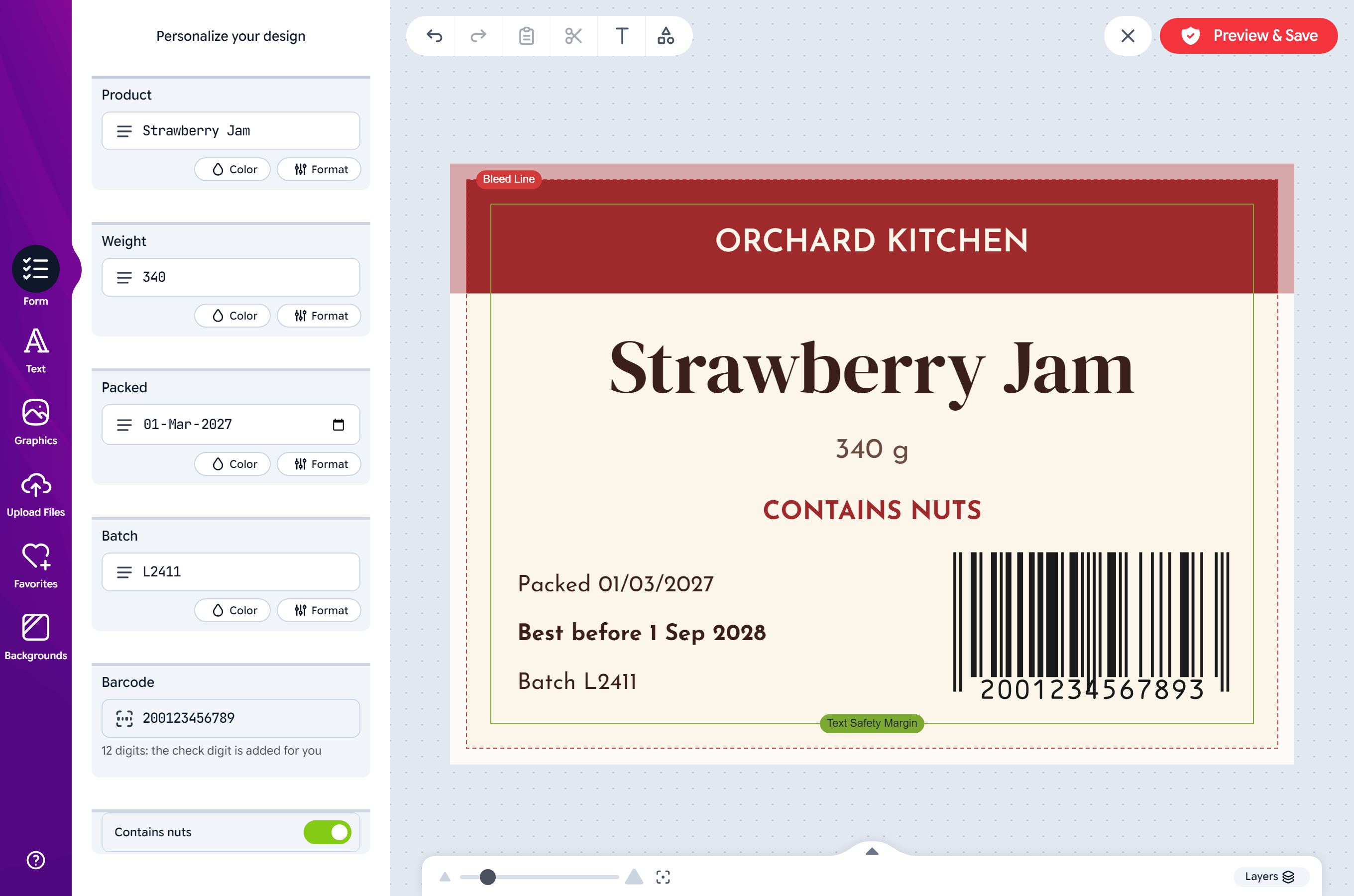
What your customer gets: a short form, and a label that fills itself in.
- it works out the best-before date, 18 months after packing;
- it adds the barcode’s check digit, and says so if a number is wrong;
- it shows the nuts warning only when the box is ticked;
- it drops the batch line when the batch is left empty.
1
Start the label
Create a design 100 × 70 mm, with 2 mm bleed and a 3 mm safe margin (see Create a design). Add the background and the brand name as you normally would. Anything you don’t connect to data stays exactly as you designed it.
2
Product name and weight
- Add a text and type
{Product name}. Add another and type{Net weight} g. - Select each text, then go to Object → Data → Content and choose Customer fills it in. A word in curly brackets becomes a field. The rest of the text, like the “g”, stays as you typed it.
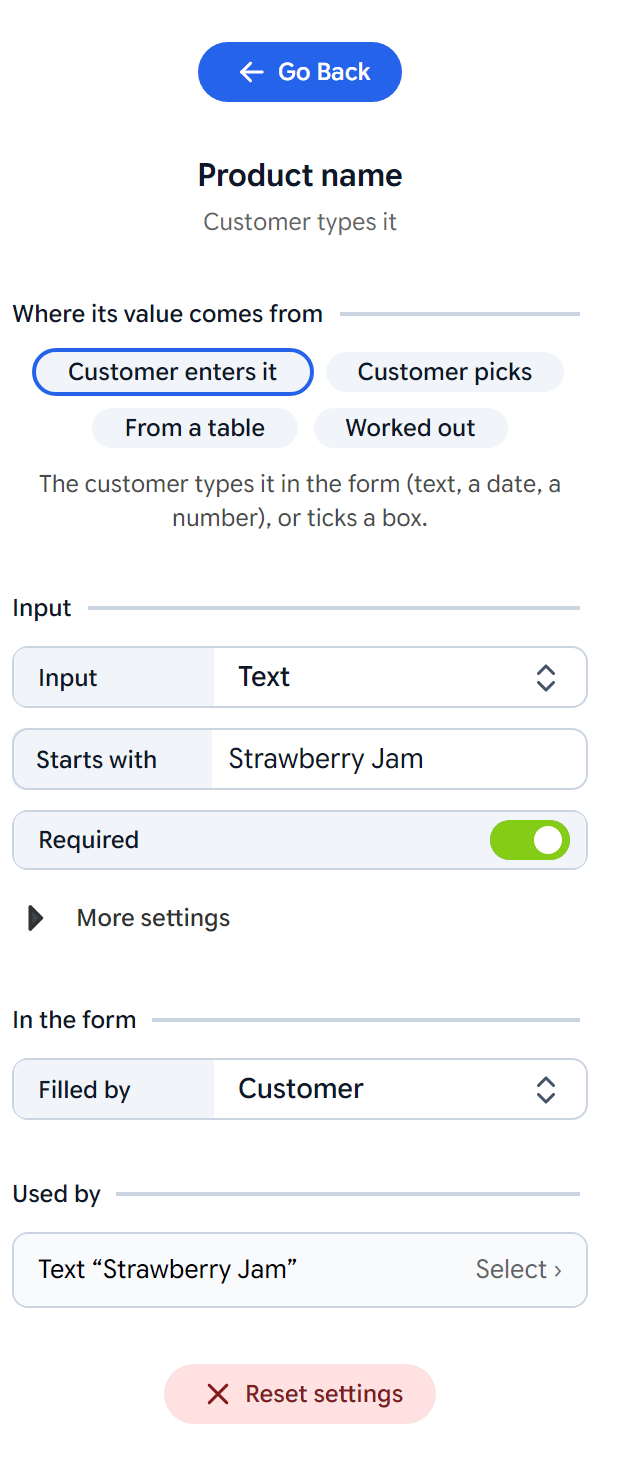
- Go to Design → Data Sources and click Product name. Set Starts with to Strawberry Jam, and switch on Required.
- Click Net weight. Set Input to Number and Starts with to 340.
3
The packing date
- Add a text,
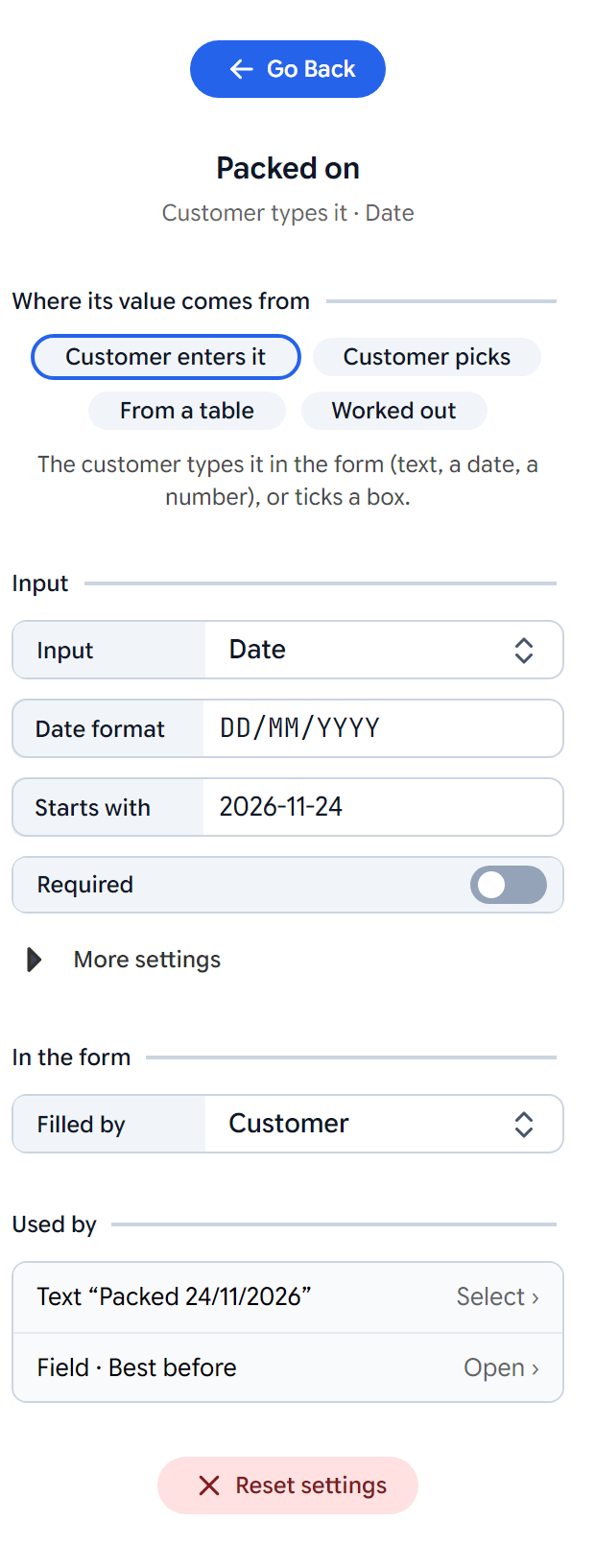
Packed {Packed on}, and make it Customer fills it in as before. - In Data Sources, click Packed on. Set Input to Date and Date format to
DD/MM/YYYY.
4
The best-before date, worked out
-
Add a text,
Best before {Best before}, and make it Customer fills it in. -
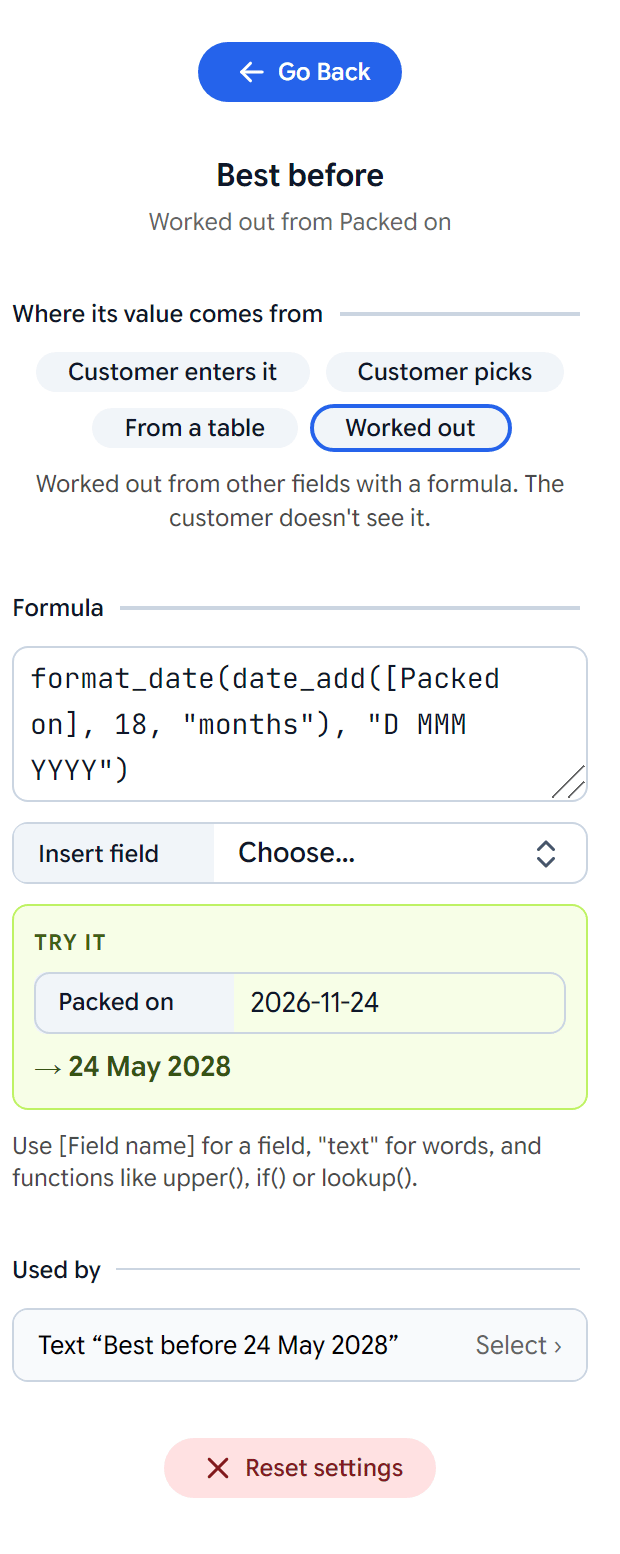
In Data Sources, click Best before and choose Worked out. Type this formula:
date_addadds 18 months to the packing date, andformat_datewrites the result as 24 May 2028. Insert field puts[Packed on]in for you. - Try it shows the result for a sample date.
5
The barcode
- Click the QR code button in the top bar (Add a QR code or barcode), then choose the barcode.
-
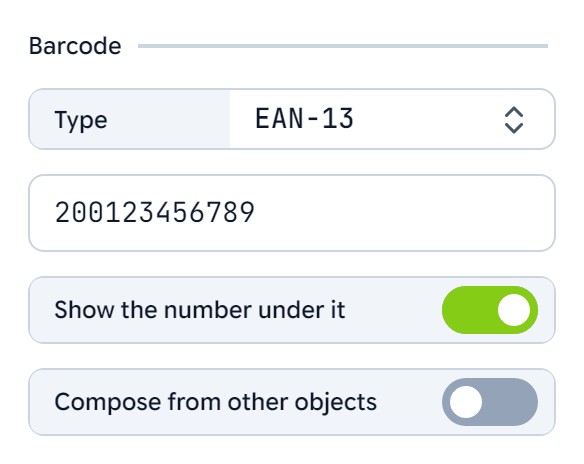
In Object → Barcode, keep Type at EAN-13 and type a sample number. Type 12 digits: the 13th, the check digit, is worked out for you.
-
Still on the Object tab:
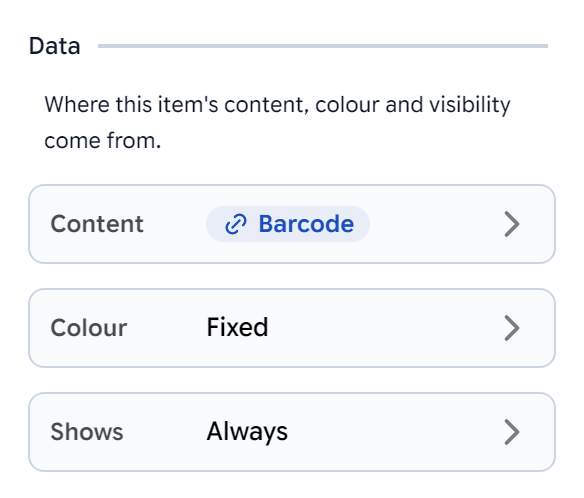
- type Barcode in the name box at the top; it becomes the label in the customer’s form;
- under Hint, type 12 digits: the check digit is added for you;
- in Data, click Content and choose Customer fills it in.
6
A warning that shows only when it's ticked
-
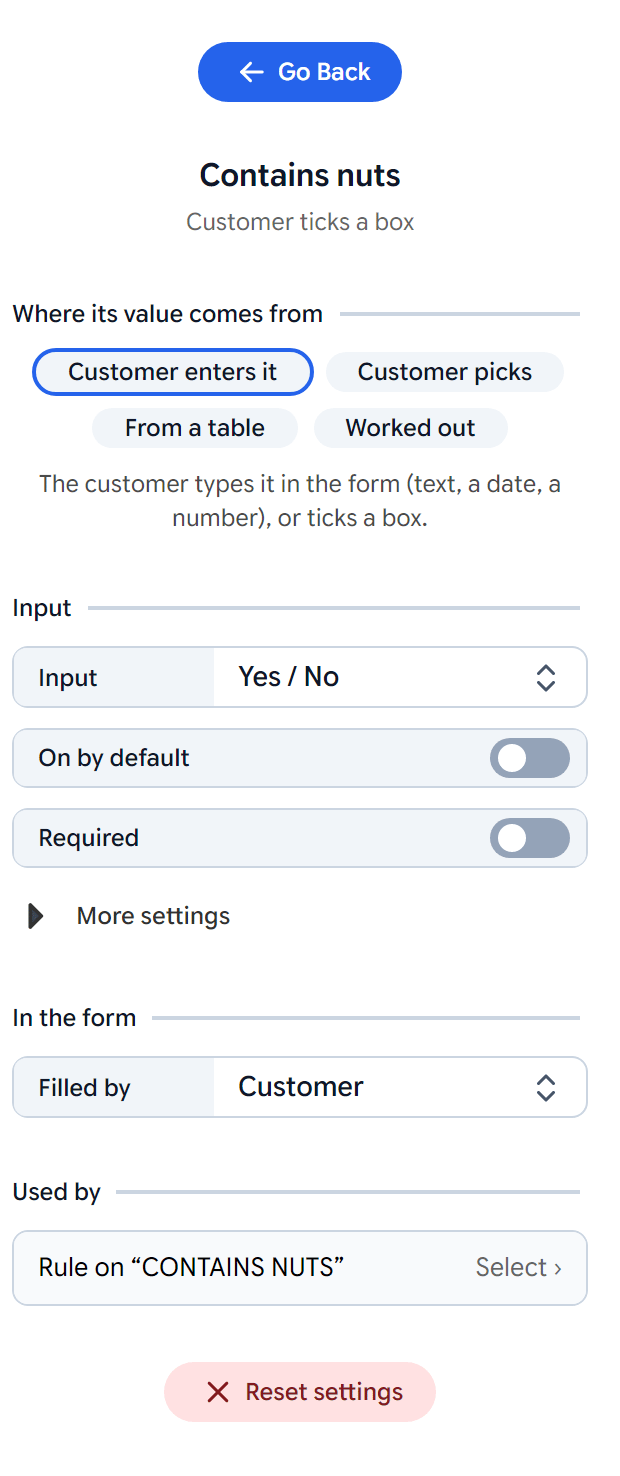
In Data Sources, click Add a field and name it Contains nuts. Choose Customer enters it and set Input to Yes / No.
-
Add a text,
CONTAINS NUTS. Select it, then go to Object → Data → Shows and choose Only when…. Set Field to Contains nuts and Condition to is ticked.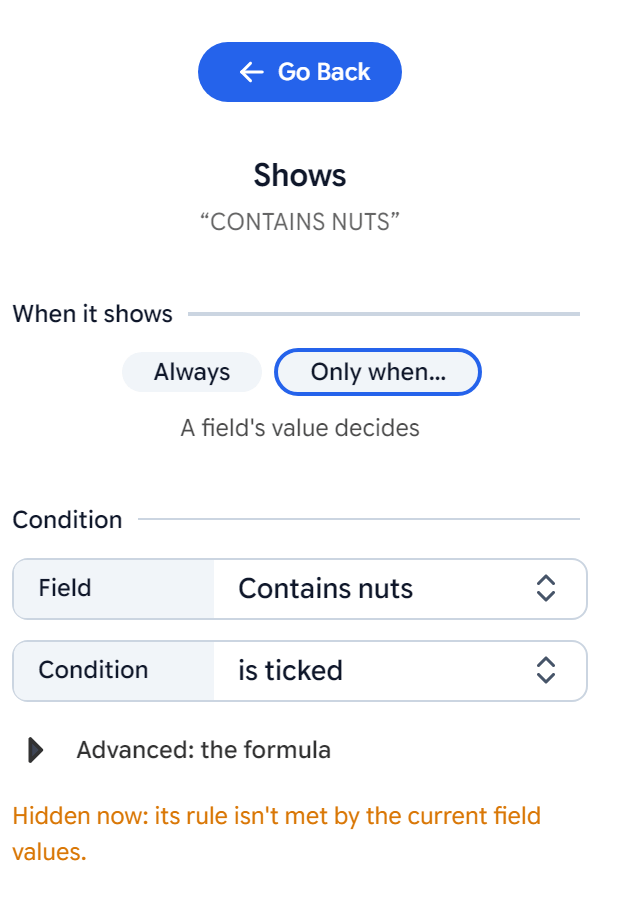
7
A batch line that disappears when it's empty
Add a text, 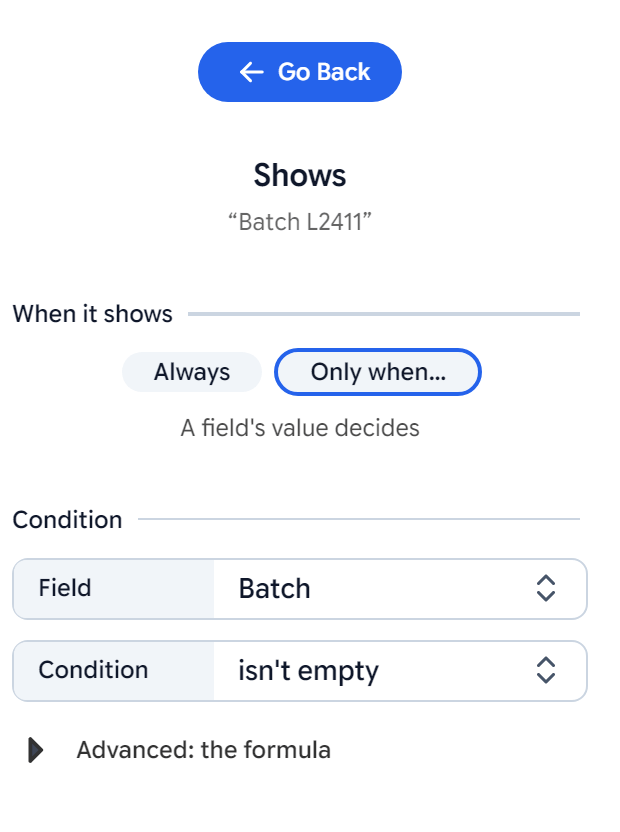
Batch {Batch}, and make it Customer fills it in. Then go to Shows → Only when… and set Field to Batch and Condition to isn’t empty.8
Check it as a customer
Design → Data Sources now lists 7 fields and 2 rules.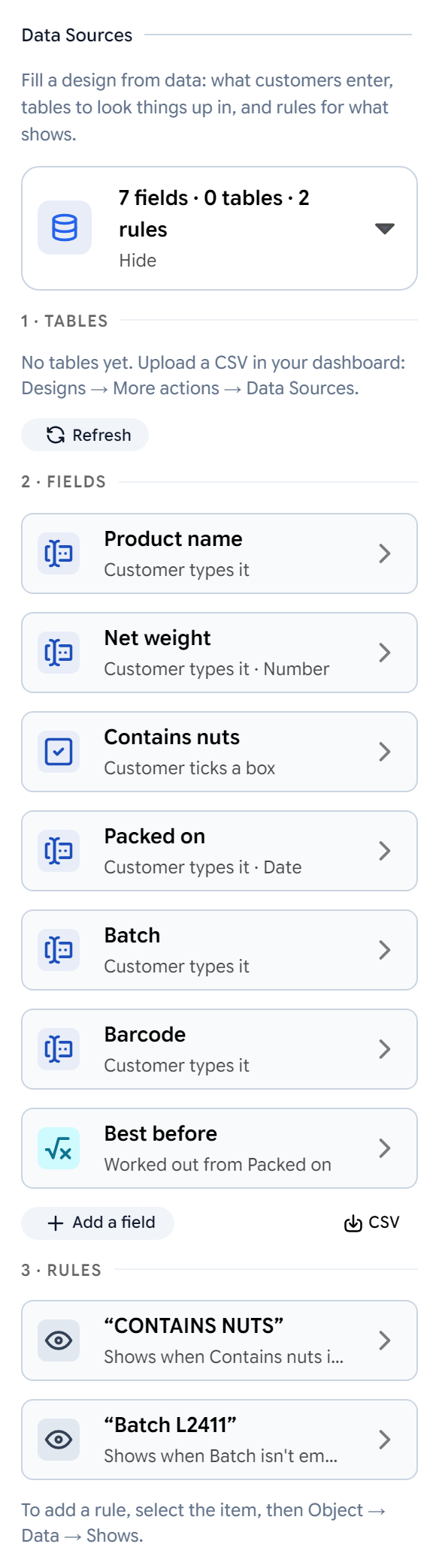
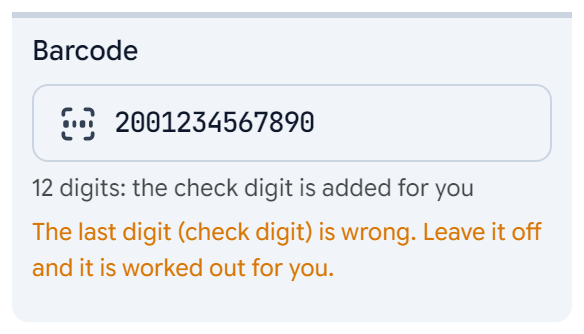
- change the packing date: the best-before date follows;
- tick Contains nuts: the warning appears;
- type a barcode number with a wrong last digit:
Why it works
Every word in curly brackets is a field: a named value the customer fills in once, used wherever the design needs it. A worked-out field is a formula over other fields, so the best-before date can never disagree with the packing date. A show rule is a condition on a field, so the warning is on the label exactly when it should be.Take it further
- One label per flavour: keep your flavours, weights and barcodes in a table, and look them up from a single Flavour choice. See Data Sources and fields.
- Long product names: turn on Shrink to Fit for the name. See Long values.
- More formulas: see the full list.