

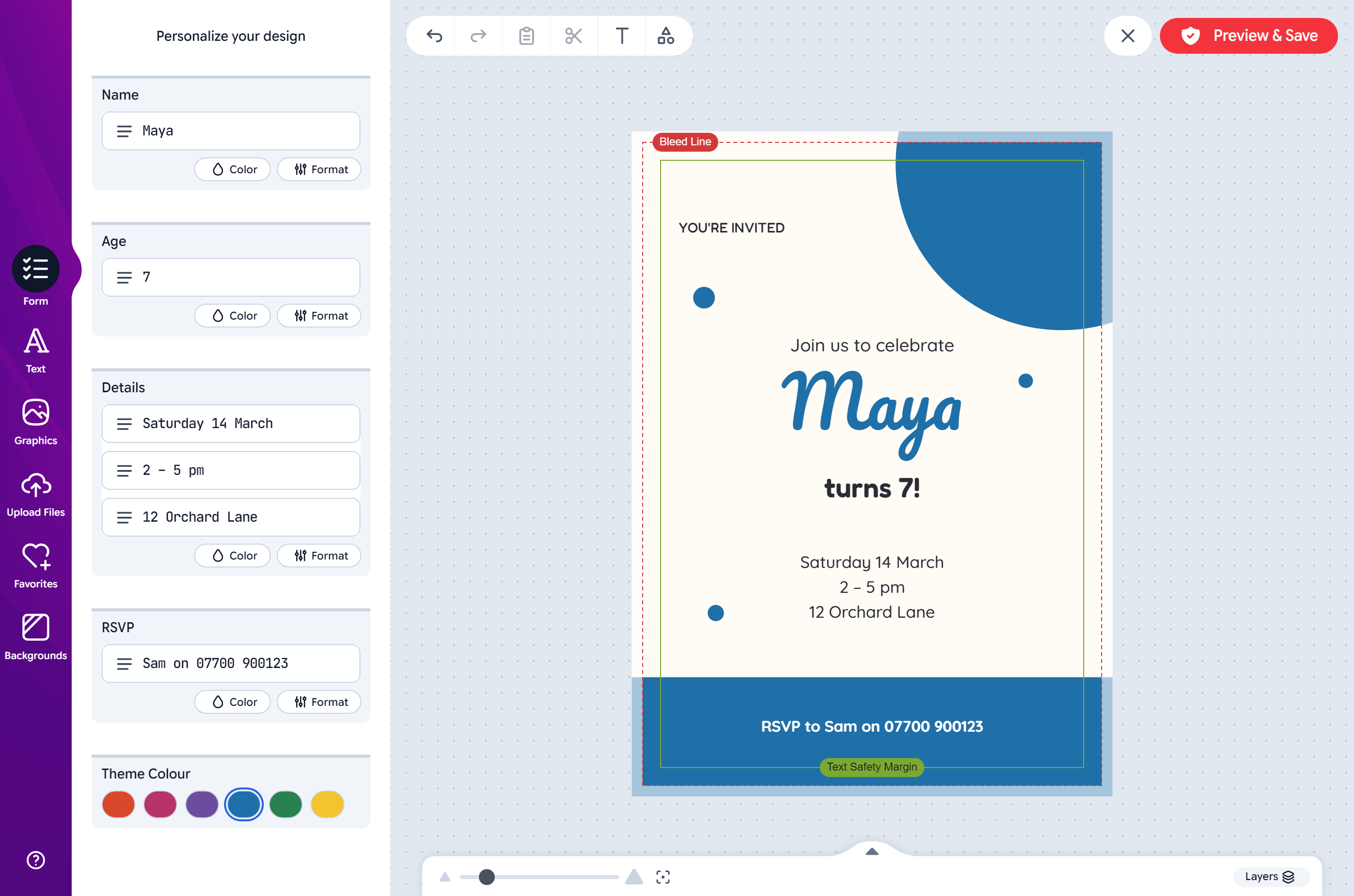
The customer clicks a swatch, and every coloured part of the invitation follows: here, Ocean.
- the big circle and the dots;
- the child’s name;
- the RSVP band.
1
Make the colours customers can pick
- In your dashboard, go to Colors and click New Collection. Call it Party colours.
- Click Add New Color for each colour, and type its name in Colour name: Coral, Berry, Grape, Ocean, Leaf, Sunshine. Customers see the name when they point at a swatch.
2
Write the invitation
- Create a design 5 × 7 in (127 × 178 mm) with 3 mm bleed.
- Add the texts, with a token for each detail the customer fills in:
{Name},turns {Age}!,{Date},{Time},{Place}andRSVP to {RSVP}. - Add the shapes: a large circle off the top-right corner, three small dots, and a band along the bottom behind the RSVP line. Make the RSVP text white.
3
Create the colour field
A colour field starts from the first item it paints.
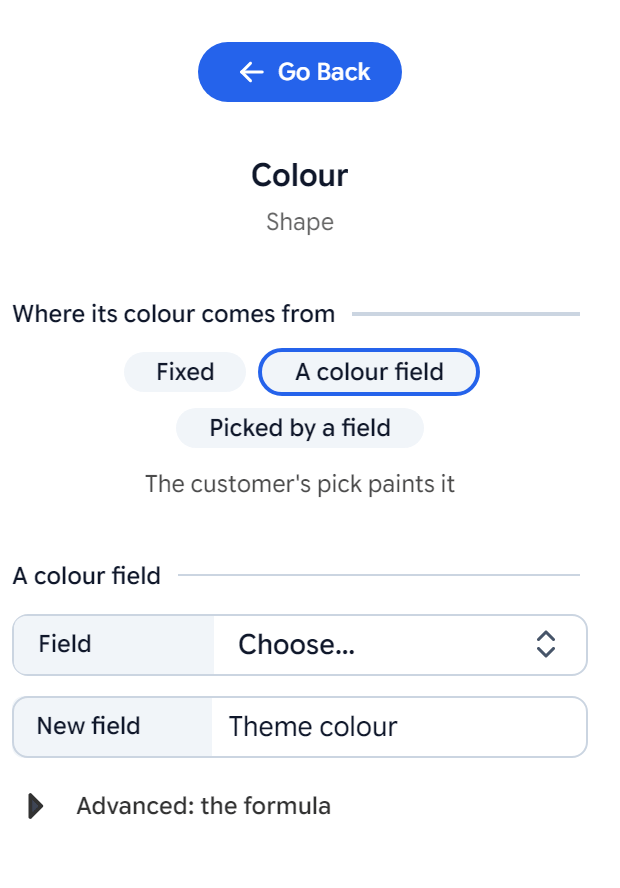
- Select the band, then go to Object → Data → Colour and choose A colour field.
-
In New field, type Theme colour and press Enter.
4
Choose the colours it offers
Go to Design → Data Sources and click Theme colour. Set Palette to Party colours. Every colour in the collection becomes a swatch.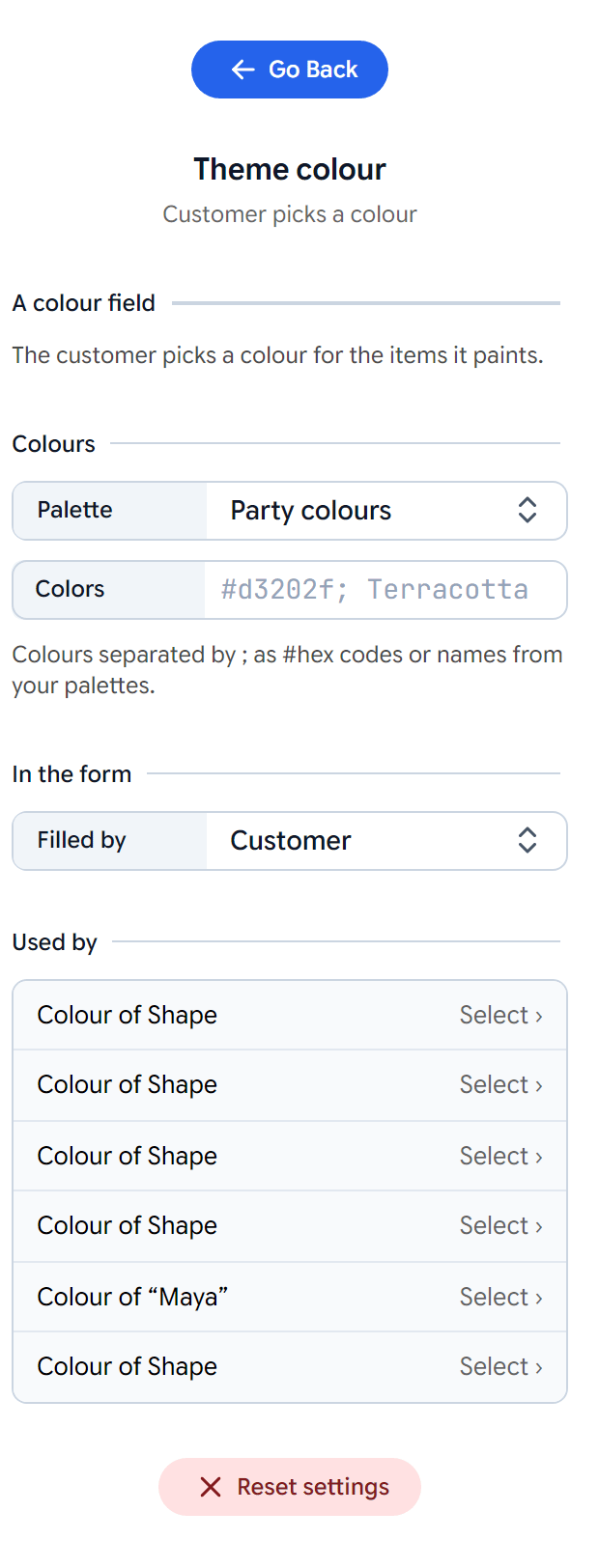
;: Coral; Ocean; Leaf. A #hex code works there too.Used by lists every item the field paints. Select › jumps to one.5
Paint the rest
-
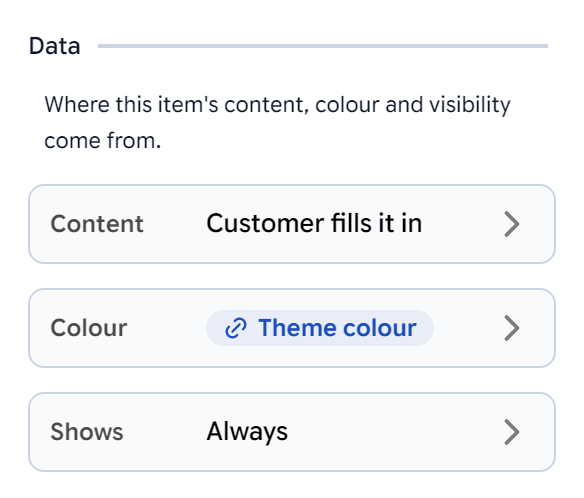
Select the big circle, go to Object → Data → Colour, choose A colour field, and set Field to Theme colour.
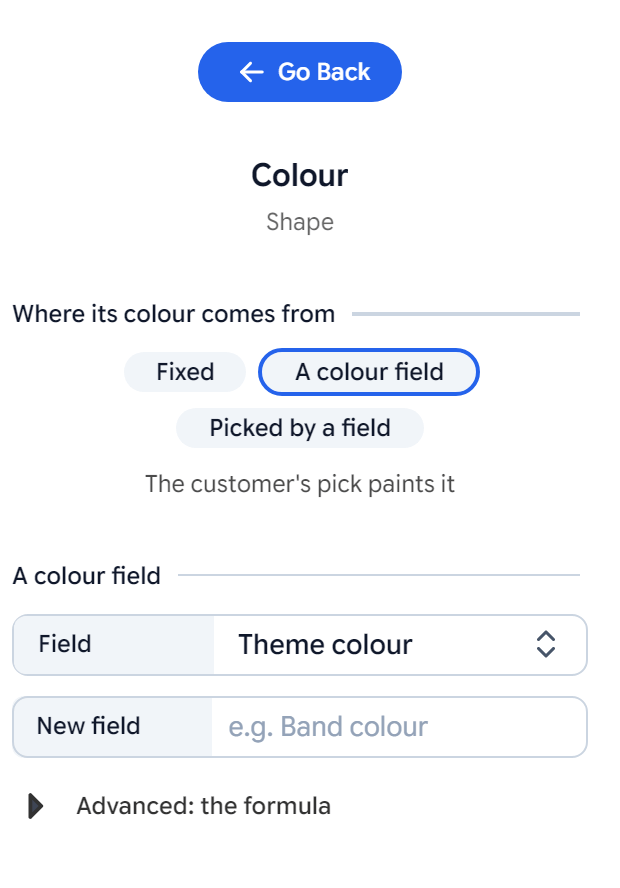
- Do the same for the three dots and the name.
6
Check it as a customer
Save, then open the design as a customer and click the swatches under Theme Colour. The circle, the dots, the name and the band change together.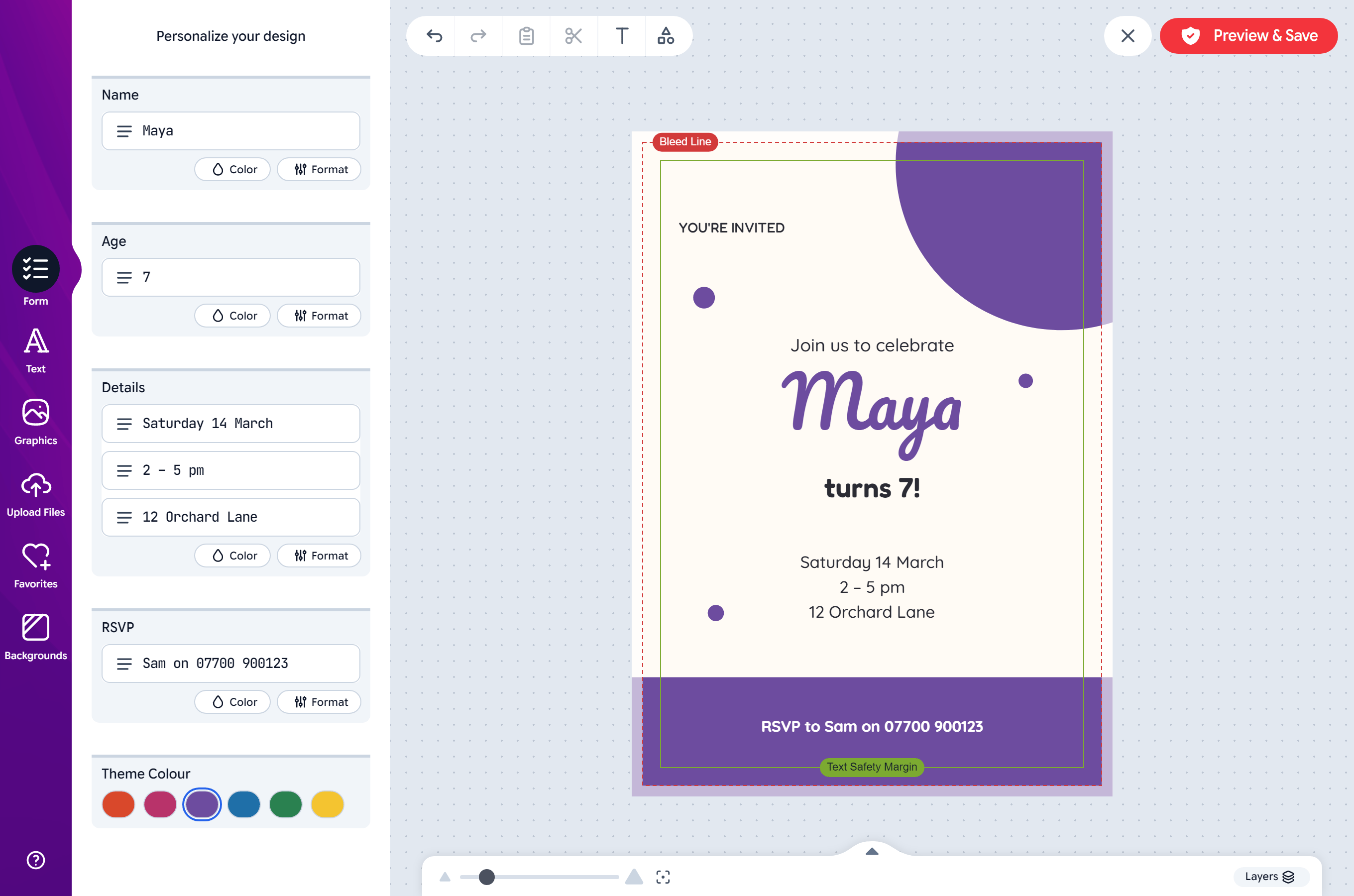
Why it works
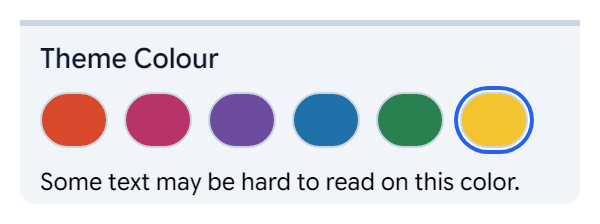
A colour field holds one colour, and any number of items can take their colour from it. When the customer clicks a swatch, every item that uses the field is repainted with it. The swatches come from the collection, so a colour you add to Party colours in your dashboard becomes a swatch in every design whose field uses it. Each swatch carries its CMYK too, so the print file gets your press colour. The warning compares each text with what’s behind it. It shows when a pick leaves text and its background too close to read.Take it further
- A theme by name: let the customer pick Summer or Winter from a list, and paint items with the colour named like the choice. That’s Picked by a field, as in the flavour range tutorial.
- Two colours: make a second colour field, Accent colour, for the dots, with its own collection.
- Fields and tables: Data Sources and fields explains every option.