

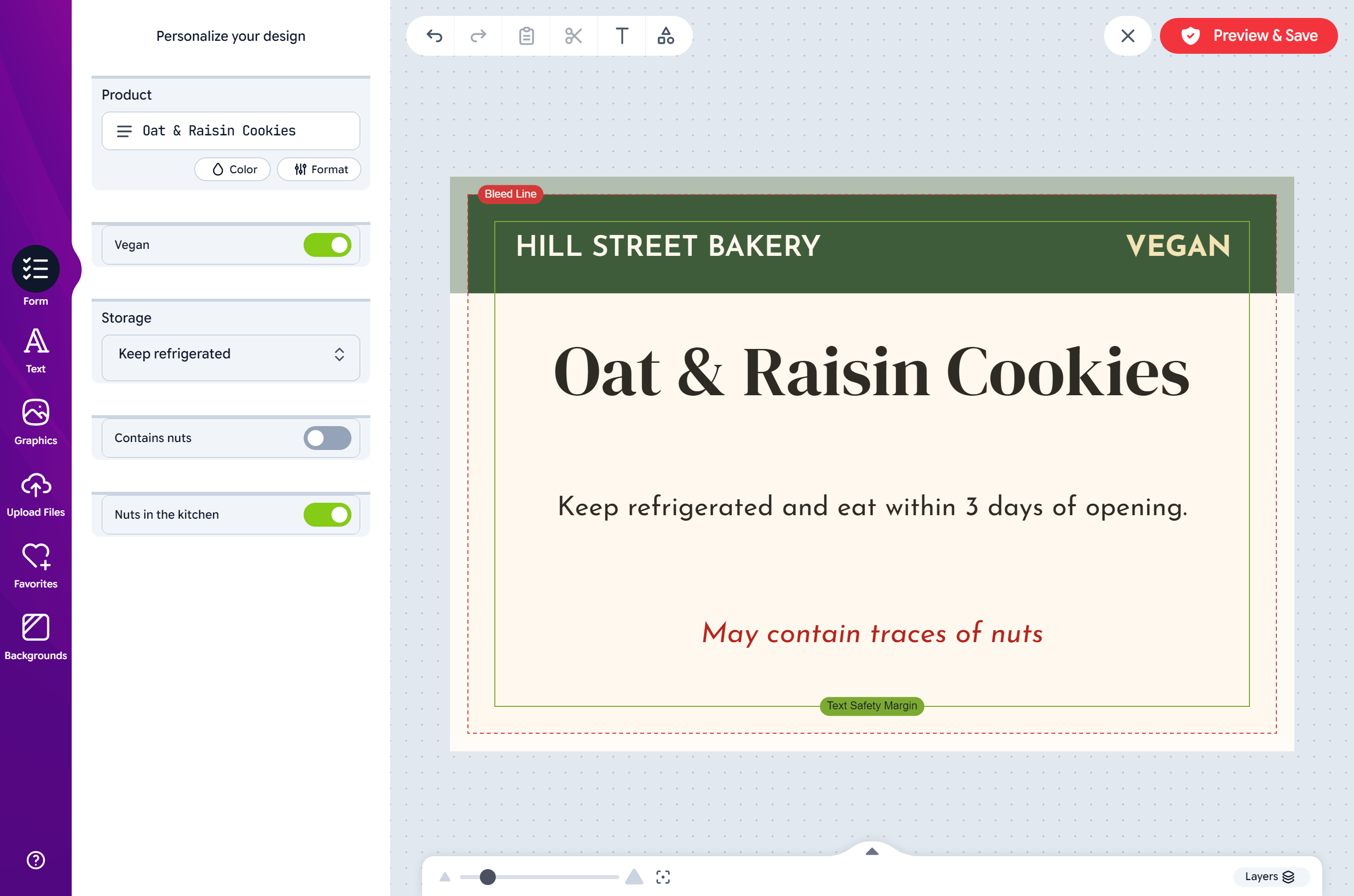
One label for every product: the customer answers four questions, and only the lines that apply are printed.
- VEGAN in the top corner, when they tick it;
- the storage advice for how the product is kept: one of three lines;
- “CONTAINS NUTS” when it does. If it doesn’t but the kitchen uses nuts, it shows “May contain traces of nuts”; otherwise neither.
1
Start the label
Create a design 90 × 60 mm, with 2 mm bleed and a 3 mm safe margin. Add the background, the brand name and a text
{Product name} set to Customer fills it in, as in the food label tutorial.2
A badge that shows when it's ticked
-
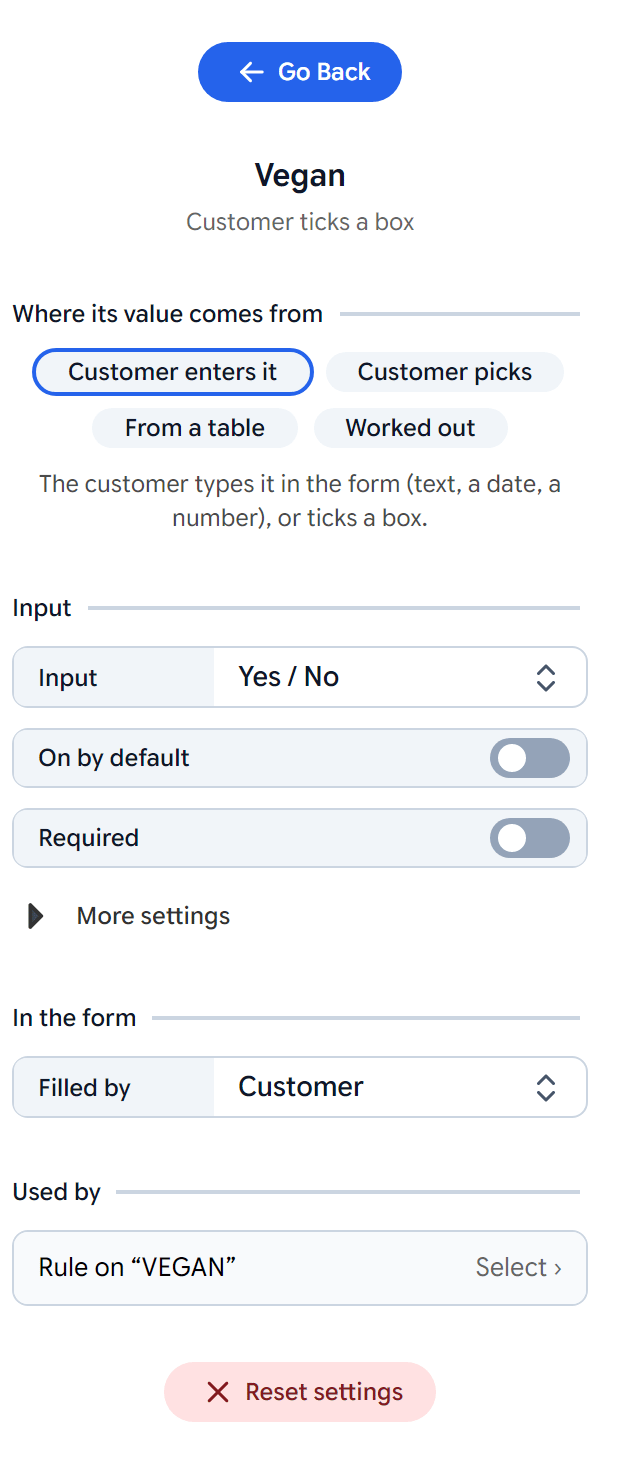
Go to Design → Data Sources and click Add a field. Name it Vegan, choose Customer enters it and set Input to Yes / No.
-
Add a text,
VEGAN. Select it, then go to Object → Data → Shows and choose Only when…. Set Field to Vegan and Condition to is ticked.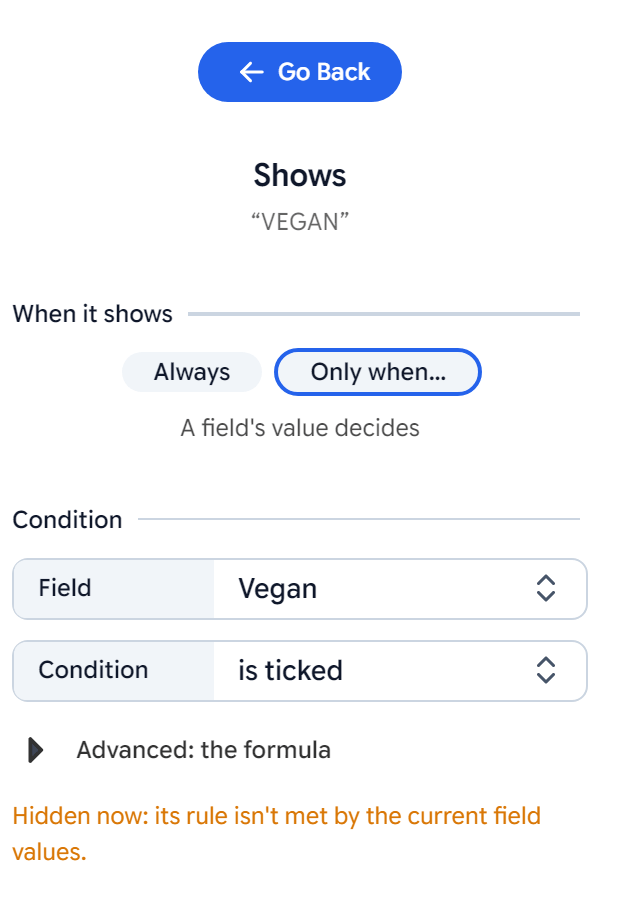
3
Storage advice chosen from a list
-
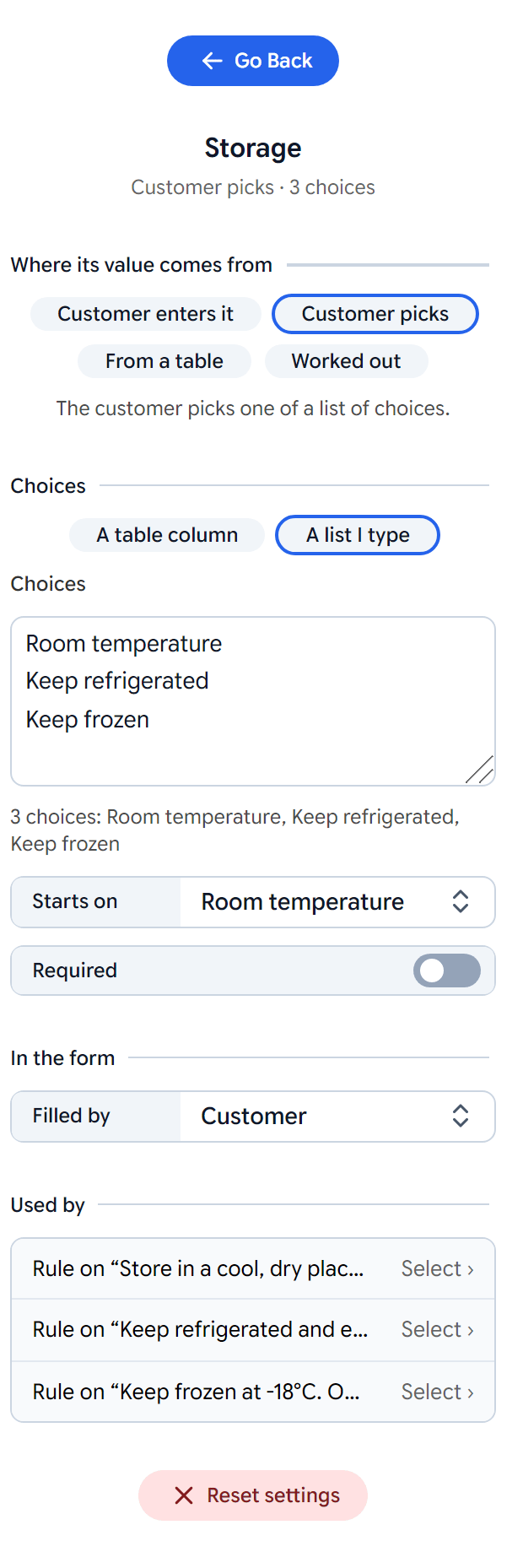
Add a field, Storage, and choose Customer picks. Under Choices, choose A list I type and type one choice per line: Room temperature, Keep refrigerated, Keep frozen. Set Starts on to Room temperature.
-
Add three texts, one for each choice:
- Store in a cool, dry place. Best eaten within 5 days.
- Keep refrigerated and eat within 3 days of opening.
- Keep frozen at -18°C. Once thawed, do not refreeze.
-
Give each text its rule: Only when…, Field Storage, Condition is, and the matching Value.
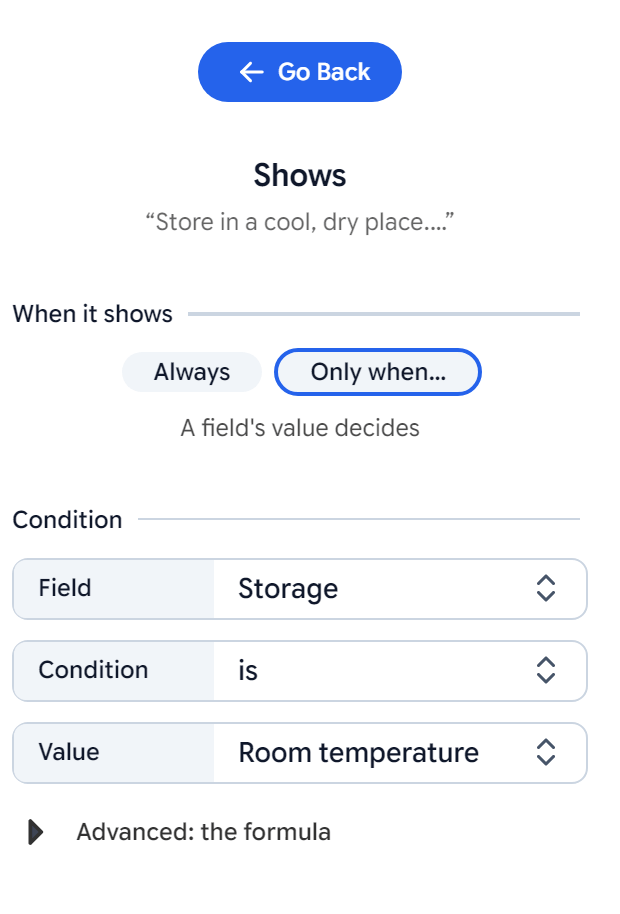
- Move the three texts into the same place. Only one rule can hold at a time, so only one line is ever on the label.
4
A nut warning that depends on two answers
-
Add two fields, both Customer enters it with Input Yes / No:
- Contains nuts;
- Nuts in the kitchen, with On by default switched on, because most bakeries do use nuts.
-
Add a text,
CONTAINS NUTS. Give it the rule Only when… Contains nuts is ticked. - Add a text, May contain traces of nuts, and put it in the same place. Give it the rule Only when… Contains nuts isn’t ticked.
-
Still in that rule, open Advanced: the formula. It reads
[Contains nuts] <> "yes". Addand [Nuts in the kitchen] = "yes"to the end, so it reads: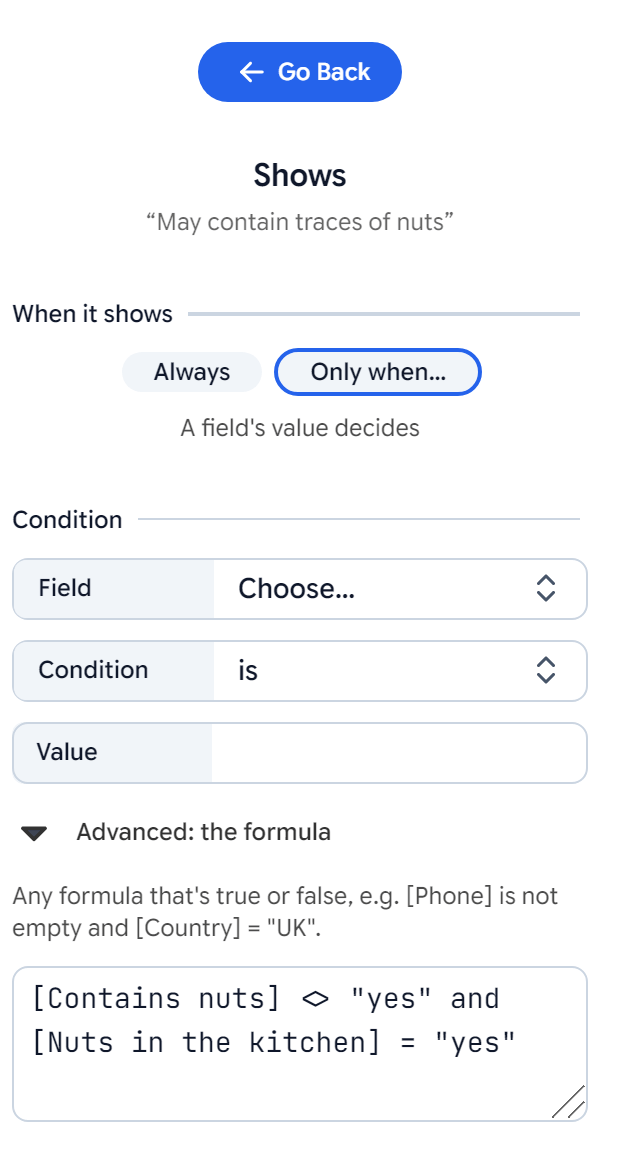
"yes", <> means isn’t, and and needs both parts to hold. Use or when either part is enough.5
Check it as a customer
Design → Data Sources now lists 5 fields and 6 rules, each with what it does in words.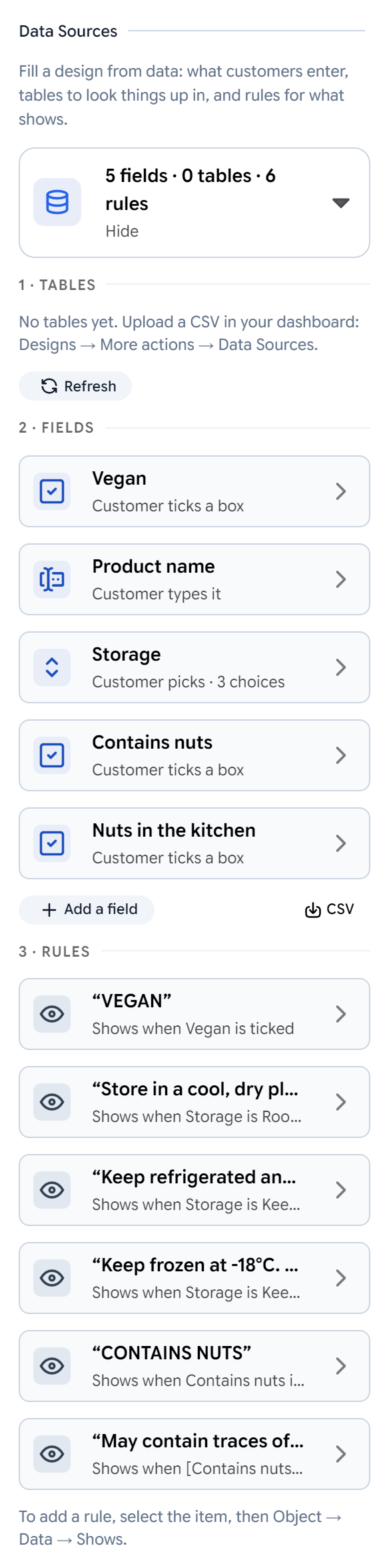
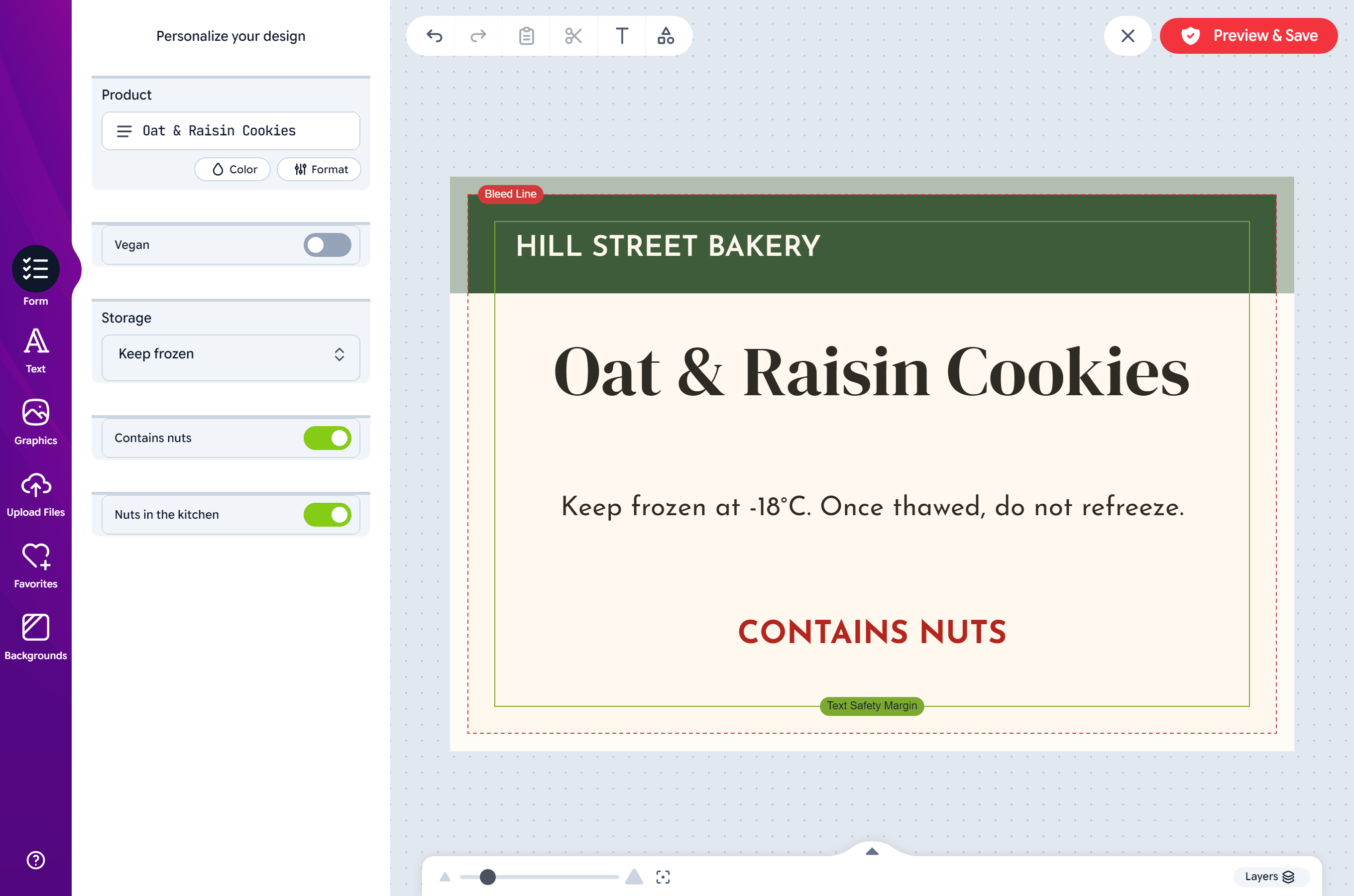
Why it works
A show rule only decides whether its item is on the label, so you can stack several items in one place, as long as their rules can’t hold at the same time. A rule reads the customer’s answers, the same fields the form asks for, and can combine them withand and or.
A hidden item keeps its space: the items below it don’t move up. Give each optional line its own place, or stack the alternatives in one place as this label does.
Take it further
- A line that shows only when something is typed: use the condition isn’t empty, as the batch line in the food label tutorial does.
- Pictures and colours chosen by answers: a field can also pick a frame’s picture or an item’s colour. See Data Sources and fields.