Print.App lets you import industry-standard Pantone and HKS spot colors directly into your color collections for use in the editor.
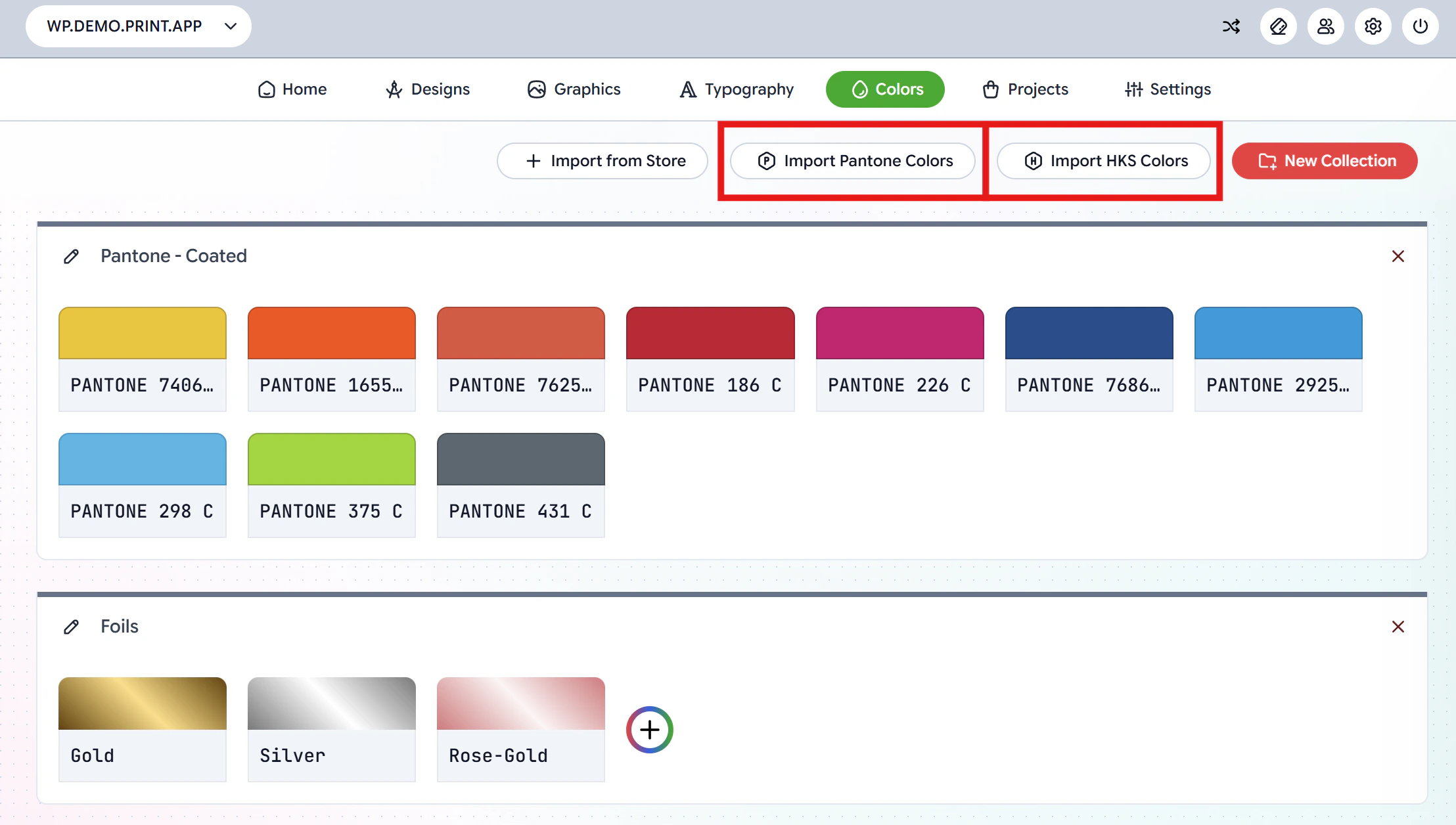
To get started, navigate to the Colors Page in your Print.App Admin. You will see the Import Pantone Colors and Import HKS Colors buttons at the top of the page.
Import Pantone Colors
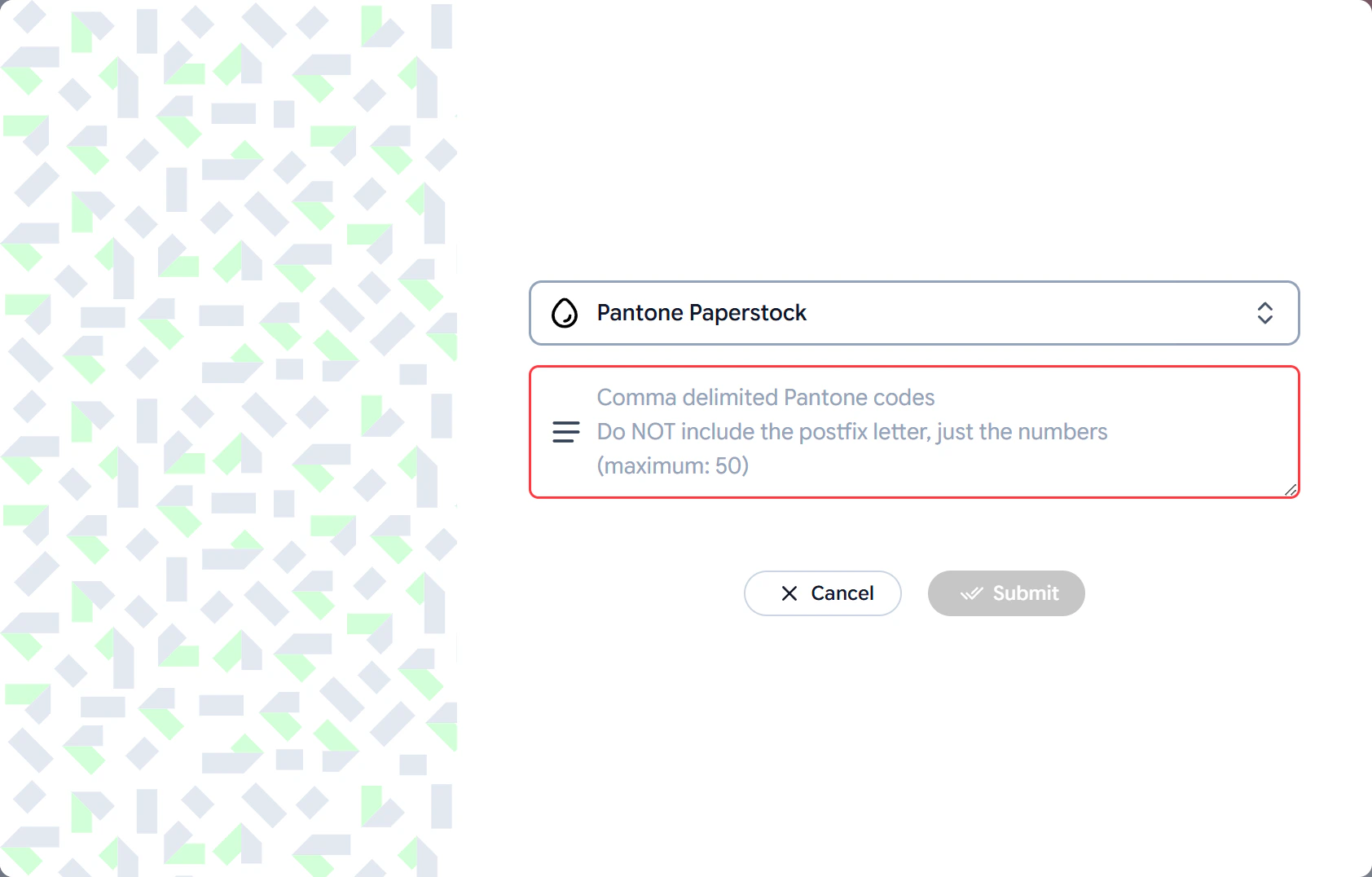
Click the Import Pantone Colors button to open the import dialog.
- Select a Pantone paper stock from the dropdown (e.g. Paperstock, Coated, Uncoated etc.)
- Enter your Pantone color codes in the text field as comma-delimited values. For example:
186, 226, 298, 375, 431
Do NOT include the postfix letter (C, U etc.), just the numbers.
You can import a maximum of 50 colors at a time.
- Click Submit to import the colors into your collection.
Import HKS Colors
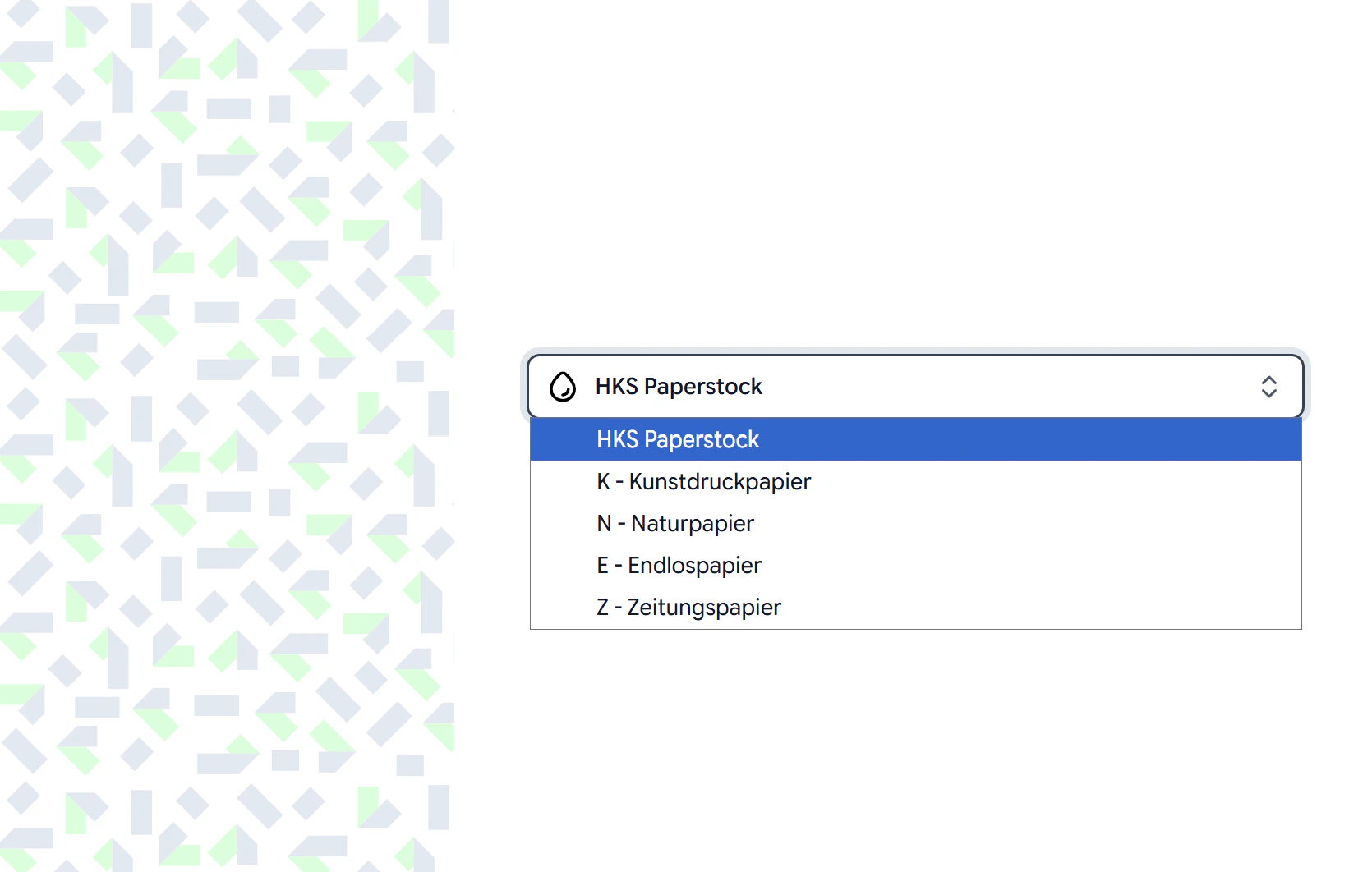
Click the Import HKS Colors button to open the import dialog.
Select a paper stock from the dropdown. The available HKS paper stocks are:
Once you select a paper stock, click the Submit button and the full set of HKS colors for that stock will be imported into a new color collection.
After importing, your Pantone and HKS colors will appear as a color collection on the Colors page. You can then assign them to specific Design Templates using a Resource Profile.Read more about assigning resources here