

Typical products
- Standard photo sizes (4×6, 5×7, 8×10, etc.)
- Fine art prints (A‑series, US Letter/Tabloid)
- Multi‑photo albums or collections
What to use
- Photo Print Module for pre‑defined page sets and bulk placement
- Image placeholders with “Place Graphics to Fit Page” for single prints
- Optional captions as Smart Texts per page or per image
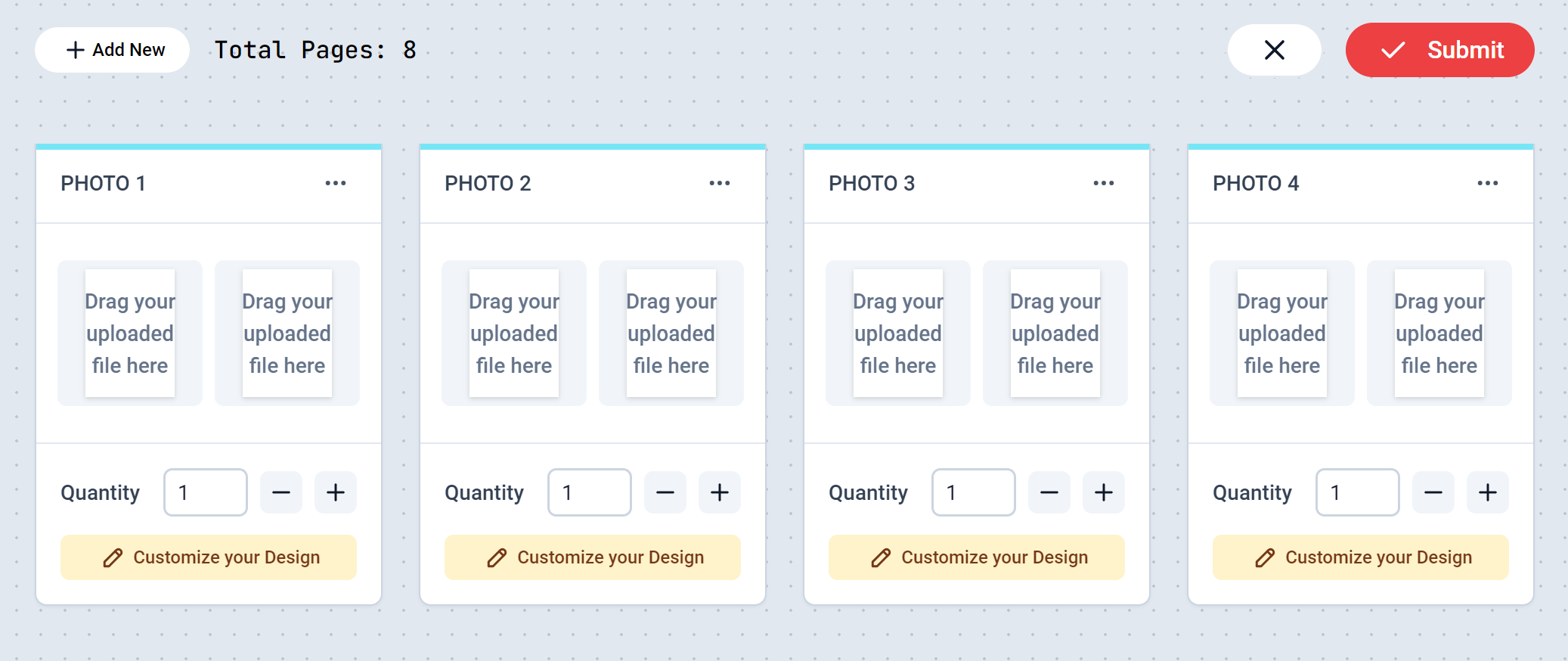
Four collections of a two‑photo set
Patterns that work
Bulk photo orders
Prepare a template page per size and enable the Photo Print Module:- Customers upload images, then drag them onto pre‑defined pages/slots
- Optionally start with the upload panel for a faster flow
- Use module options to control set counts and whether customers can add/remove sets
Single prints and artwork
- Create one page per size and enable “Place Graphics to Fit Page” in Advanced settings
- Keep a visible safe area; art often goes borderless, so bleed is important
- Offer paper/finish options at the product level; keep the design clean
Albums and collections
- Combine multiple page templates (1‑up, 2‑up, 4‑up) as a set
- Use Page names (e.g., “Spread 1”) so navigation is clear for customers
- For text‑heavy spreads, pair with Page Selector to add/remove pages
Image quality tips
- Advise minimum pixel dimensions per size (e.g., 300 DPI at print size)
- Encourage users to avoid heavy filters that reduce detail
- Provide gentle warnings for low‑resolution images if applicable
Production guardrails
- Enable bleed and ensure edge‑to‑edge images extend into it
- Keep small captions legible at print size
- For albums, verify page order and that mirrored spreads align correctly