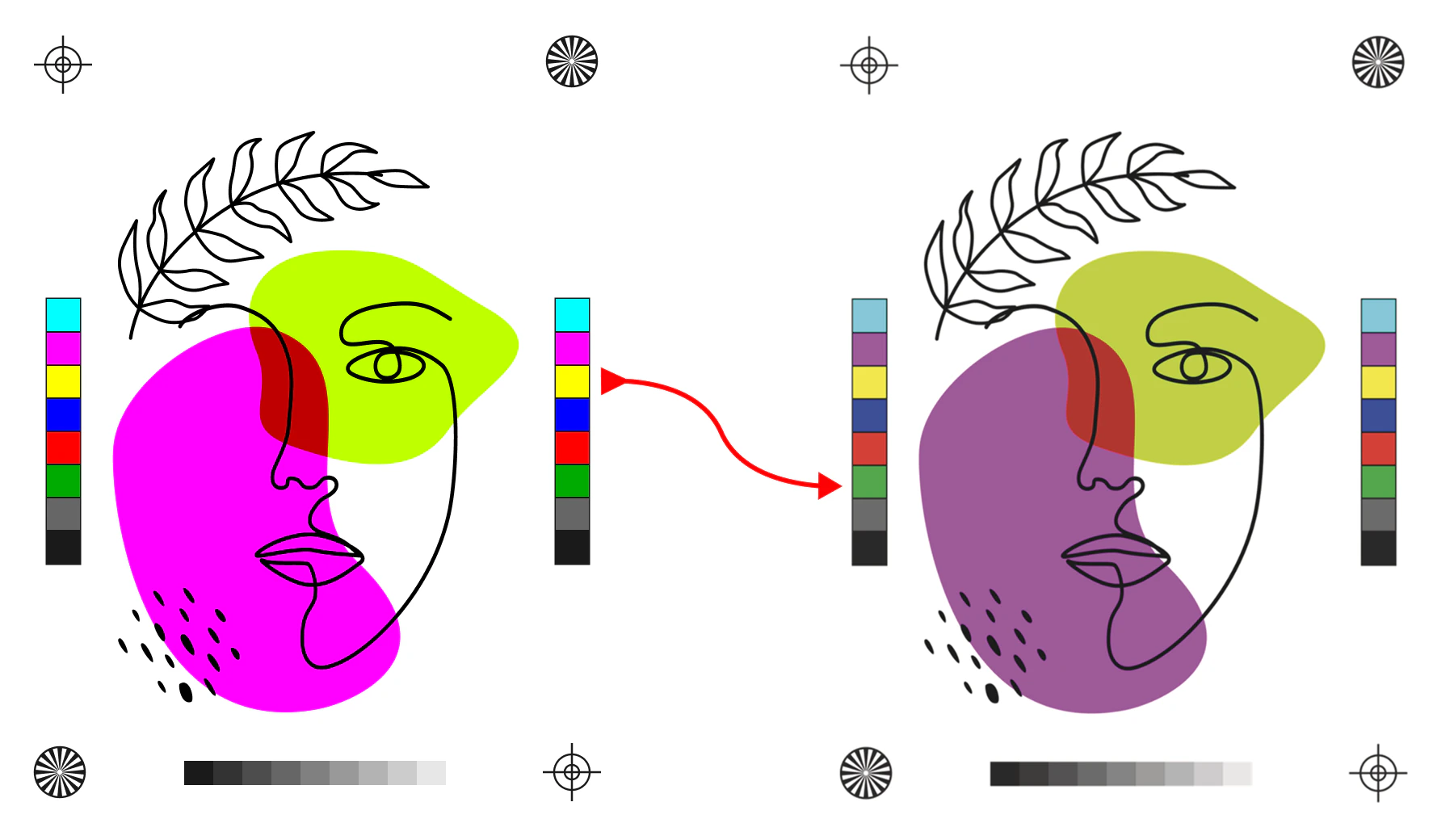
Screenshot of color proofing in the Print App editor preview window
How to enable color proofing
1
Create a new Design Template
To get started, create a new Design in your Admin Designs page or go to any of your existing Designs.
2
Assign an ICC Profile to the Design
Click the Design tab on the left panel and scroll down to where you see PDF Rendering. For Proofing to work, you need to assign an ICC Profile to your design. Pull down the Color Profile dropdown and select the ICC profile that matches your product’s printing process. Ensure it’s a CMYK profile, as you will not see any difference if an RGB profile is selected, being the same profile as your screen.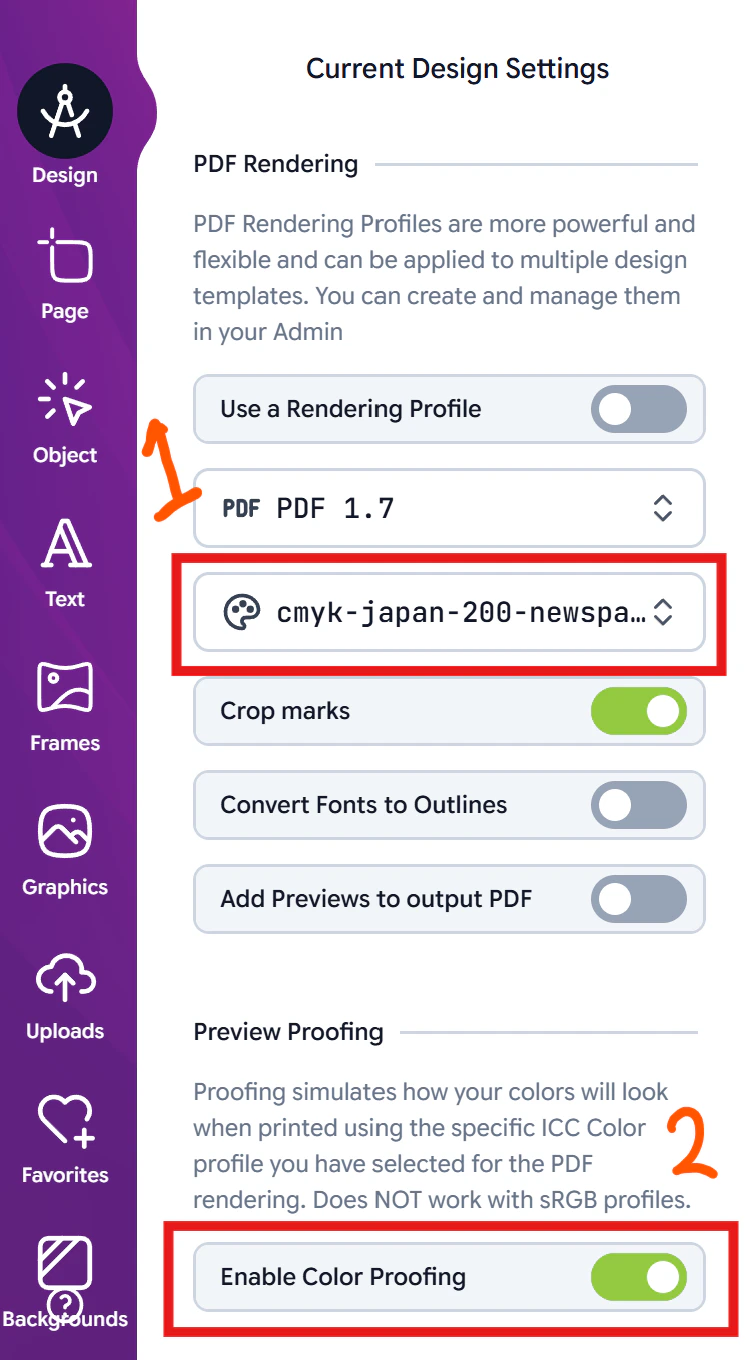
3
Enable Color Proofing
Once you select the ICC profile, scroll down and toggle ON the “Enable Color Proofing” switch.
4
Preview Color Proofing
You can see it applied in the preview mode. Simply click the Preview button on the top right of the editor and you will see the colors in the preview change to reflect the color proofing simulation based on the ICC profile you selected.
5
Save and Assign Design
Save your Design and assign it to a product.
6
Additional Options
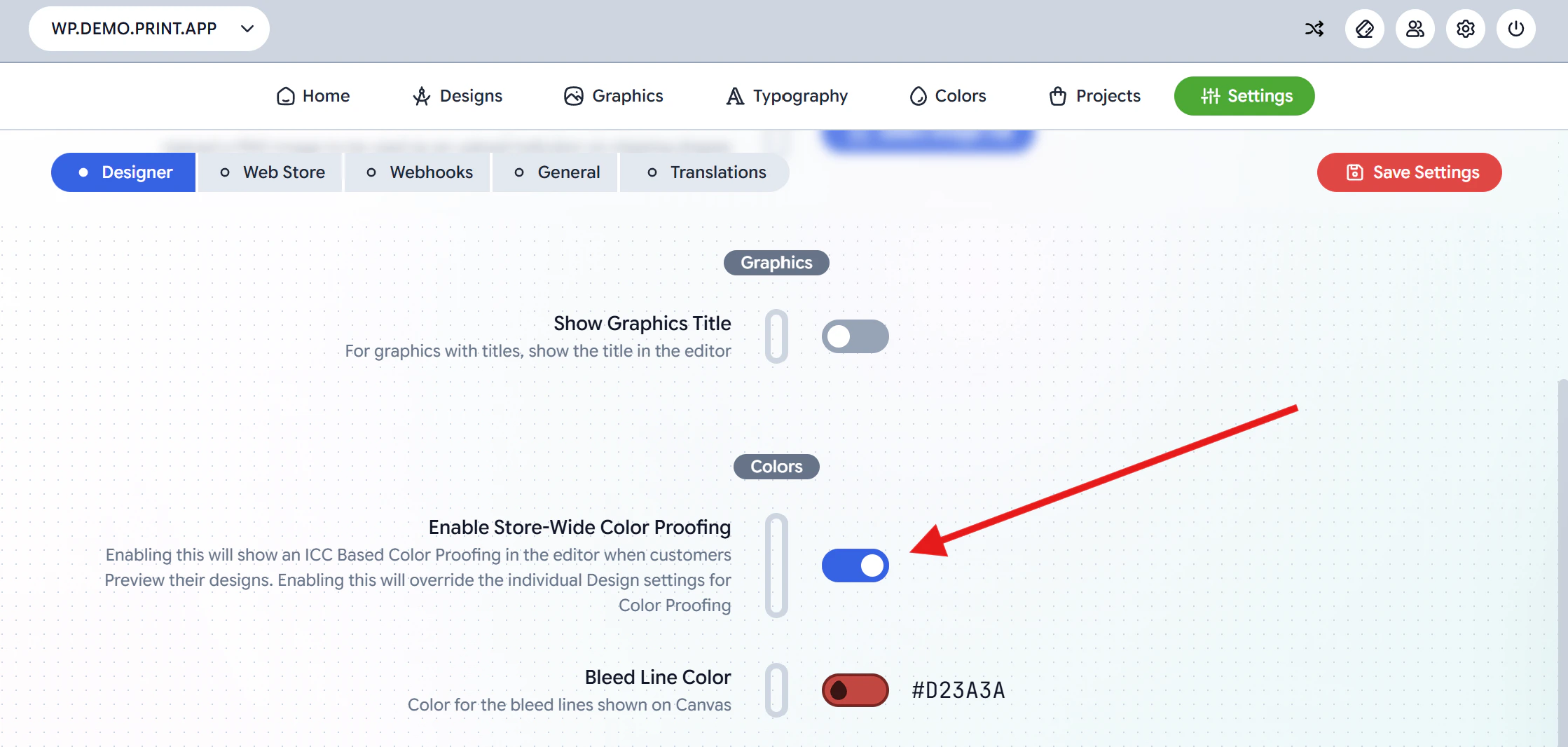
Optionally, you can also enable the Proofing across your entire store by enabling it in your Admin Settings Page. This option will override the individual design settings.