> ## Documentation Index
> Fetch the complete documentation index at: https://print.app/docs/llms.txt
> Use this file to discover all available pages before exploring further.
# Wordpress
> How to install the Print Options plugin on WordPress and WooCommerce, create your first option set, and assign it to a product.
 WordPress needs a cart to sell print jobs, so Print Options is built on
[WooCommerce](https://woocommerce.com) — install and activate WooCommerce
first, then follow these steps.
1. Install the **Print Options** plugin. Either search for it under
`Plugins` → `Add New`, or download the latest release from our
[GitHub page](https://github.com/PrintApp/print-options-wordpress/releases)
and upload the zip under `Plugins` → `Add New` → `Upload Plugin`.
2. Activate it. A **Print Options** menu appears in your WordPress admin
sidebar.
No account, no API keys. The plugin creates its own anonymous identity
on activation and talks to our service on your server's behalf.
3. Open `Print Options` → **Option Sets** and click **New from template**.
Pick a template — Business Cards, Flyers, Stickers, Thesis Binding and
more — adjust the choices and prices, and click **Save**.
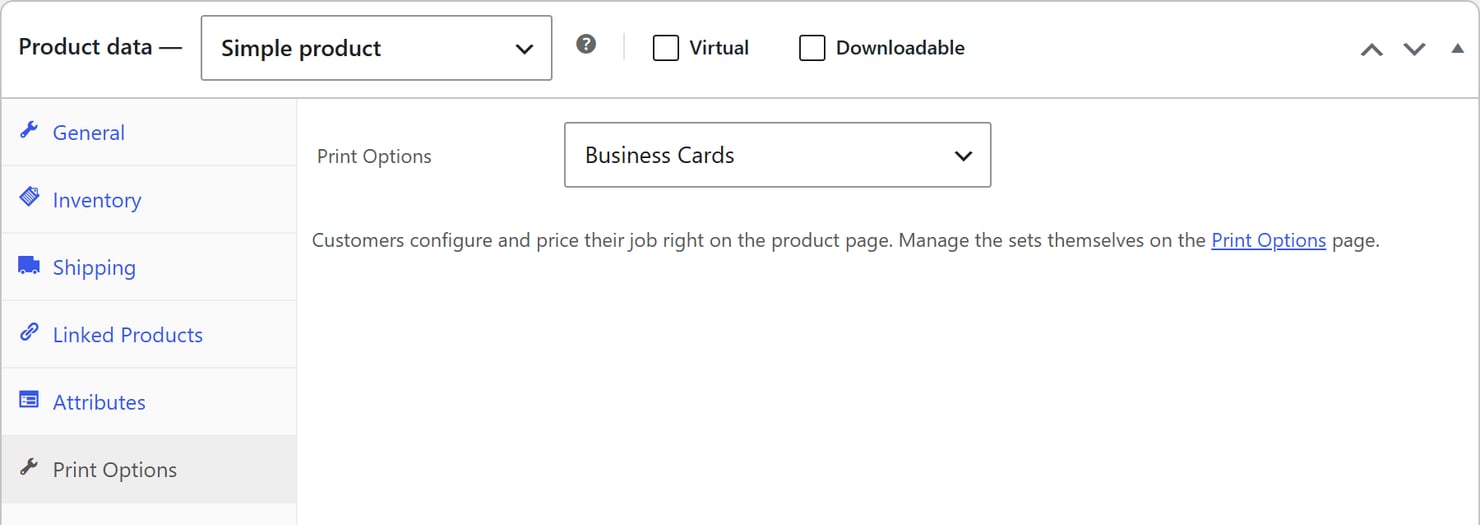
4. Now assign it. Open any product for editing, and in the product data panel
you will find a **Print Options** tab next to Attributes and Variations.
Select your option set from the dropdown and **Update** the product.
WordPress needs a cart to sell print jobs, so Print Options is built on
[WooCommerce](https://woocommerce.com) — install and activate WooCommerce
first, then follow these steps.
1. Install the **Print Options** plugin. Either search for it under
`Plugins` → `Add New`, or download the latest release from our
[GitHub page](https://github.com/PrintApp/print-options-wordpress/releases)
and upload the zip under `Plugins` → `Add New` → `Upload Plugin`.
2. Activate it. A **Print Options** menu appears in your WordPress admin
sidebar.
No account, no API keys. The plugin creates its own anonymous identity
on activation and talks to our service on your server's behalf.
3. Open `Print Options` → **Option Sets** and click **New from template**.
Pick a template — Business Cards, Flyers, Stickers, Thesis Binding and
more — adjust the choices and prices, and click **Save**.
4. Now assign it. Open any product for editing, and in the product data panel
you will find a **Print Options** tab next to Attributes and Variations.
Select your option set from the dropdown and **Update** the product.
 5. Visit the product on your storefront. The configurator renders with live
pricing, and adding to cart uses the price our servers verify — not the
one in the browser.
## Managing your options
| Where | What you can do |
| --------------------------------- | -------------------------------------------------------------------------------- |
| `Print Options` → **Option Sets** | Create, edit and delete option sets. Editing one updates every product using it. |
| Product → **Print Options** tab | Assign a set to this product, or choose **None** to remove it. |
| `Print Options` → **Settings** | Advanced endpoints and optional Filecheck keys. Defaults work out of the box. |
A set that is assigned to products cannot be deleted — remove it from those
products first. That is deliberate: deleting it out from under a live
product would break its page.
## Prices and currency
Option sets are priced in your WooCommerce store currency. The configurator's
total is a live preview; the price charged is always recomputed server-side
when the item enters the cart, and the full specification is stored on the
order for your production team.
5. Visit the product on your storefront. The configurator renders with live
pricing, and adding to cart uses the price our servers verify — not the
one in the browser.
## Managing your options
| Where | What you can do |
| --------------------------------- | -------------------------------------------------------------------------------- |
| `Print Options` → **Option Sets** | Create, edit and delete option sets. Editing one updates every product using it. |
| Product → **Print Options** tab | Assign a set to this product, or choose **None** to remove it. |
| `Print Options` → **Settings** | Advanced endpoints and optional Filecheck keys. Defaults work out of the box. |
A set that is assigned to products cannot be deleted — remove it from those
products first. That is deliberate: deleting it out from under a live
product would break its page.
## Prices and currency
Option sets are priced in your WooCommerce store currency. The configurator's
total is a live preview; the price charged is always recomputed server-side
when the item enters the cart, and the full specification is stored on the
order for your production team.