> ## Documentation Index
> Fetch the complete documentation index at: https://print.app/docs/llms.txt
> Use this file to discover all available pages before exploring further.
# What is Print Options
> Print Options turns any product into a configurable print product: sizes, materials, finishes and quantities, priced live on the product page, with artwork upload and prices verified on our servers.
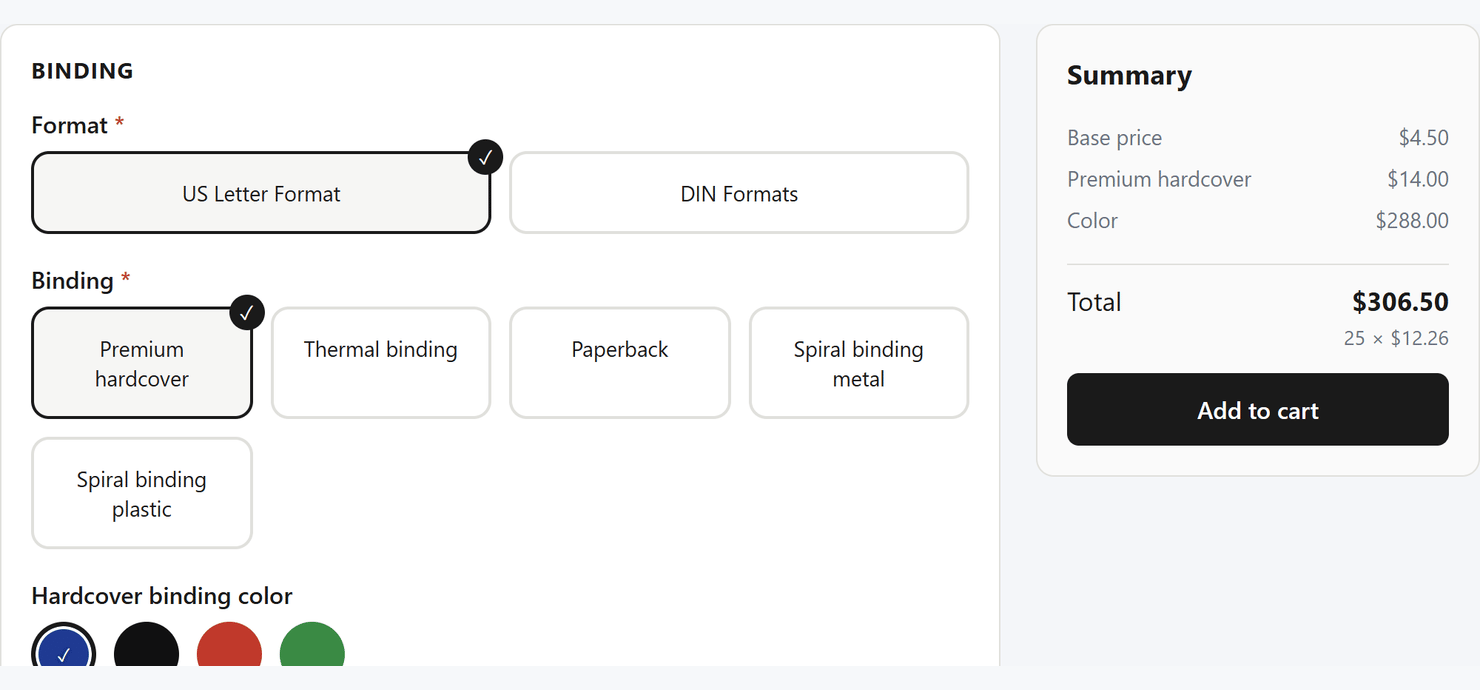 **Print Options** adds a print configurator to your product pages. Your
customers choose the options you sell — paper weight, finish, size, page
count, quantity — watch the price update as they choose, upload their
artwork, and add the configured job to the cart.
It is a separate product from the Print.App **Editor**. The Editor lets
customers *design* artwork; Print Options lets them *specify and price the
job*. They work well together, and neither requires the other.
Print Options is **free**, on every platform it supports.
## What it does
Quantity breaks, per-page and per-area rates, setup fees and minimum
orders — the pricing print shops actually use.
Start from print-ready templates, adjust the choices and prices, and
publish. No code and no JSON anywhere.
Customers attach their files to the job. Optionally validated by
[Filecheck](https://apps.shopify.com/filecheck) with page counts and
preflight.
Every add to cart is recalculated on our servers, so a price edited in
the browser is simply refused.
## How it works
1. **You build an option set** — a named group of choices and pricing rules,
usually started from a template like Business Cards or Flyers.
2. **You assign it to products.** One set can serve many products; editing it
updates all of them at once.
3. **Your customer configures and adds to cart.** The configurator renders on
the product page, prices live, and the job's specification travels with the
order for your production team.
## Get started
Install the app, publish your first options, add the block to your theme.
Install the plugin, create an option set, assign it on the product page.
Prefer to look before you install? The
[live demo](https://options.print.app/demo/) is the real configurator —
change the options and watch the price move.
**Print Options** adds a print configurator to your product pages. Your
customers choose the options you sell — paper weight, finish, size, page
count, quantity — watch the price update as they choose, upload their
artwork, and add the configured job to the cart.
It is a separate product from the Print.App **Editor**. The Editor lets
customers *design* artwork; Print Options lets them *specify and price the
job*. They work well together, and neither requires the other.
Print Options is **free**, on every platform it supports.
## What it does
Quantity breaks, per-page and per-area rates, setup fees and minimum
orders — the pricing print shops actually use.
Start from print-ready templates, adjust the choices and prices, and
publish. No code and no JSON anywhere.
Customers attach their files to the job. Optionally validated by
[Filecheck](https://apps.shopify.com/filecheck) with page counts and
preflight.
Every add to cart is recalculated on our servers, so a price edited in
the browser is simply refused.
## How it works
1. **You build an option set** — a named group of choices and pricing rules,
usually started from a template like Business Cards or Flyers.
2. **You assign it to products.** One set can serve many products; editing it
updates all of them at once.
3. **Your customer configures and adds to cart.** The configurator renders on
the product page, prices live, and the job's specification travels with the
order for your production team.
## Get started
Install the app, publish your first options, add the block to your theme.
Install the plugin, create an option set, assign it on the product page.
Prefer to look before you install? The
[live demo](https://options.print.app/demo/) is the real configurator —
change the options and watch the price move.