> ## Documentation Index
> Fetch the complete documentation index at: https://print.app/docs/llms.txt
> Use this file to discover all available pages before exploring further.
# Installation
> Shopify is a global ecommerce platform designed for simplicity and ease of you. Print.App has been integrated as an app in Shopify so your customers can easily personalize their orders with ease
 Follow these steps to install Print.App on your Shopify store.
1. Navigate to this link to view Print.App in the Shopify App Store: [https://apps.shopify.com/print-app-1](https://apps.shopify.com/print-app-1)
2. Clicking on the **Install** button will take you to the a page where you have the option to either register a new Shopify account or login to your existing one and approve the app.
Follow these steps to install Print.App on your Shopify store.
1. Navigate to this link to view Print.App in the Shopify App Store: [https://apps.shopify.com/print-app-1](https://apps.shopify.com/print-app-1)
2. Clicking on the **Install** button will take you to the a page where you have the option to either register a new Shopify account or login to your existing one and approve the app.
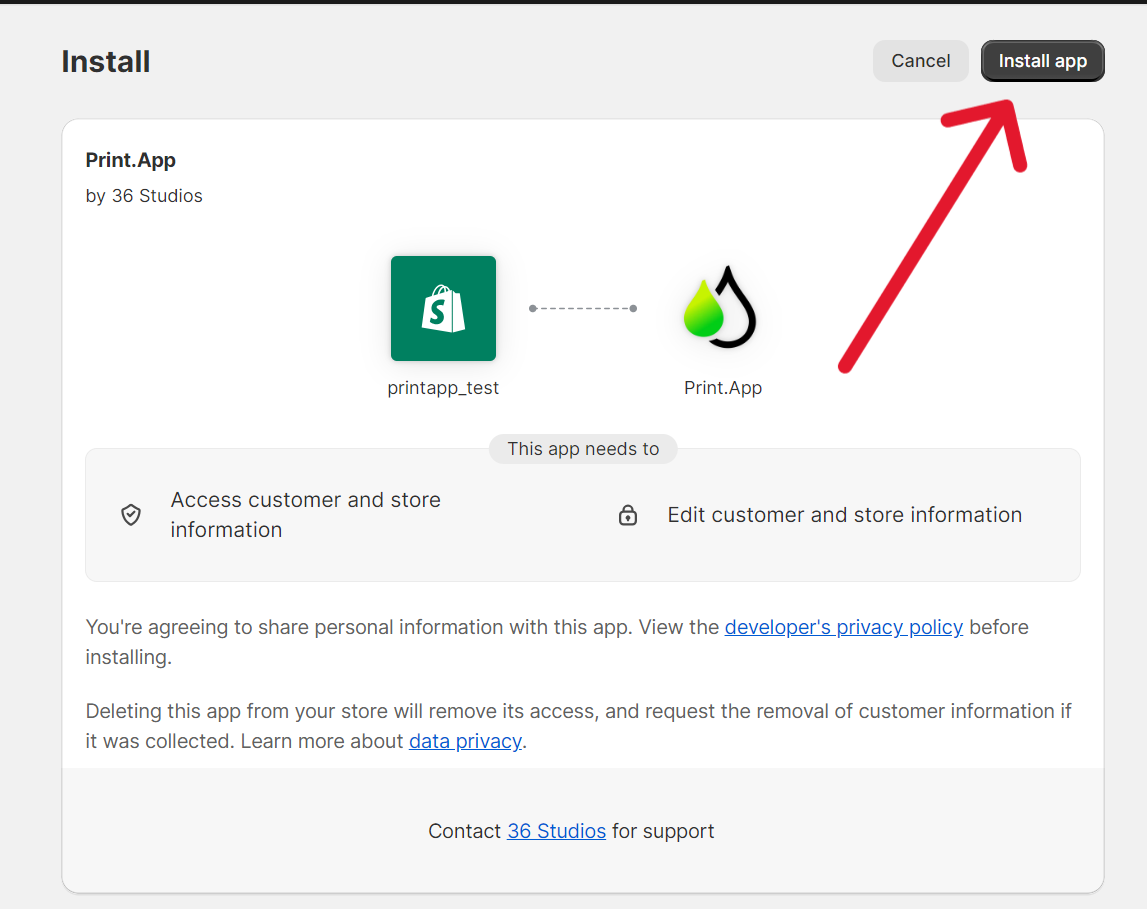 3. Once the APP is installed you will be taken to the Print.App [login](https://admin.print.app/login?cart=sp) page. You would've received your login details on the email address linked to your Shopify store, please check your inbox as well as SPAM folder.
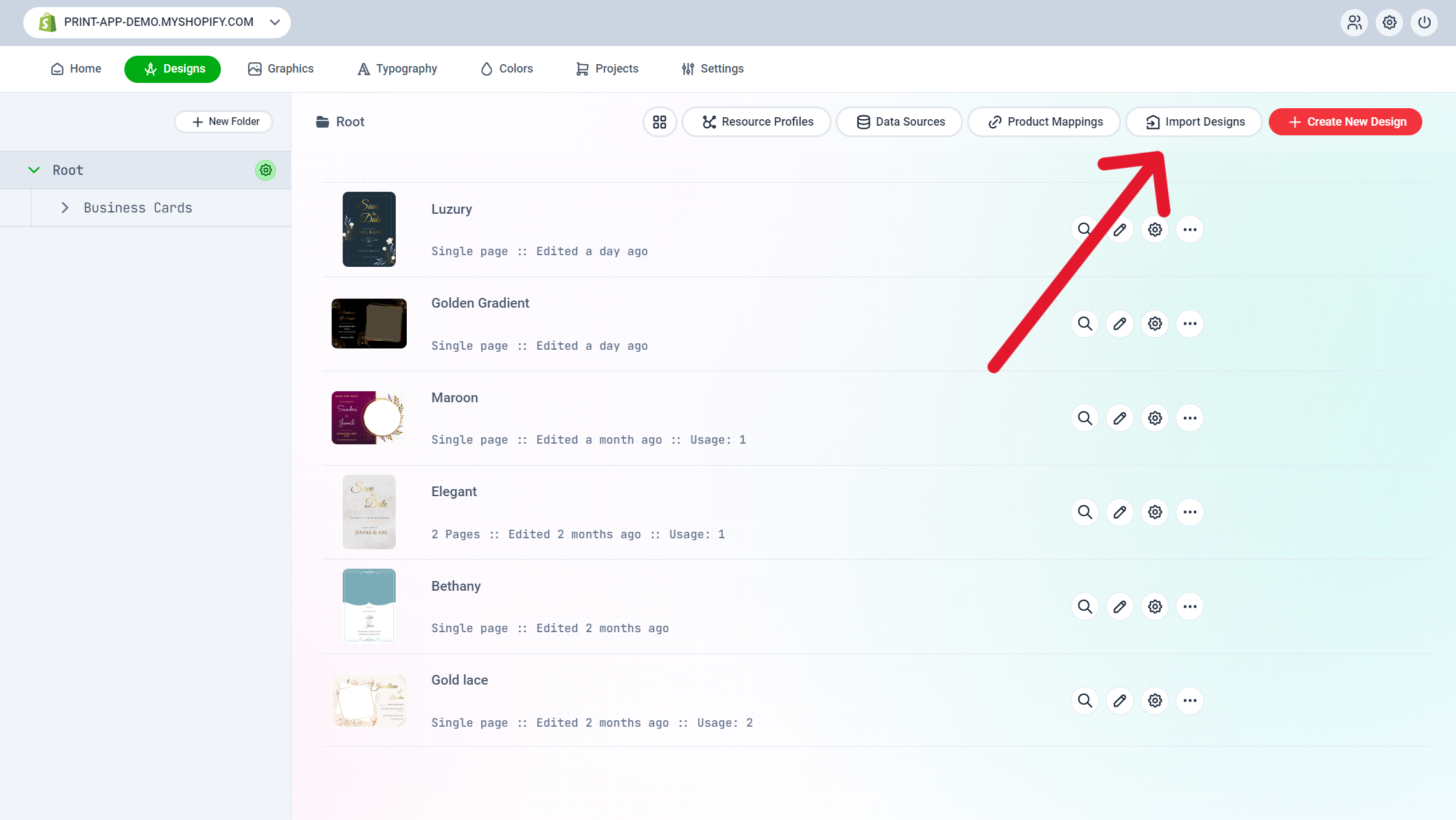
4. After you're logged in go to [designs](https://admin.print.app/designs). Then click on **Import Designs**. Click on the **+** icon to select your designs. Then click on **Add selected designs to your store**, to import the selected designs.
3. Once the APP is installed you will be taken to the Print.App [login](https://admin.print.app/login?cart=sp) page. You would've received your login details on the email address linked to your Shopify store, please check your inbox as well as SPAM folder.
4. After you're logged in go to [designs](https://admin.print.app/designs). Then click on **Import Designs**. Click on the **+** icon to select your designs. Then click on **Add selected designs to your store**, to import the selected designs.
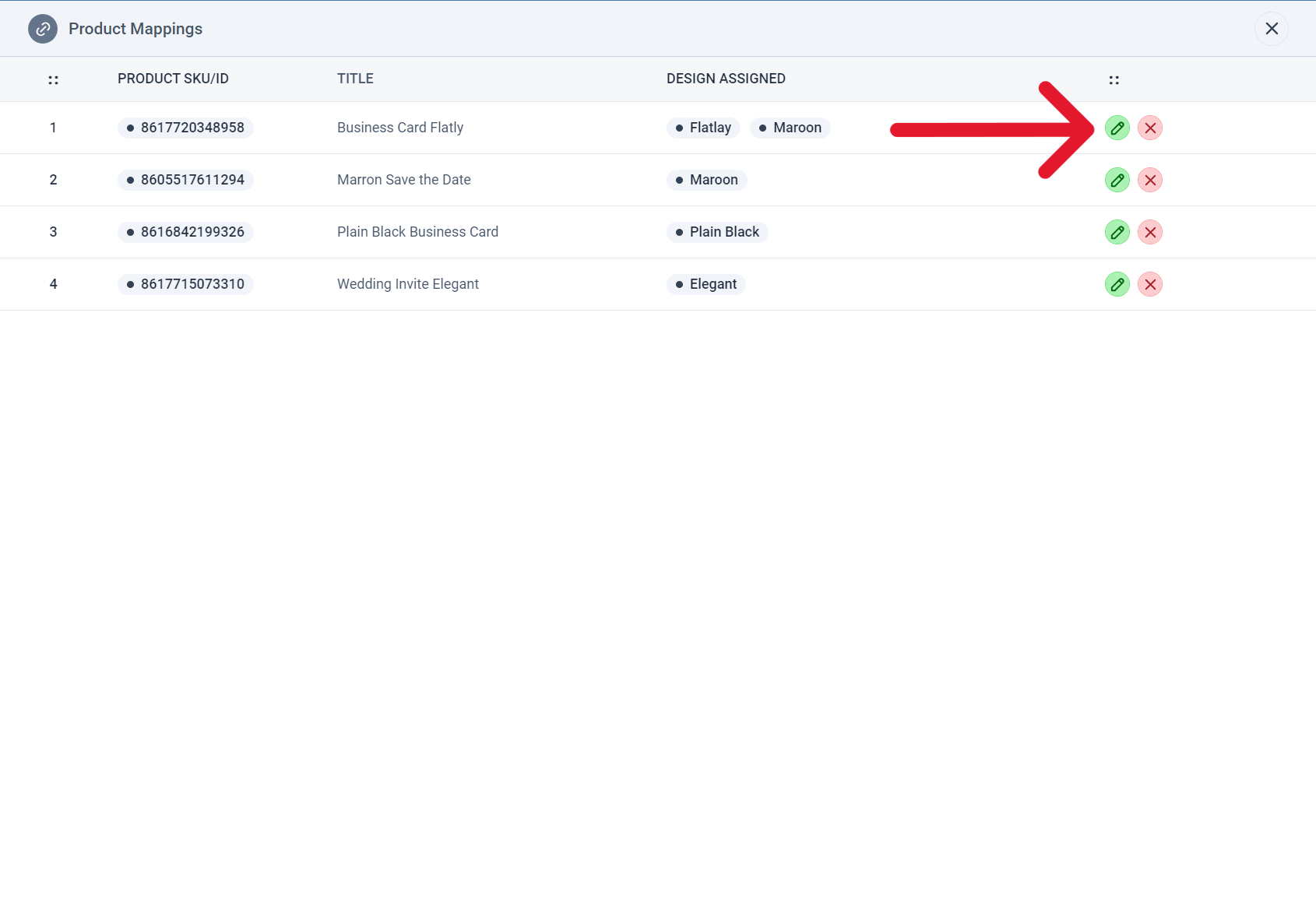
 5. Now for the final step of assigining a design to a product. Go to **Product Mappings** then click on the pencil icon to assign a design to the selected product.
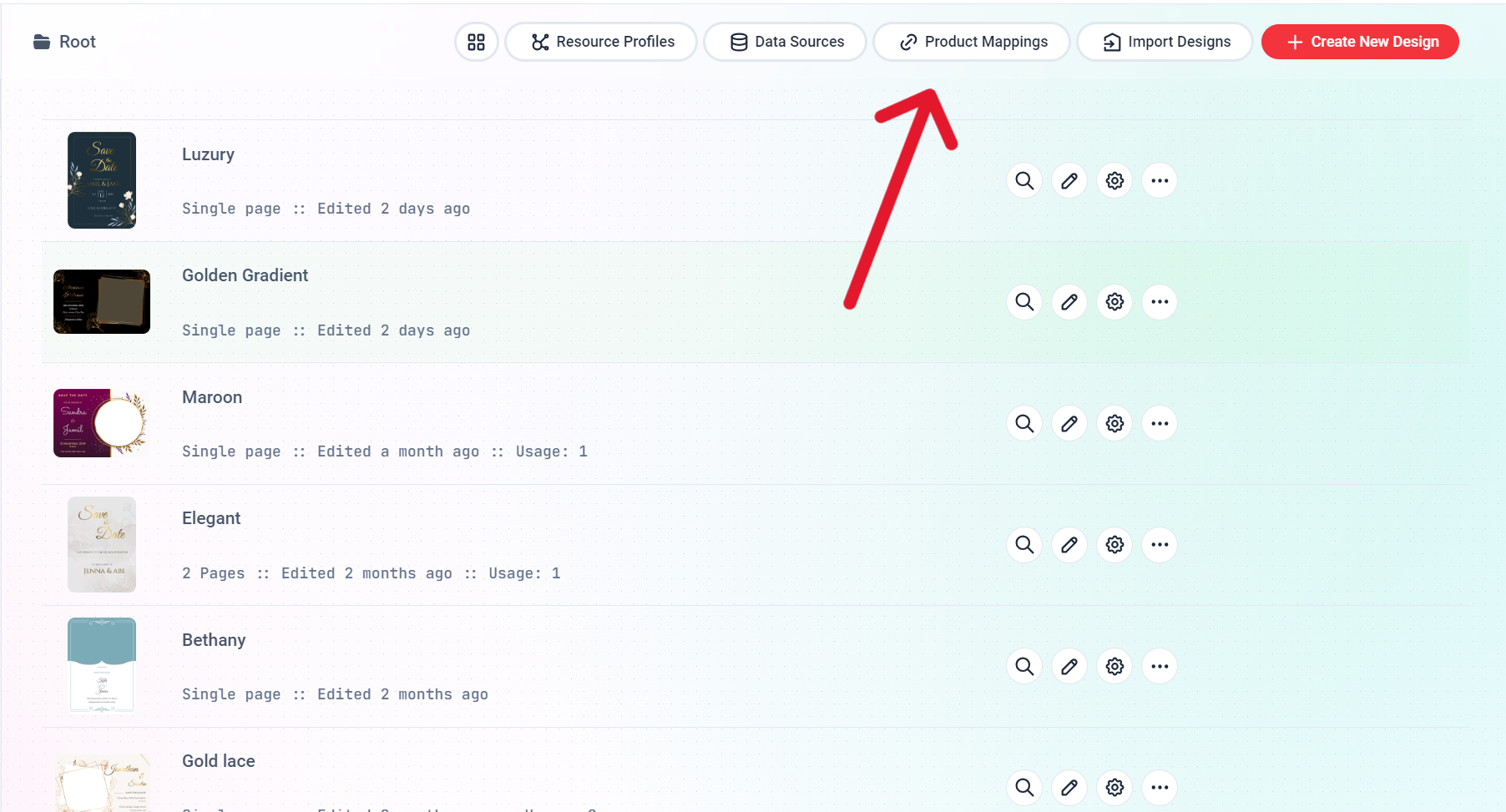
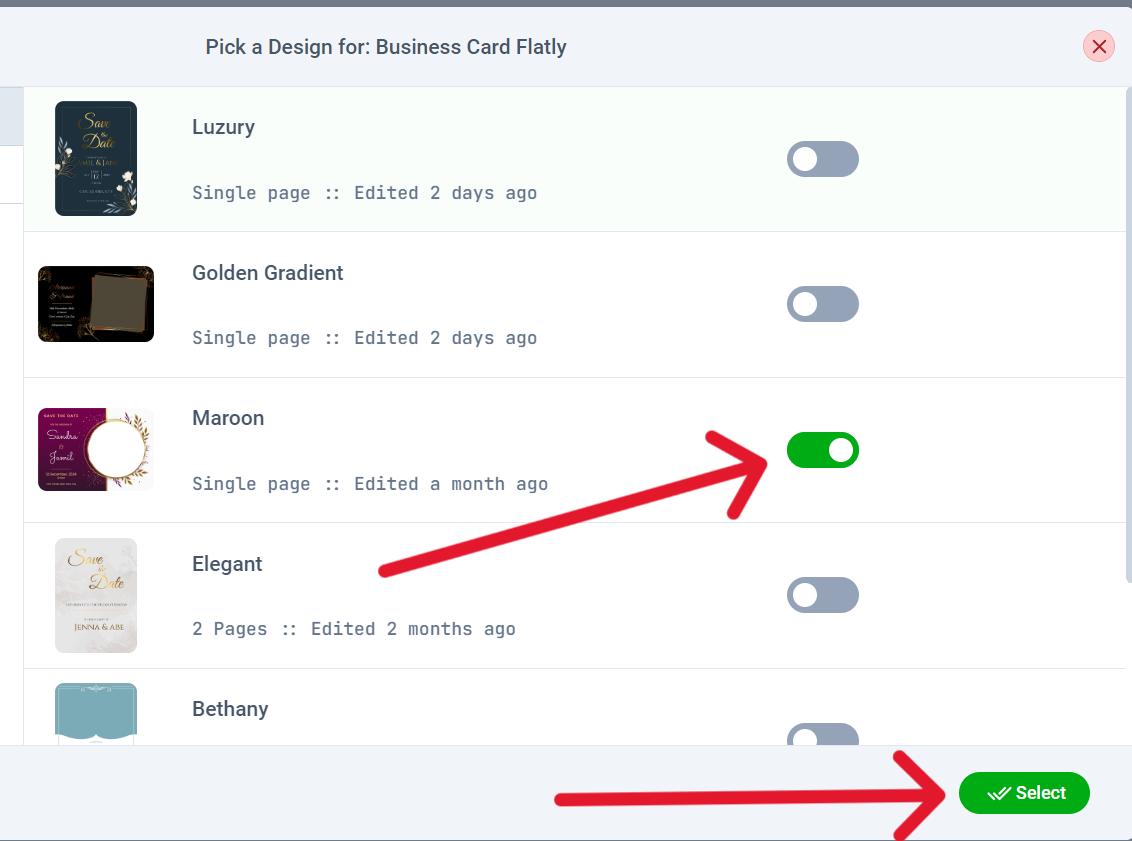
 6. Then click on the toggle switch beside the design(s) you would like to import and click select to save your changes.
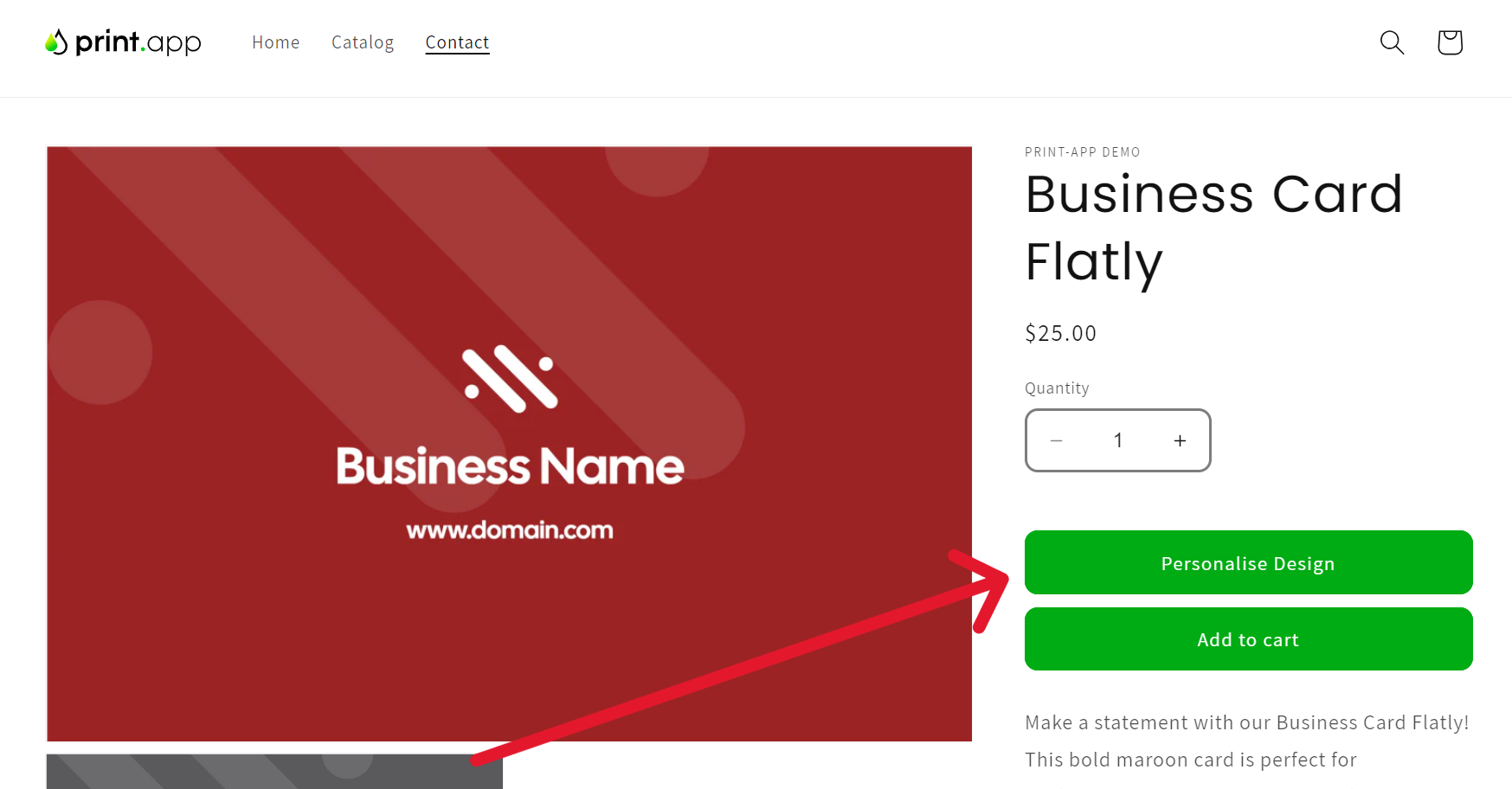
 7. You can now visit your Shopify store front end and check this product you should see the personalize button.