> ## Documentation Index
> Fetch the complete documentation index at: https://print.app/docs/llms.txt
> Use this file to discover all available pages before exploring further.
# Installation
> OpenCart is an opensource cart framework that is easy to use and manage.
 Follow these steps to do a fresh installation of OpenCart and then Print.App or if you already have an OpenCart store, you can just jump over to step 3 to continue
1. Download the latest OpenCart code using the [Official Download Link](http://opencart.com/index.php?route=download/download)
2. Install the OpenCart package using the OpenCart installation procedure. You can always find the installation instruction in the downloaded package.
3. Next, download the [Print.App OpenCart module from our Github repository](https://github.com/PrintApp/print-app-opencart/releases)
4. In your OpenCart admin portal, navigate to `Extensions` -> `Extension Installer` and click the Upload File button to upload the previously downloaded zip file.
Follow these steps to do a fresh installation of OpenCart and then Print.App or if you already have an OpenCart store, you can just jump over to step 3 to continue
1. Download the latest OpenCart code using the [Official Download Link](http://opencart.com/index.php?route=download/download)
2. Install the OpenCart package using the OpenCart installation procedure. You can always find the installation instruction in the downloaded package.
3. Next, download the [Print.App OpenCart module from our Github repository](https://github.com/PrintApp/print-app-opencart/releases)
4. In your OpenCart admin portal, navigate to `Extensions` -> `Extension Installer` and click the Upload File button to upload the previously downloaded zip file.
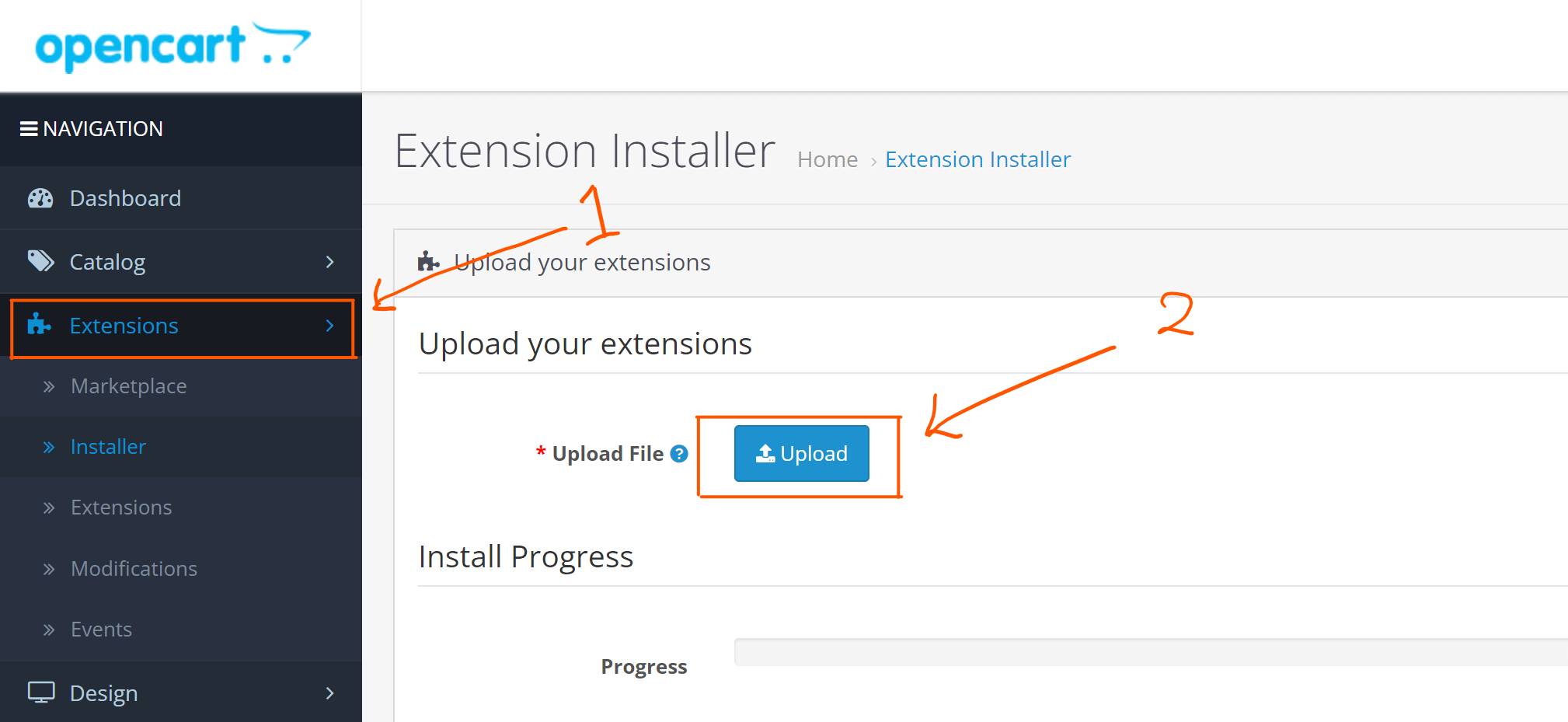 * Once the upload completes, the module is installed.
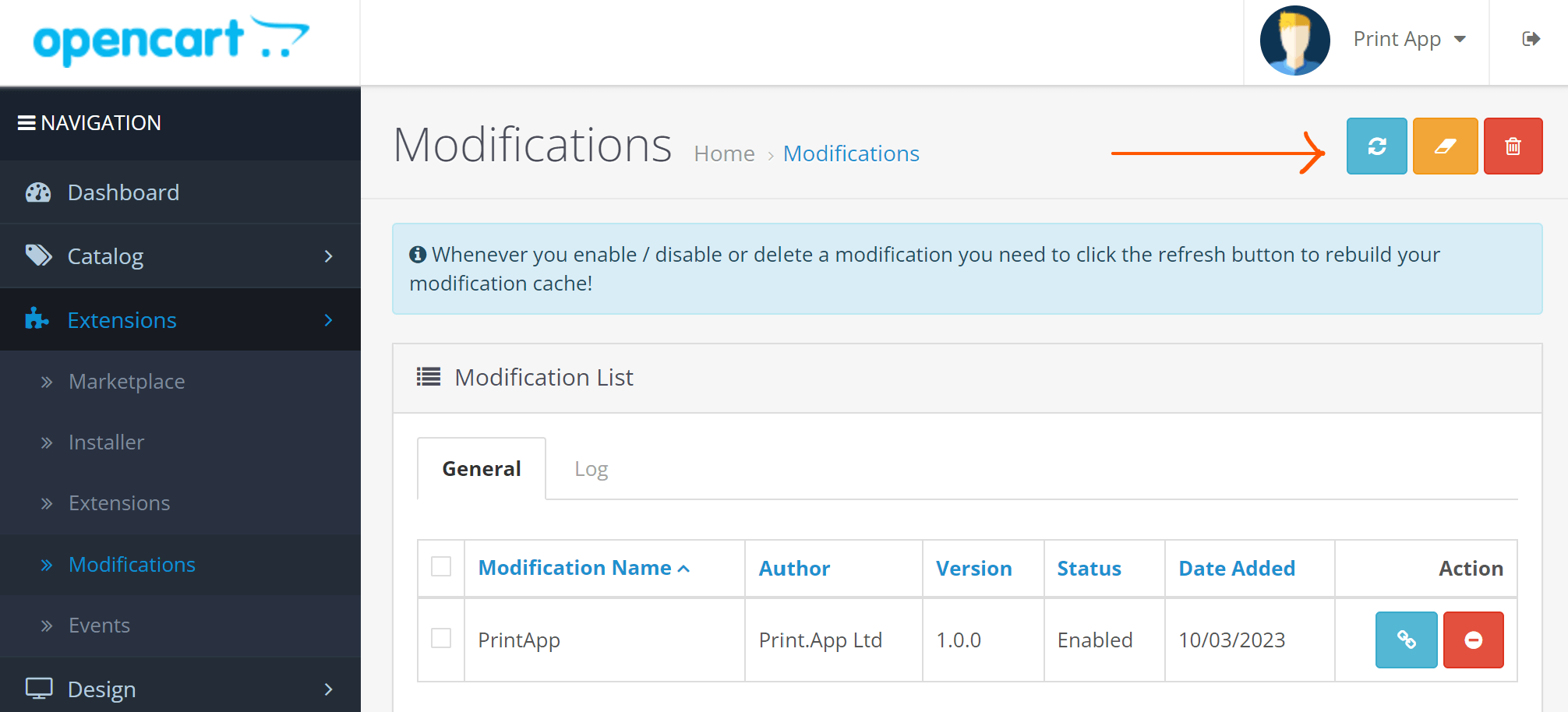
5. Now navigate to `Extensions` -> `Modifications` and hit the refresh modifications button
* Once the upload completes, the module is installed.
5. Now navigate to `Extensions` -> `Modifications` and hit the refresh modifications button
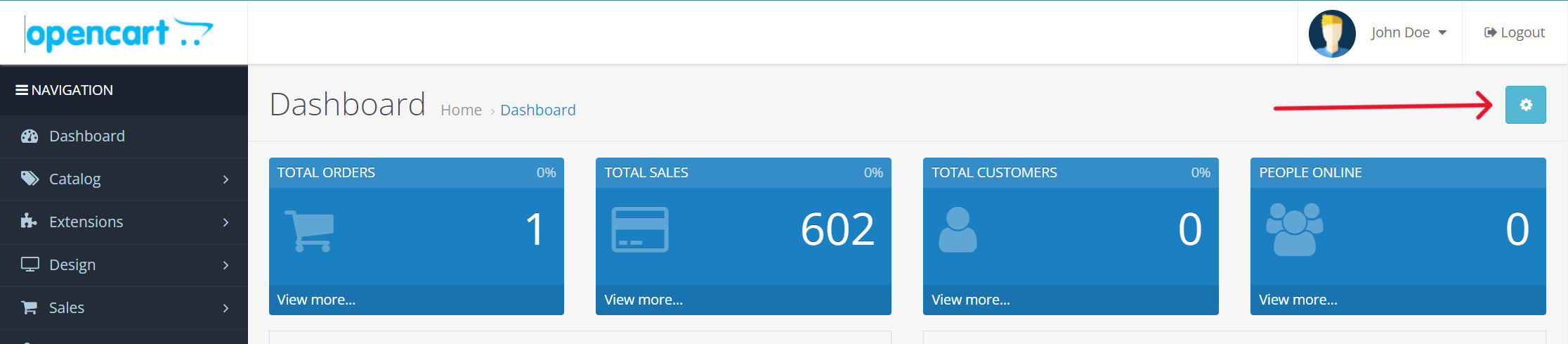
 You also need to refresh your store theme. To do that, navigate to `Dashboard` and click the settings icon shown below
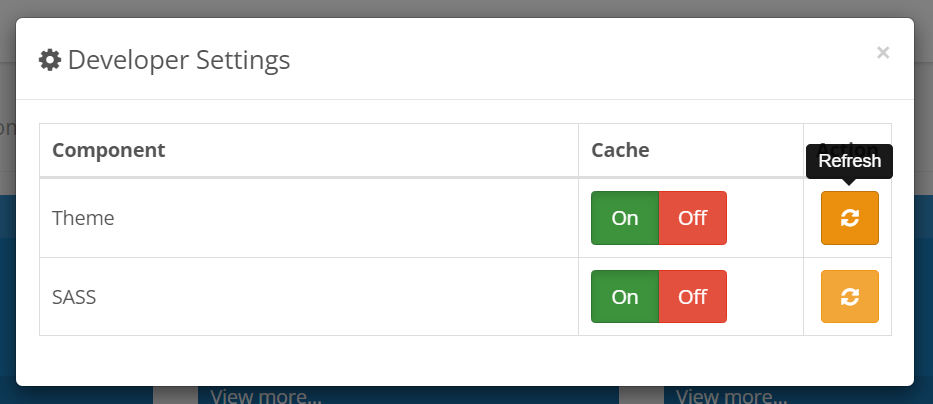
 That should open the developer settings. Click the Theme and SASS refresh buttons to update the theme files.
 6. We now need to connect the module to your Print.App account using your credentials.
You can still use your credentials for localhost testing if you are not ready to go live just yet.
7. To enter the keys in your OpenCart admin, navigate to Extensions and drop down the `Choose the extension type` and select Modules.
6. We now need to connect the module to your Print.App account using your credentials.
You can still use your credentials for localhost testing if you are not ready to go live just yet.
7. To enter the keys in your OpenCart admin, navigate to Extensions and drop down the `Choose the extension type` and select Modules.
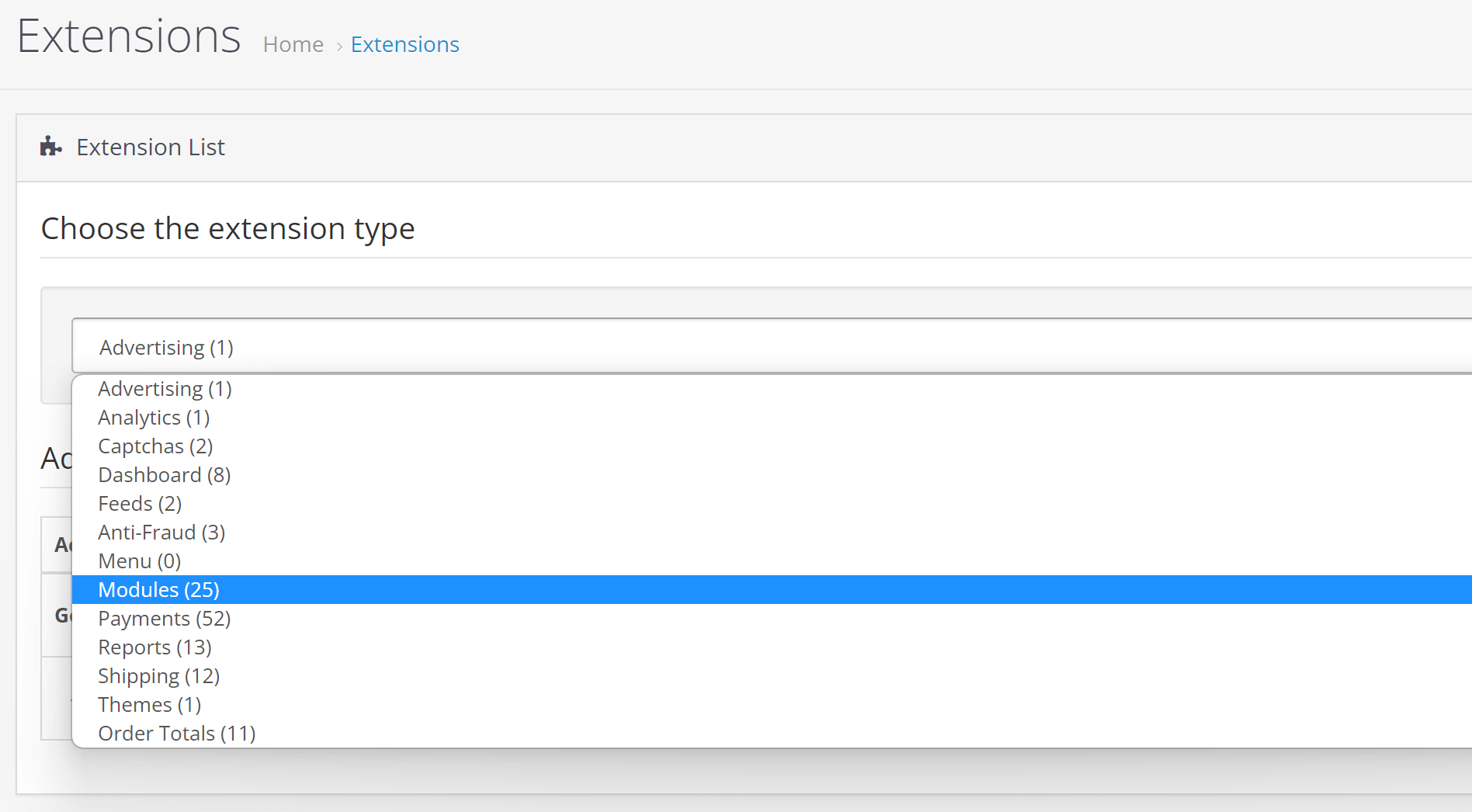 * Scroll down the list and you should find Print.App there. Click on the blue edit button to configure it.
8. Enter the Domain / API Key and Secret keys you copied in step 6 above. And click the save button on the top right-hand corner.
* Scroll down the list and you should find Print.App there. Click on the blue edit button to configure it.
8. Enter the Domain / API Key and Secret keys you copied in step 6 above. And click the save button on the top right-hand corner.
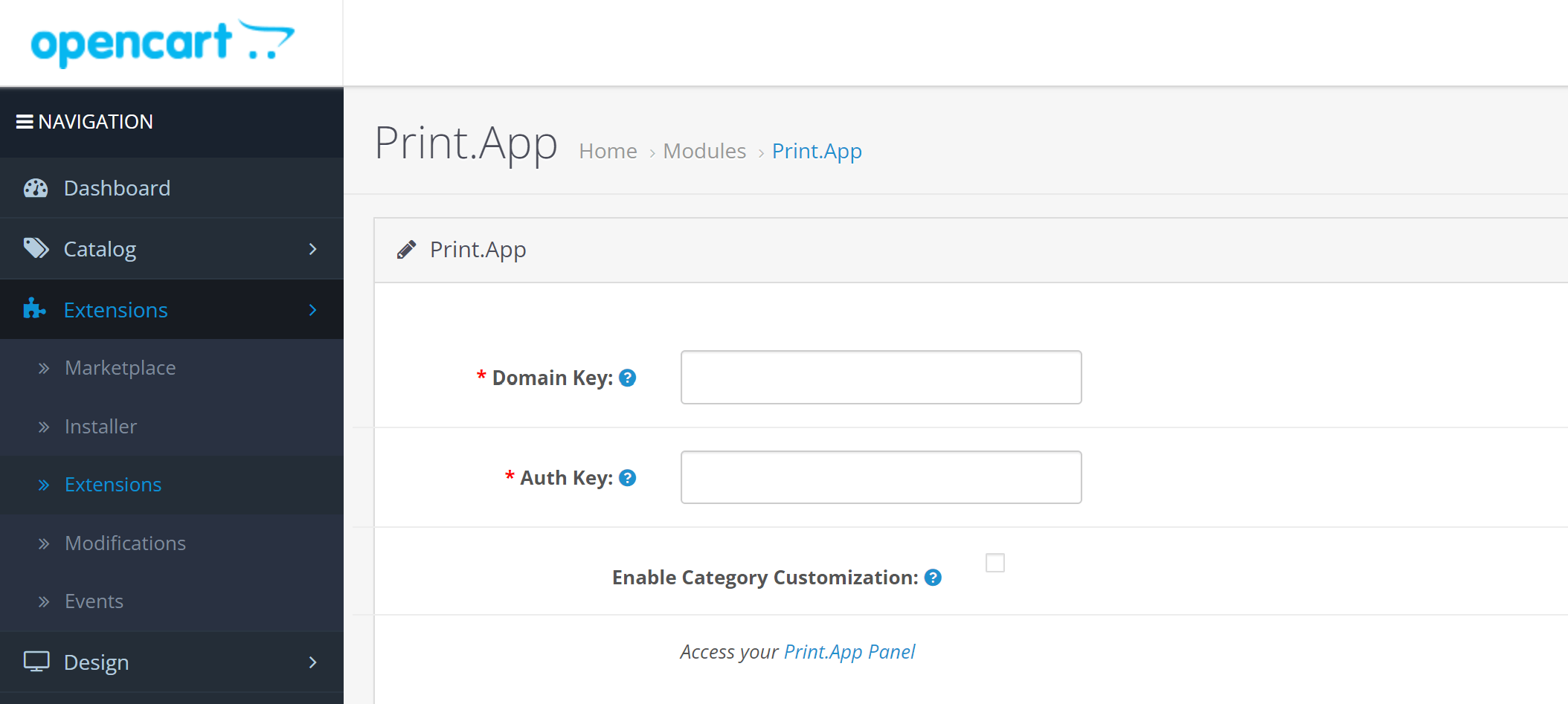 * And you're done with the installation 👏
9. Now you have the plugin linked to our platform. You can test this out by assigning a design to any of your products.
* Navigate to `Catalog` -> `Products` section in the admin and click to edit any of the products.
* Click the Options tab and type in `print`, it should show Print.App drop option for you to select.
* And you're done with the installation 👏
9. Now you have the plugin linked to our platform. You can test this out by assigning a design to any of your products.
* Navigate to `Catalog` -> `Products` section in the admin and click to edit any of the products.
* Click the Options tab and type in `print`, it should show Print.App drop option for you to select.
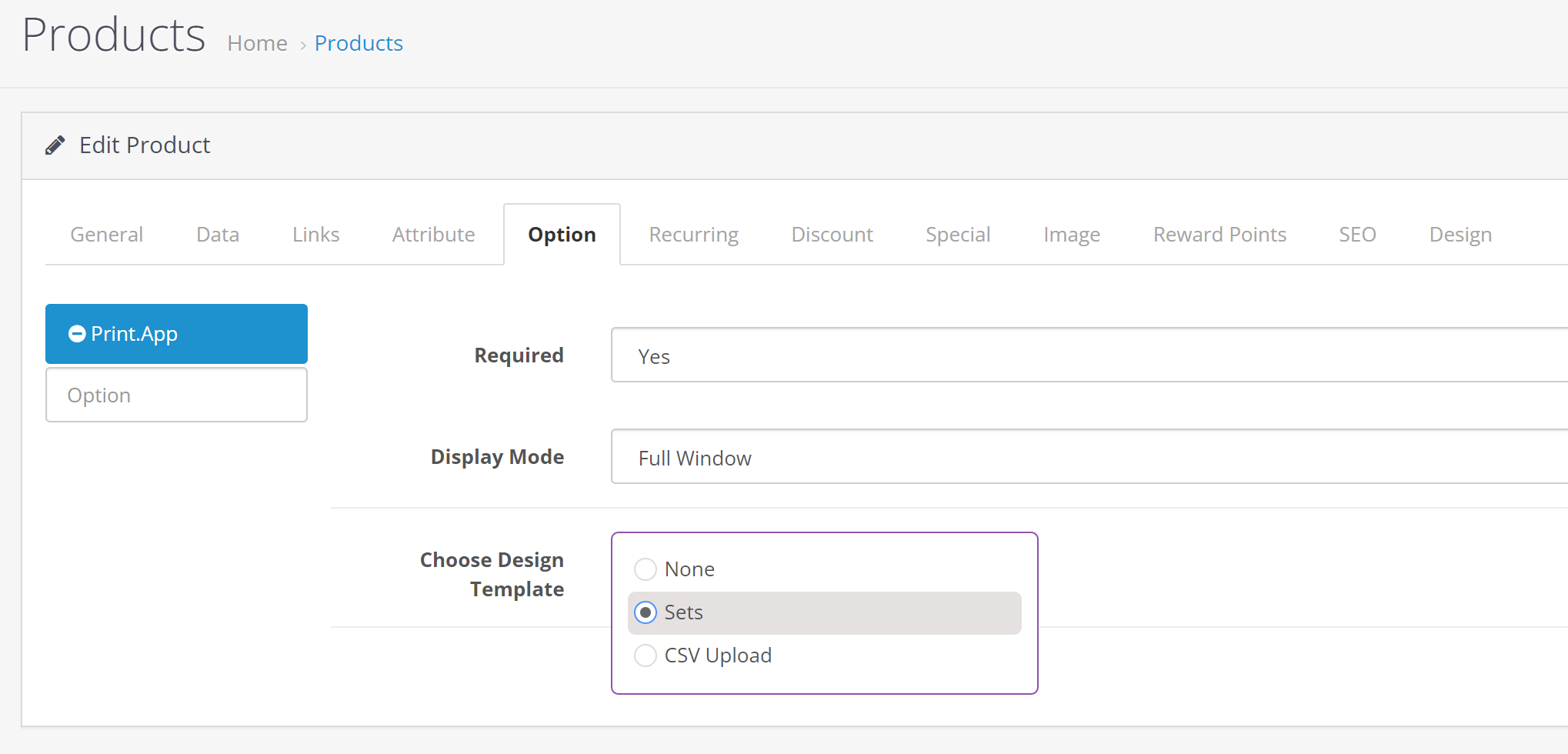 * Assign any of your Print.App designs to test with.
10. You're all set! To check everything, do navigate to your store front and check the product has the Customize button.
* If still it doesn't show, please reach out to us on our [discord community](https://discord.gg/XNdtdFxNdE).
* Assign any of your Print.App designs to test with.
10. You're all set! To check everything, do navigate to your store front and check the product has the Customize button.
* If still it doesn't show, please reach out to us on our [discord community](https://discord.gg/XNdtdFxNdE).