> ## Documentation Index
> Fetch the complete documentation index at: https://print.app/docs/llms.txt
> Use this file to discover all available pages before exploring further.
# Photo Prints
> Bulk photo orders, artwork prints, and albums—clean, customer‑friendly flows that export perfectly.
Photo products range from simple single‑image prints to multi‑page albums. The key is guiding image placement and keeping output consistent at scale.
## Typical products
* Standard photo sizes (4×6, 5×7, 8×10, etc.)
* Fine art prints (A‑series, US Letter/Tabloid)
* Multi‑photo albums or collections
## What to use
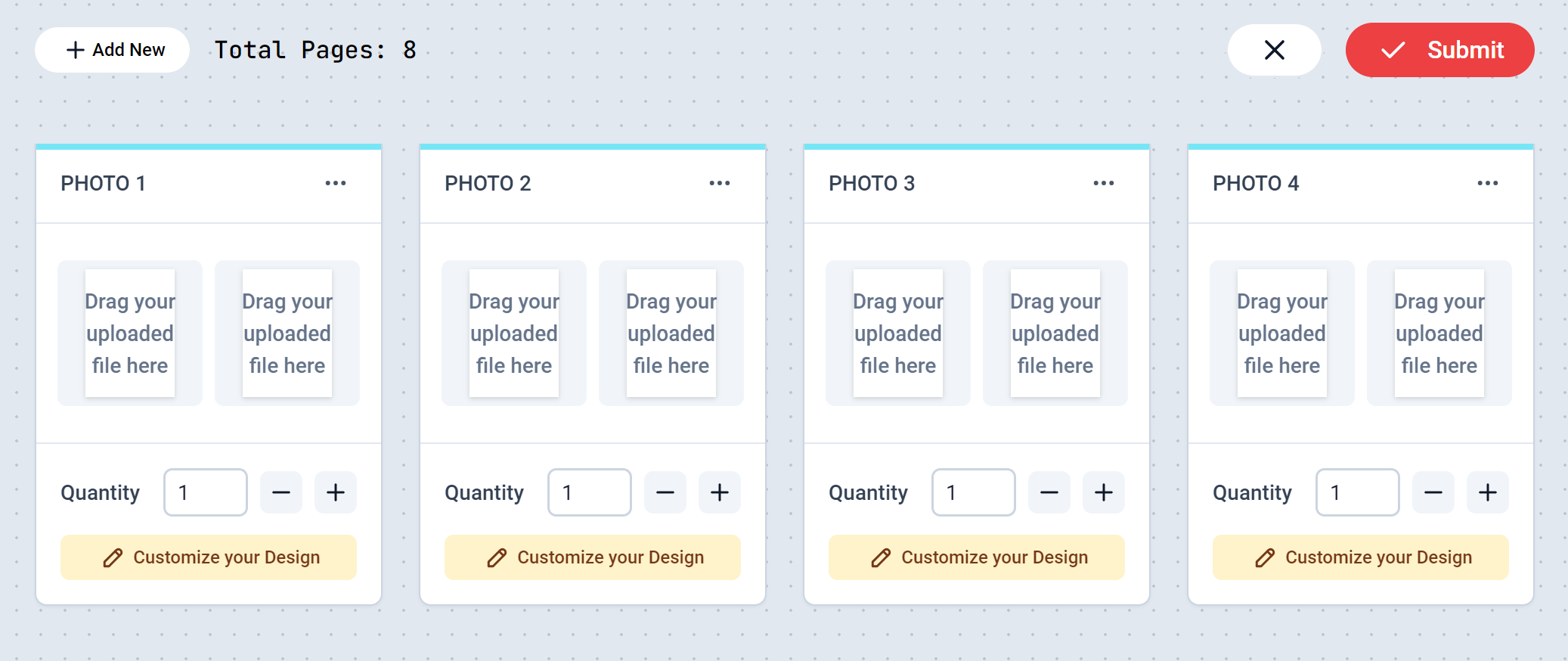
* Photo Print Module for pre‑defined page sets and bulk placement
* Image placeholders with "Place Graphics to Fit Page" for single prints
* Optional captions as Smart Texts per page or per image
## Patterns that work
### Bulk photo orders
Prepare a template page per size and enable the Photo Print Module:
* Customers upload images, then drag them onto pre‑defined pages/slots
* Optionally start with the upload panel for a faster flow
* Use module options to control set counts and whether customers can add/remove sets
See: Photo Print Module
### Single prints and artwork
* Create one page per size and enable "Place Graphics to Fit Page" in Advanced settings
* Keep a visible safe area; art often goes borderless, so bleed is important
* Offer paper/finish options at the product level; keep the design clean
### Albums and collections
* Combine multiple page templates (1‑up, 2‑up, 4‑up) as a set
* Use Page names (e.g., “Spread 1”) so navigation is clear for customers
* For text‑heavy spreads, pair with Page Selector to add/remove pages
## Image quality tips
* Advise minimum pixel dimensions per size (e.g., 300 DPI at print size)
* Encourage users to avoid heavy filters that reduce detail
* Provide gentle warnings for low‑resolution images if applicable
## Production guardrails
* Enable bleed and ensure edge‑to‑edge images extend into it
* Keep small captions legible at print size
* For albums, verify page order and that mirrored spreads align correctly
## Related
* Photo Print Module
* Page Selector
* Design Editor