> ## Documentation Index
> Fetch the complete documentation index at: https://print.app/docs/llms.txt
> Use this file to discover all available pages before exploring further.
# Colors
> All about Colors
Print.App comes with all the features you will need to accurately translate your color intentions from screen all the way through the PDF files to your print equipments.
By default, colors are provided in substractive RBG mode which are dynamically converted to additive CMYK in the final PDF file through the use of ICC color profiles.
You can optionally specify explicit your CMYK output values against any color or gradient with option for naming (**SPOT COLOR**)
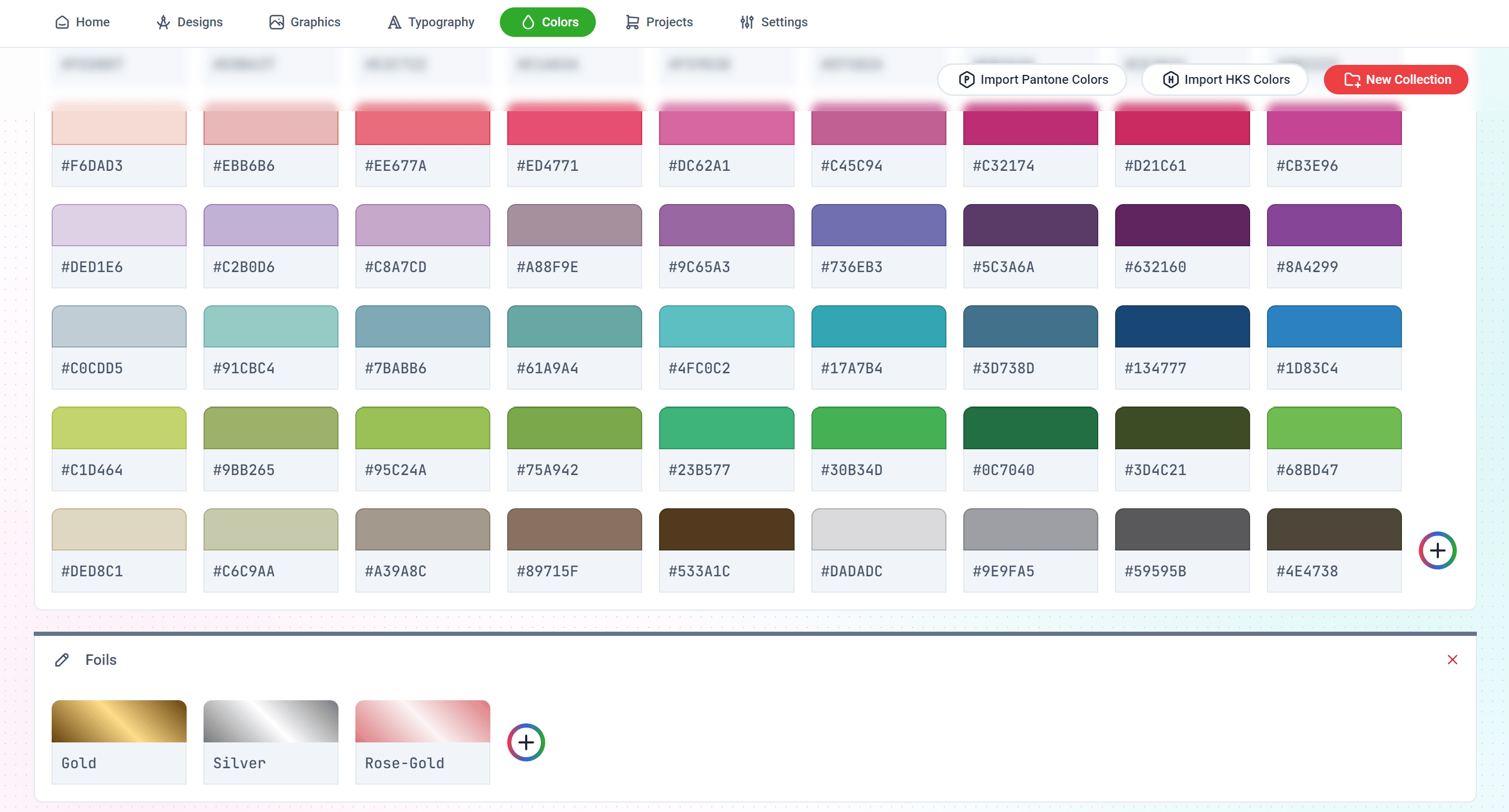 Colors are created and managed in a dedicated [Colors Page in the Print.App Admin](https://admin.print.app/colors)
Here, you can create folders to categorize colors into collections that you can later assign to select designs or by default, load them all into your design Editor.
To create a new color collection, simply click on the **New Collection** button and provide a title.
Then you can start adding colors by clicking the Plus Icon in the folder.
Colors are automatically saved, so be careful here 😉
You can create a **Solid Color**, L**inear Gradient** or **Radial Gradient** colors.
In gradient mode, double clicking the color bar will add a new color stop to the strip.
Colors are created and managed in a dedicated [Colors Page in the Print.App Admin](https://admin.print.app/colors)
Here, you can create folders to categorize colors into collections that you can later assign to select designs or by default, load them all into your design Editor.
To create a new color collection, simply click on the **New Collection** button and provide a title.
Then you can start adding colors by clicking the Plus Icon in the folder.
Colors are automatically saved, so be careful here 😉
You can create a **Solid Color**, L**inear Gradient** or **Radial Gradient** colors.
In gradient mode, double clicking the color bar will add a new color stop to the strip.
 When you click the **CMYK** multi-colored icon, you can override the color conversion and specify an explict CMYK color and name it a **SPOT COLOR**. That is the color the item will appear in the final PDF file.
You can create a Resource Profile to assign certain colors to a Design Template. This way, only the colors you've selected will be available for use in that Design Template.
[Read more here](/guides/designs/assign-resources)
When you click the **CMYK** multi-colored icon, you can override the color conversion and specify an explict CMYK color and name it a **SPOT COLOR**. That is the color the item will appear in the final PDF file.
You can create a Resource Profile to assign certain colors to a Design Template. This way, only the colors you've selected will be available for use in that Design Template.
[Read more here](/guides/designs/assign-resources)