> ## Documentation Index
> Fetch the complete documentation index at: https://print.app/docs/llms.txt
> Use this file to discover all available pages before exploring further.
# Underlay Colors
> How to create and manage a design variation with different underlay colors
A Design variation is a single design with additional variations. Here, we are considering one with different Underlay colors.
This is useful for products like TShirt. So we can have a base TShirt with variations in Orange, Red, Green etc.
### Create a TShirt Design
Firstly, we need to create a TShirt Design or import one: [How to create designs](/guides/designs/create-a-design)
### Create an Underlay Variation
* Load the Design to Edit and in the Editor, click the Designs tab
* Click the Enable Variation button and select the Underlay Variation option
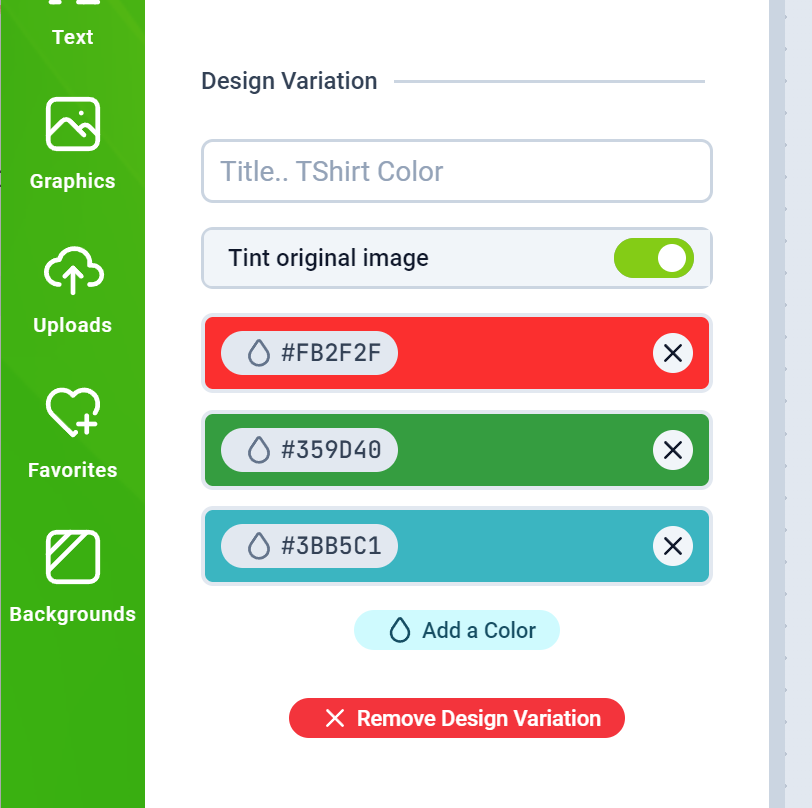
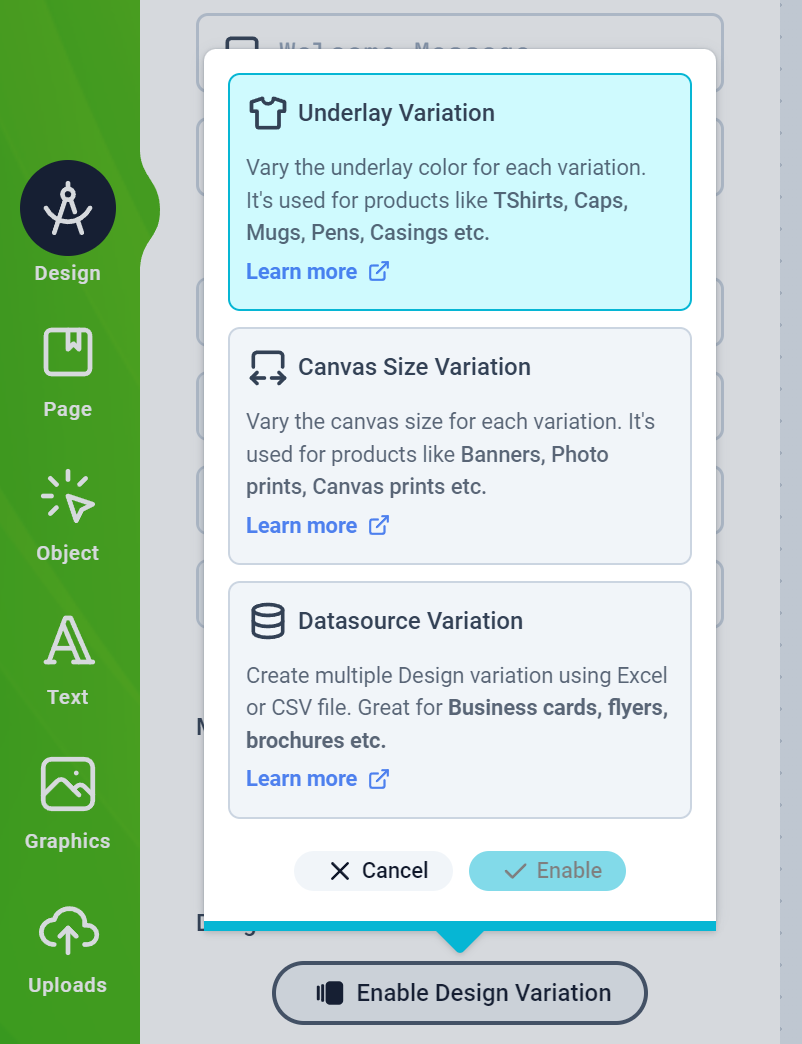 * This should display a Design Variation form where you can add a title that will be displayed to your customers.
* The option `Tint original image` makes the editor tint the Design Underlay image to whatever color option you provide.
For the `Tint original image` to work properly, your Original Underlay images need to be a neutral color like white, with grey shades.
* Proceed to add as many colors as your product offers.
* This should display a Design Variation form where you can add a title that will be displayed to your customers.
* The option `Tint original image` makes the editor tint the Design Underlay image to whatever color option you provide.
For the `Tint original image` to work properly, your Original Underlay images need to be a neutral color like white, with grey shades.
* Proceed to add as many colors as your product offers.
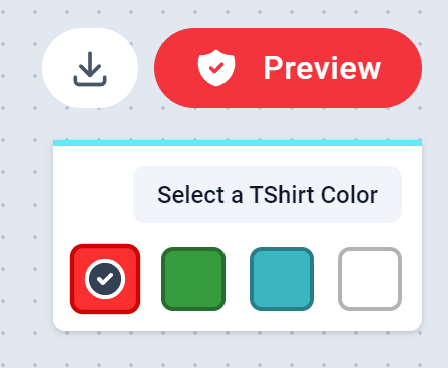
 * You should see a Floating panel on the top right hand corner of the canvas with your preset colors. This is where your customers will be able to change the TShirt color
 * If the Tint option is turned off, you will need to upload Underlay images for each color variants and for each page. Eg. Front and Back of a TShirt.
* Save your Design and assign it to a product and test as a customer on your web store.
* If the Tint option is turned off, you will need to upload Underlay images for each color variants and for each page. Eg. Front and Back of a TShirt.
* Save your Design and assign it to a product and test as a customer on your web store.