> ## Documentation Index
> Fetch the complete documentation index at: https://print.app/docs/llms.txt
> Use this file to discover all available pages before exploring further.
# CSV Datasource
> How to create and manage a design variation driven by a CSV or Excel sheet
A Design variation is a single design with additional variations.
We can create Design Variants using a simple CVS or Excel sheet to change the design contents. This will give us variants equal to the number of rows / records in the uploaded CSV.
You can use this to create different variants of a Business Card for different companies or store locations of the same company by using the CVS to update the address and other contact details of the companies
### Create a Datasource Variation
* To get started, load a Design or open one for edit from your [Admin Designs page](https://admin.print.app/designs)
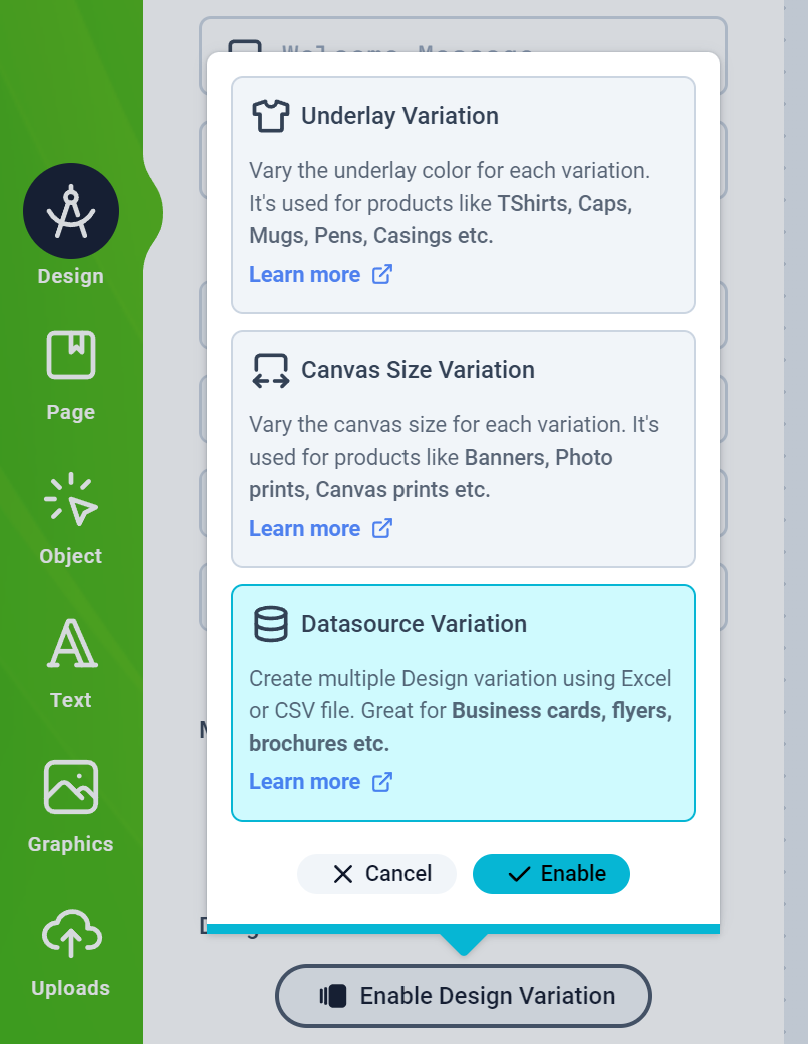
* Click the Design tab on the left panel and then click the Enable Design Variation button to select the Datasource Variation and Enable it
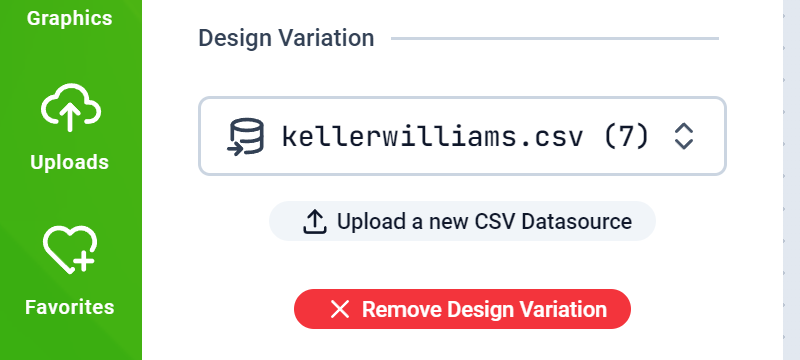
 * You should have the Datasource selection form displayed. Your previously uploaded CVS Files should appear here. If you don't have any, you can upload one right here.
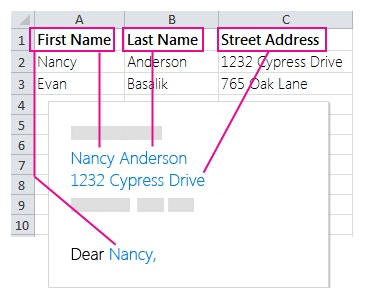
 * To drive your Design Object's values with a Datasource, you need to have in the Design, Objects that have the same title as the column name of your CSV Datasource.
For example, you create Smart Text Objects labelled `First Name`, `Last Name` and `Street Address` corresponding to the CSV file shown below:
* To drive your Design Object's values with a Datasource, you need to have in the Design, Objects that have the same title as the column name of your CSV Datasource.
For example, you create Smart Text Objects labelled `First Name`, `Last Name` and `Street Address` corresponding to the CSV file shown below:
 [How to create Smart Objects](/guides/designs/design-smart)
* Save your Design and assign it to a product and test as a customer on your web store.
You can manage all your CVS Datasources in [Admin > Designs](https://admin.print.app/designs)
[How to create Smart Objects](/guides/designs/design-smart)
* Save your Design and assign it to a product and test as a customer on your web store.
You can manage all your CVS Datasources in [Admin > Designs](https://admin.print.app/designs)