> ## Documentation Index
> Fetch the complete documentation index at: https://print.app/docs/llms.txt
> Use this file to discover all available pages before exploring further.
# Patterns
> How to create and configure a Pattern
In the PrintApp editor, you can convert an Image or a Shape object into a repeating Pattern on the horizontal and vertical plane. You can also control the gap between the repeating objects as well as rotate and zoom them in place.
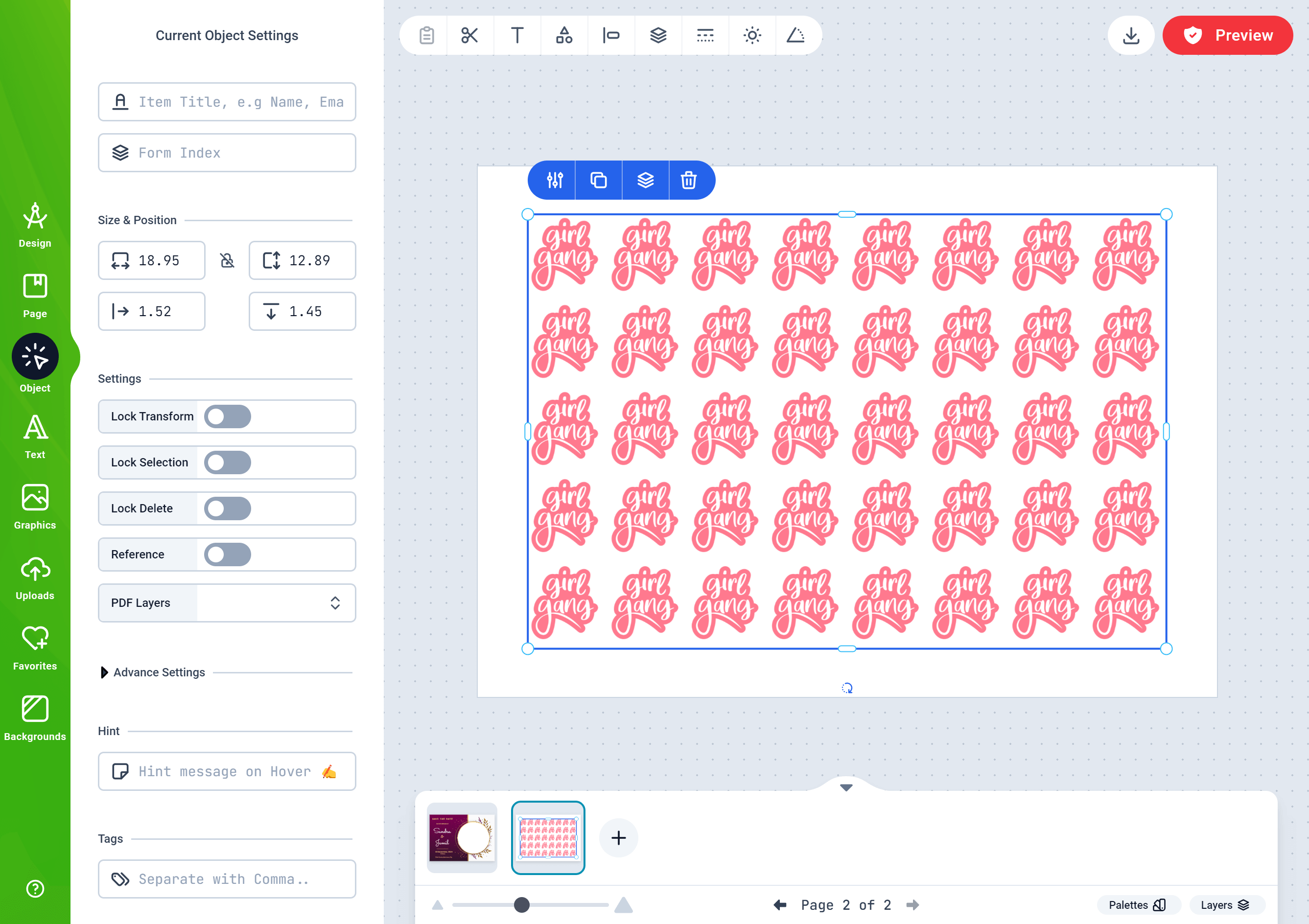 ## How to create a Pattern
* To get started, load a Design or open one for edit from your [Admin Designs page](https://admin.print.app/designs)
* With your design opened, add any object from the Graphics panel unto the canvas and select it. You should find the **Make Pattern** button in the context menu as shown below:
## How to create a Pattern
* To get started, load a Design or open one for edit from your [Admin Designs page](https://admin.print.app/designs)
* With your design opened, add any object from the Graphics panel unto the canvas and select it. You should find the **Make Pattern** button in the context menu as shown below:
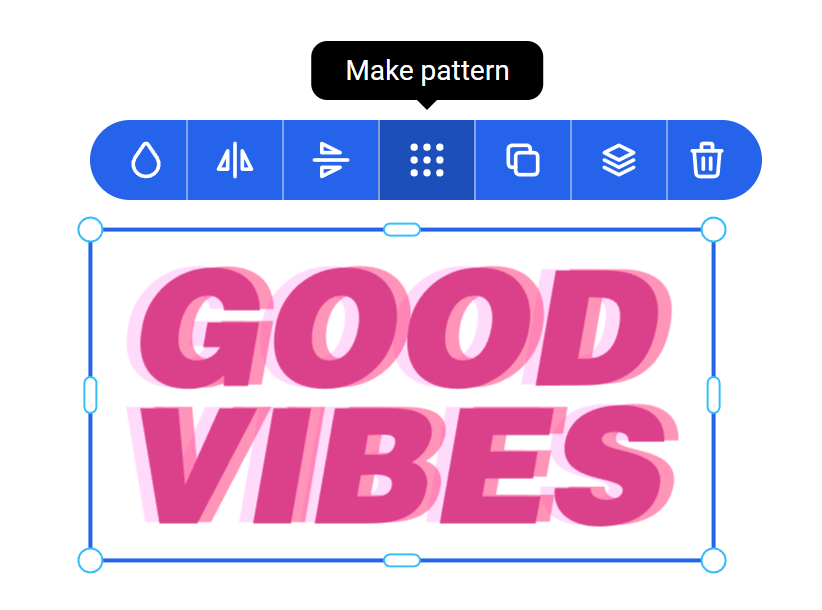 Click the **Make Pattern** button to create a new Pattern Object from the selected graphic.
* A new Pattern object will be created using the selected element. You can edit the Pattern by clicking the **Edit Pattern** button as shown below:
Click the **Make Pattern** button to create a new Pattern Object from the selected graphic.
* A new Pattern object will be created using the selected element. You can edit the Pattern by clicking the **Edit Pattern** button as shown below:
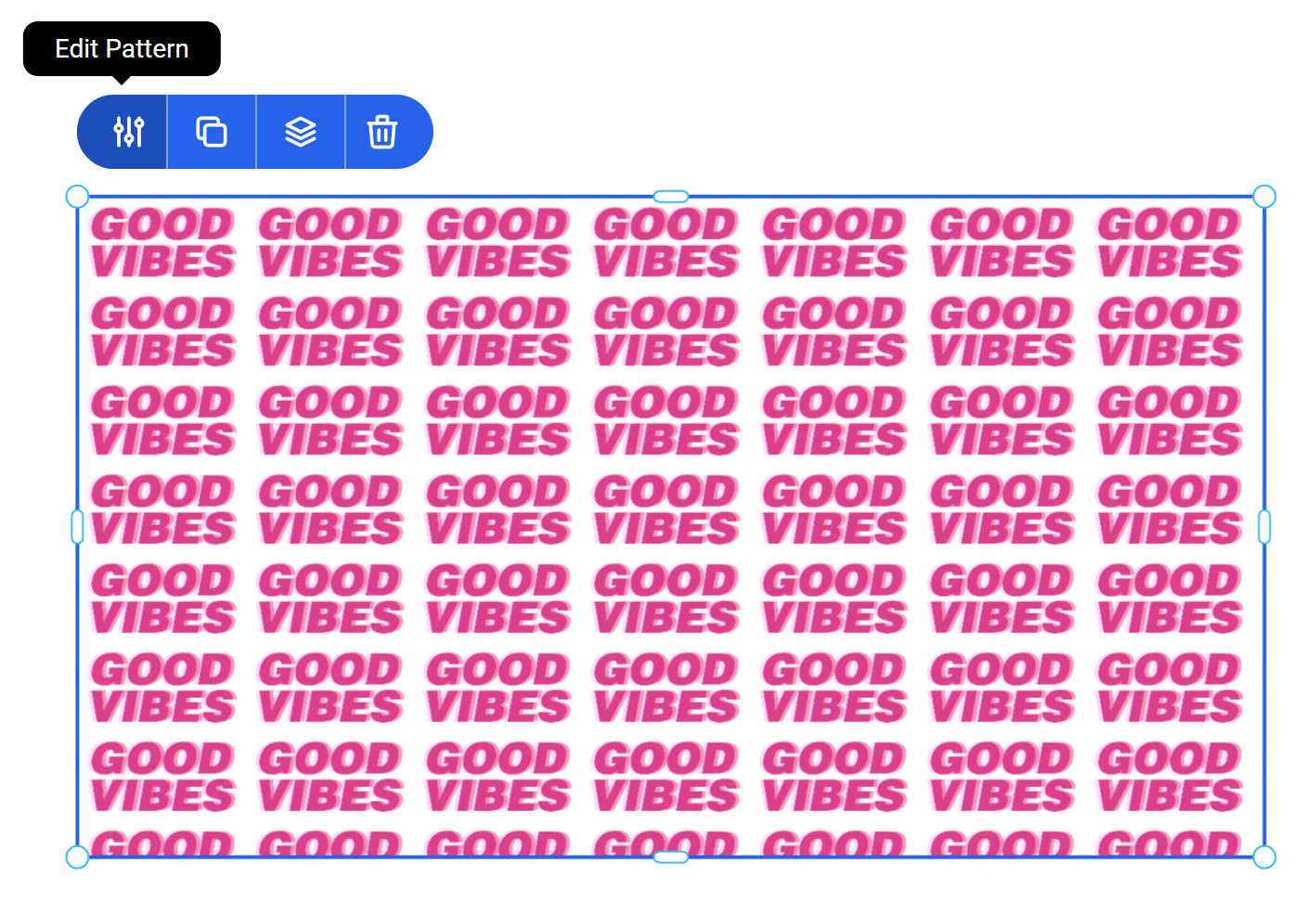 You can edit the Horizontal or Vertical spacing, Zoom, Rotation and Odd / Even Offset values.
* Enabling the button **Show this tabe to your Customers** will ensure this Pattern edit panel is also visible to your Customers when they personalize the design.
You can edit the Horizontal or Vertical spacing, Zoom, Rotation and Odd / Even Offset values.
* Enabling the button **Show this tabe to your Customers** will ensure this Pattern edit panel is also visible to your Customers when they personalize the design.
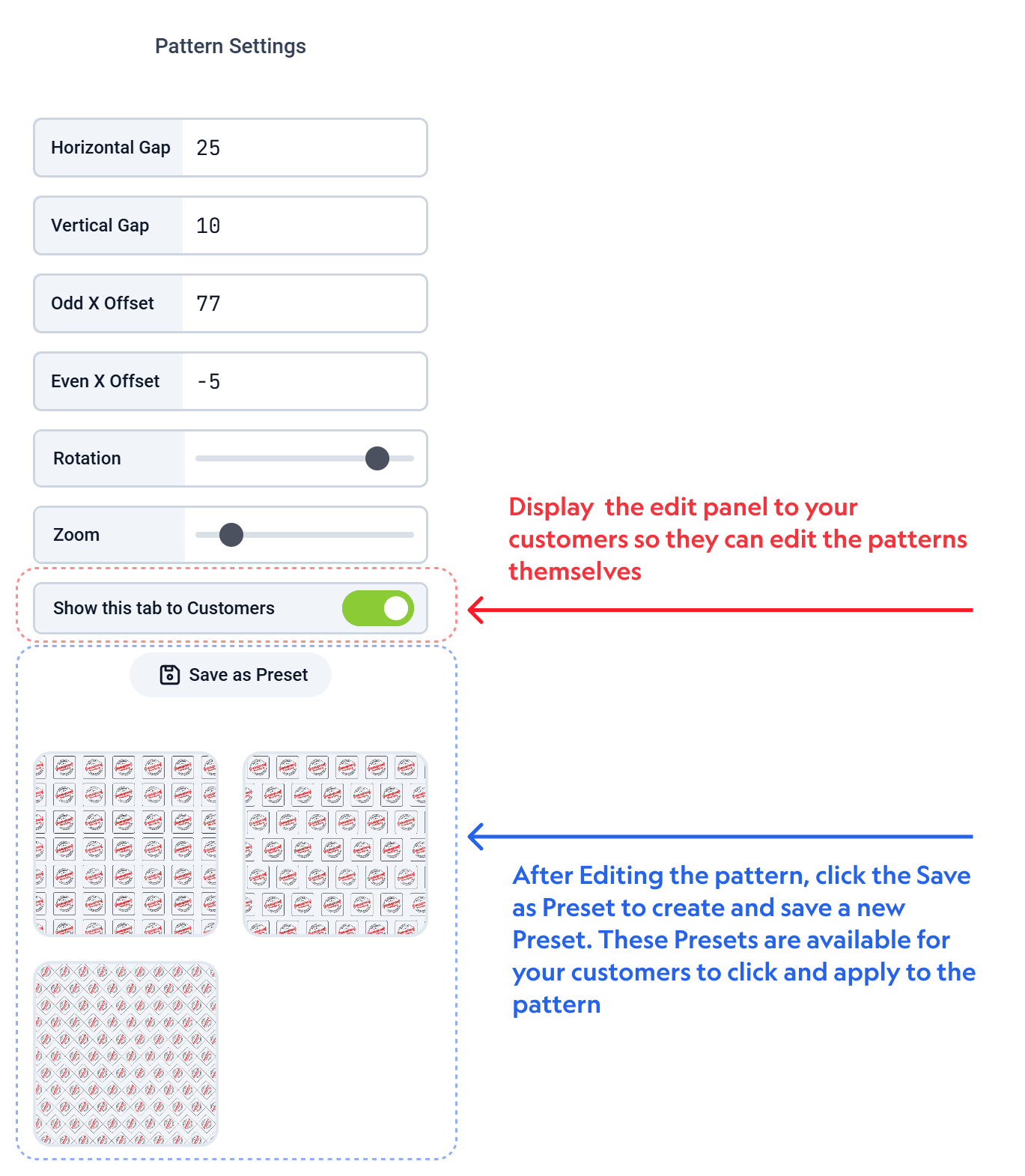 * After modifying the Pattern, you can create a Preset from the patten by clicking the **Save as Preset** button.
This will save the current Pattern settings and display it as a short cut for your customers to apply them when personalizing the design.
* The Pattern is treated as any other PrintApp Object, configurable using the Objects panel. You can lock, scale and transform it as you deem fit.
* The PDF engine uses the source element to render each individual Pattern item so they appear exactly as the source element.
* After modifying the Pattern, you can create a Preset from the patten by clicking the **Save as Preset** button.
This will save the current Pattern settings and display it as a short cut for your customers to apply them when personalizing the design.
* The Pattern is treated as any other PrintApp Object, configurable using the Objects panel. You can lock, scale and transform it as you deem fit.
* The PDF engine uses the source element to render each individual Pattern item so they appear exactly as the source element.