> ## Documentation Index
> Fetch the complete documentation index at: https://print.app/docs/llms.txt
> Use this file to discover all available pages before exploring further.
# Design Settings
> Design Settings & Configurations
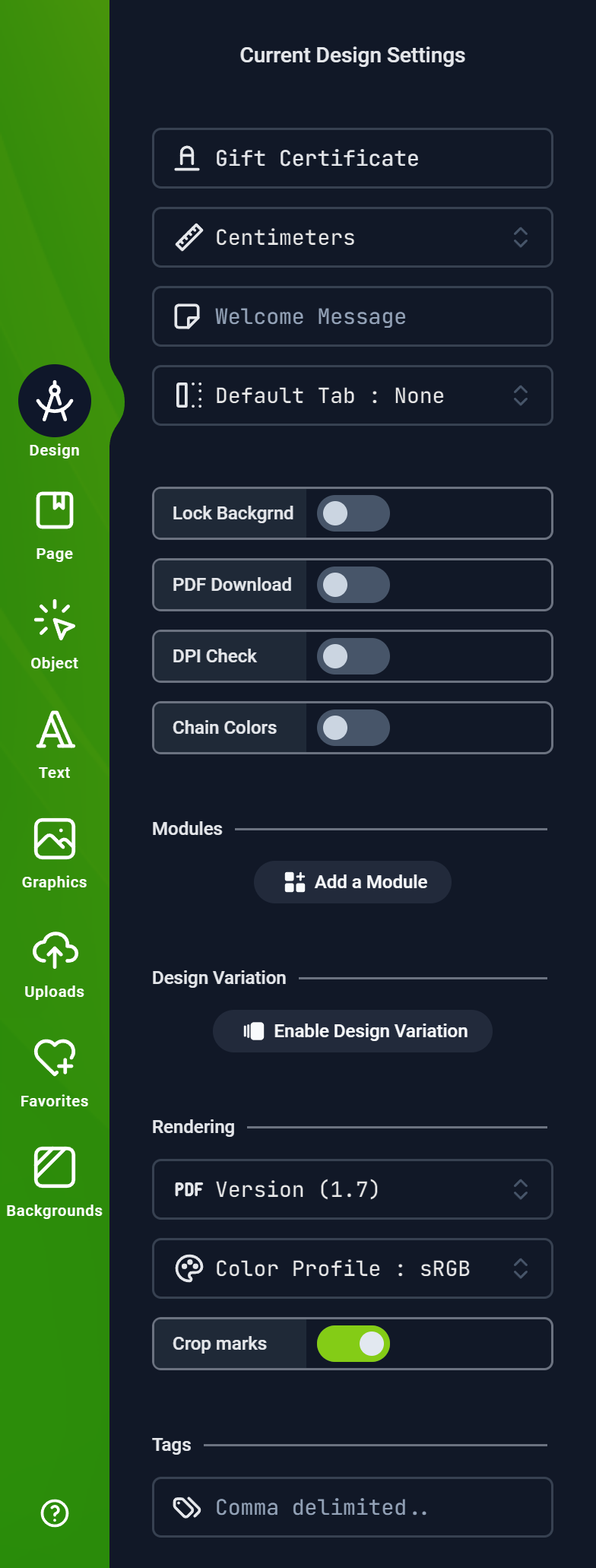
A Design can be configured in the Design Tab when editing a design.
 ### Values
Design title text
Design measurement units.
### Values
Design title text
Design measurement units.
Values can be `Centimeters`, `Millimeters`, `Inches`, `Points`, `Pixels`, or `Feet`
This is used to display a welcome message in a modal window.
You can use this medium to give your customer an instruction before they start to edit a Design.
Here, you can select the default tab that will be shown when the Editor is launched by your customer.
This will be the first Tab Panel they will see when they enter the Editor.
This option hides the Background tab and prevents customers from changing the Design's background color or graphics
This option allows your customers to download the PDF file within the Editor.
This option shows a warning message to customers if they add an image into the Editor that is below the Design's set DPI threshold.
This option makes it possible to chain colors across a design. It means when customers change the color of an item, similar items with the same color gets updated with the new color as well.
Version in which the final PDF should be rendered in.
Color Profile to use in Rendering the final PDF. This allows you to select an ICC color profile through which all colors are mapped during PDF rendering.
You can select from several standard CMYK color print profiles
Enabling this option instructs the PDF renderer to Print the Crop marks on the final PDF file as well as raster downloads.
Tags can be used internally to categorize your designs for search