> ## Documentation Index
> Fetch the complete documentation index at: https://print.app/docs/llms.txt
> Use this file to discover all available pages before exploring further.
# How to create Design
> A guide on how to create a new Print.App Design
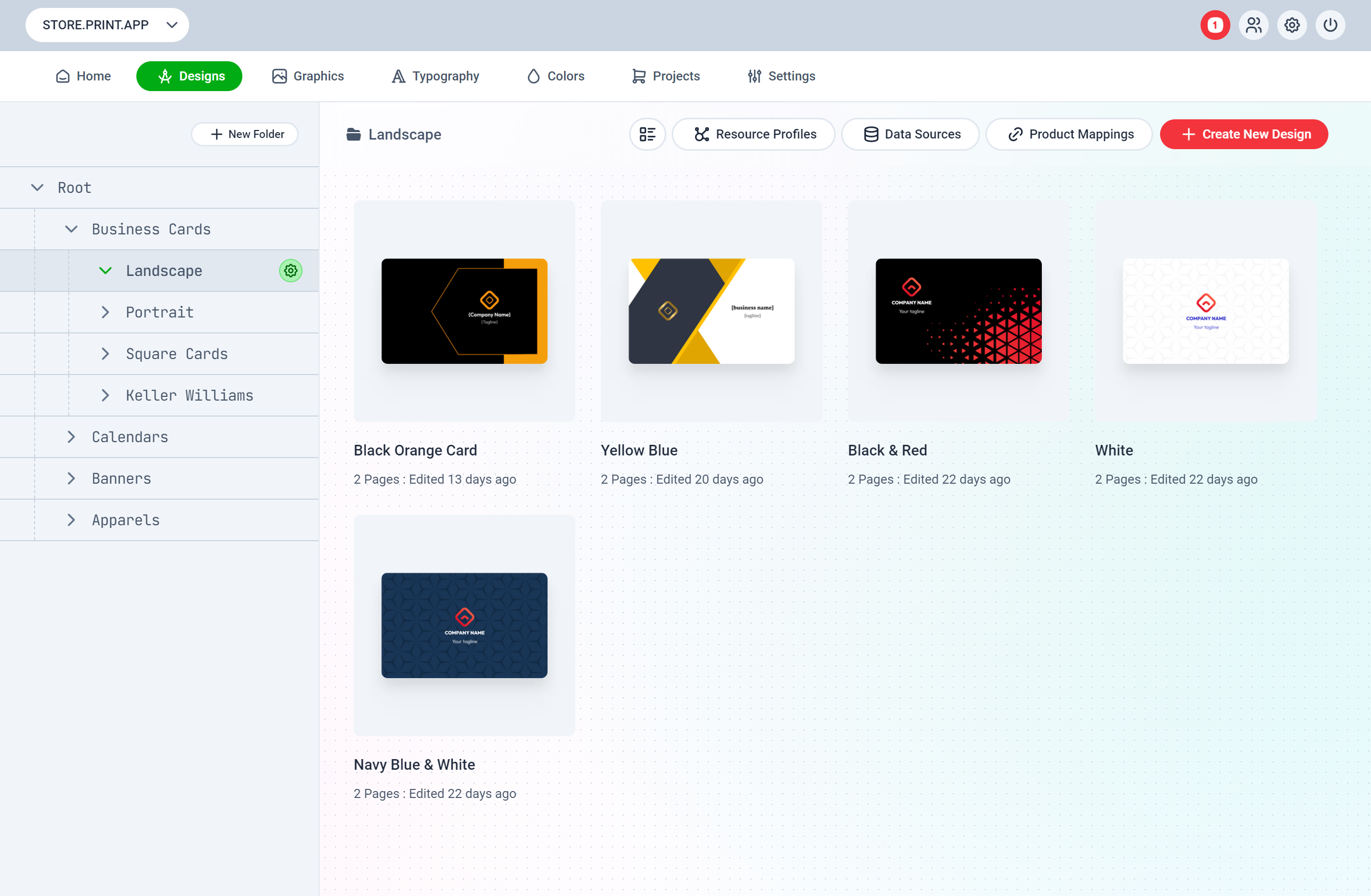
To get started, navigate to the designs section of the admin: [https://admin.print.app/designs](https://admin.print.app/designs)
In the Admin Designs section, you can administer all your designs, create and manage folders and map designs to your store Products.
Click the red button labelled *+ Create New Design* on the top right corner of the window.
You can create a new folder for your Design.
You can also drag Design to other folders after creating them.
Once the Editor launches, you are presented with a Dialog where you can provide a Design Title, Measurement units and a dimension list to get started with.
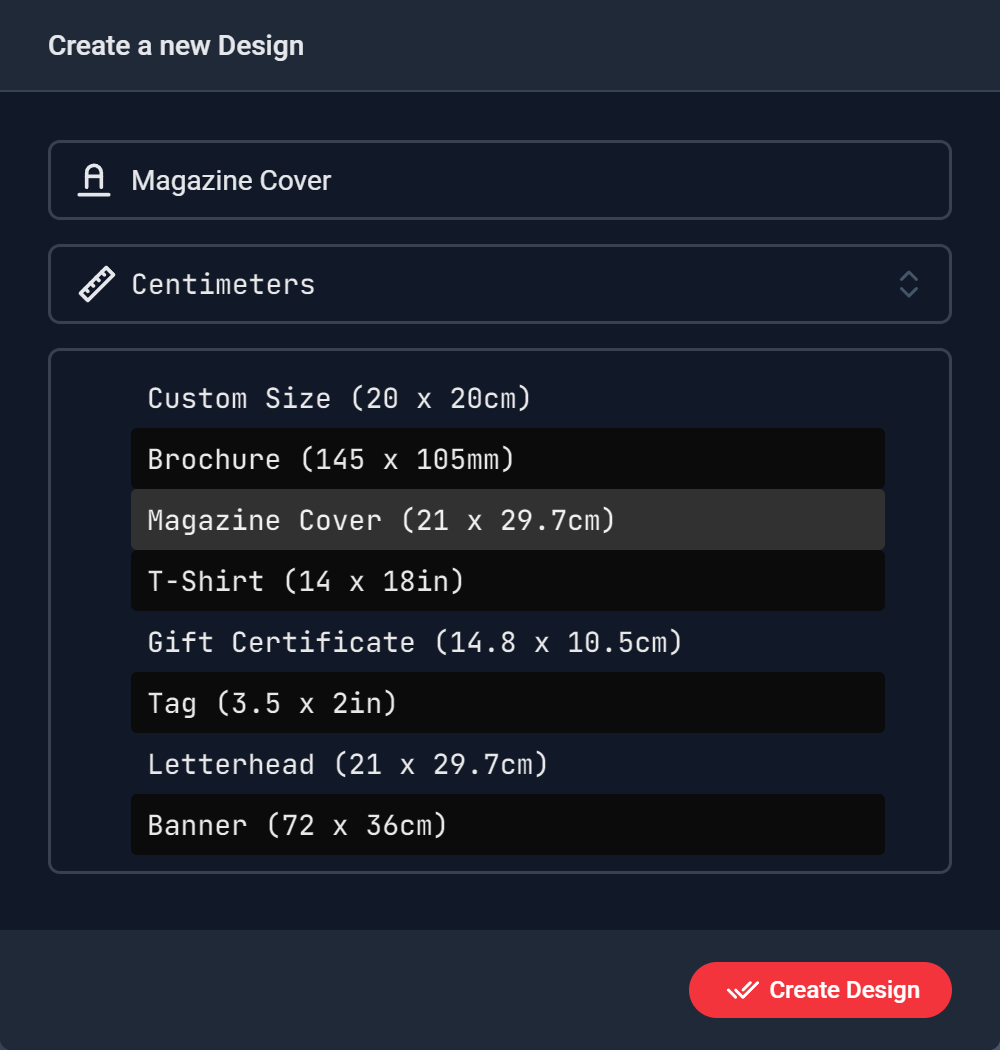 Click the Red button and a New Design is displayed in the Editor.
On the Left Panel, you will find Tabs for the following Panels:
* **Design -** This is where you will define all the design configurations like the Title, Welcome message, Units, Modules, Variations, set the Default Tab etc
Click the Red button and a New Design is displayed in the Editor.
On the Left Panel, you will find Tabs for the following Panels:
* **Design -** This is where you will define all the design configurations like the Title, Welcome message, Units, Modules, Variations, set the Default Tab etc
[Read here for more on Design settings](/guides/designs/design-settings)
* **Page -** Here, you manage the **Current Page** displayed in the Editor. You can create additional pages and have as many pages as your design requires
[Read here for a detailed description of Page panel](/guides/designs/design-pages)
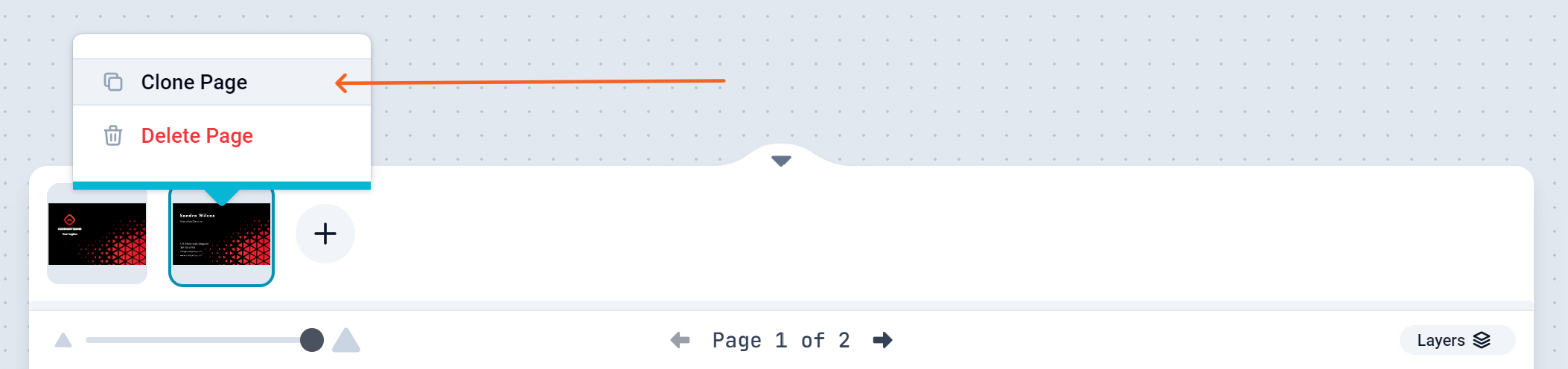
**To clone a Page,** move your mouse over the current page in the Navigator section on the bottom of the page and click the more icons *(3 dots)*. This will present you with a menu where you can clone or delete that page.
 * **Object -** This panel is used to configure an Object's detail for Objects like Texts, Graphics, Images. You can set the object's Title, Size & Position and other settings.
[Read here for a detailed description of this panel](/guides/designs/design-objects)
* **Text -** Here, you can find all the Text controls to create a new Text, and apply fonts.
* **Graphics -** Graphics section lists all your shapes, svgs and pictures. This collection is equally available to your customers. You can limit what appears in this section per design by assigning Profiles to the Design.
* **Backgrounds -** These are background images that customers or store owners can apply to the Background layer of the page. You can also apply a background color from here.
Go ahead and create a design, add Text and Graphics contents.
When you are ready to submit, click the Preview button on the top right hand corner to Preview your Design and once satisfied, you can save it.
While creating the Design, you can click on the Download button to download a PDF preview of the design to have an idea of how it will appear in the final file.
After submitting your design, the Editor will close and take you back to your Admin where you should find the newly created Design.