> ## Documentation Index
> Fetch the complete documentation index at: https://print.app/docs/llms.txt
> Use this file to discover all available pages before exploring further.
# How to Allocate Resources to Designs
> Ensure specific fonts, graphics, or colors are used for a particular Design Template
To achive this, you simply need to create a Resource Profile to group select resources like Fonts, Colors, Graphics etc and assign that Profile to your Design Templates
### Create a Resource Profile
Navigate to the [Designs Page in Print.App Admin](https://admin.print.app/designs) and click the More Icon -> and click the Resource Profile button.
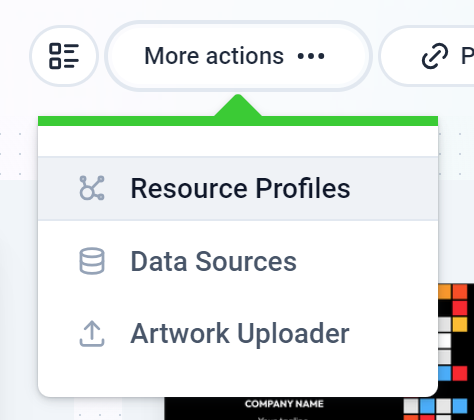 This loads up your Profiles, if any. Next, click the red Create New Profile button to create a new resource profile.
In the new window, give your profile a title and add the resources you want to include or exclude.
Including a resource means that only the resources you've selected will be available for use in the Design Template. Excluding a resource means that all resources will be available for use in the Design Template except the ones you've selected.
This loads up your Profiles, if any. Next, click the red Create New Profile button to create a new resource profile.
In the new window, give your profile a title and add the resources you want to include or exclude.
Including a resource means that only the resources you've selected will be available for use in the Design Template. Excluding a resource means that all resources will be available for use in the Design Template except the ones you've selected.
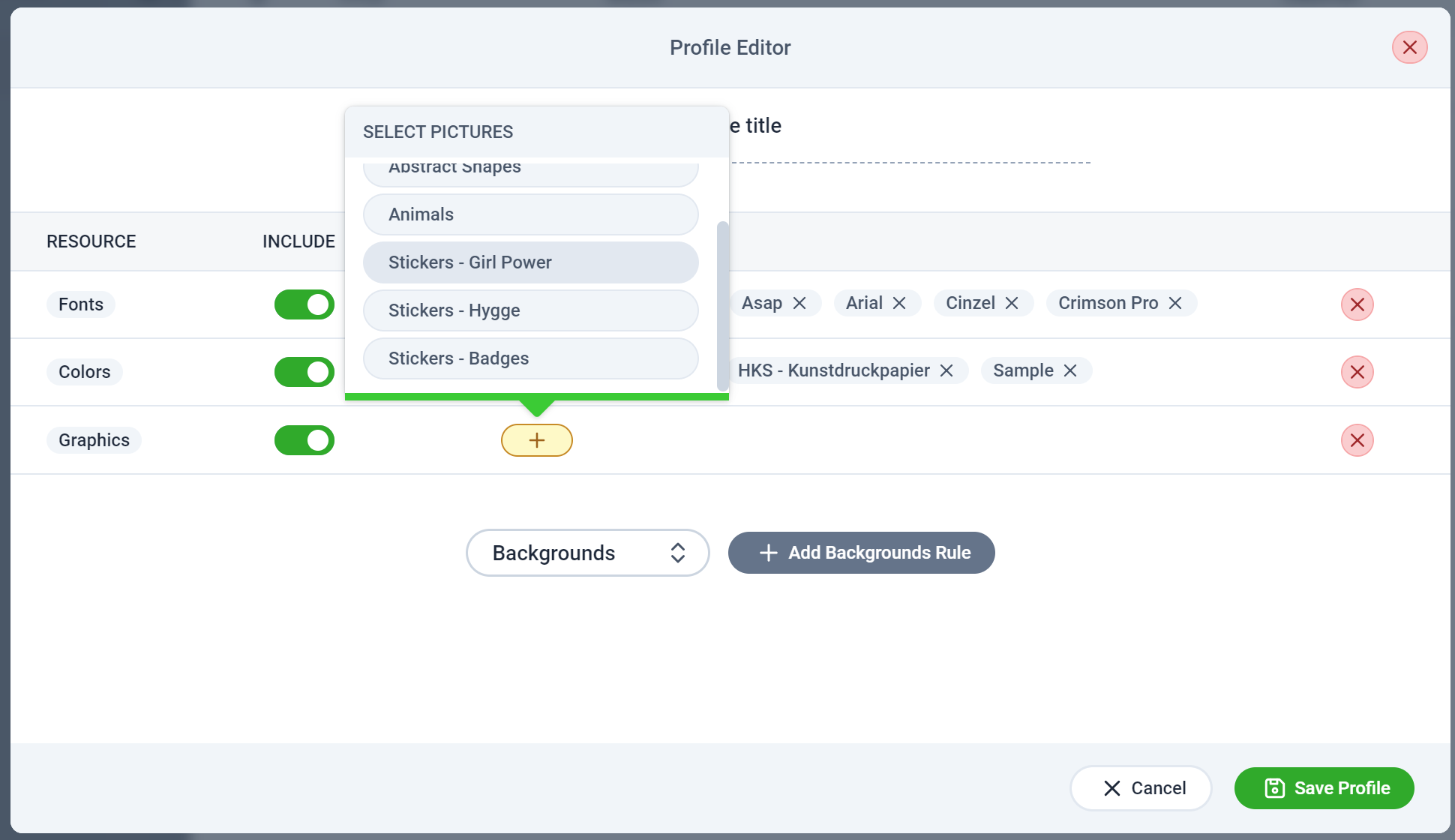 Save your Profile and close the resource profiles panel.
### Assign your Profile to a Design Template
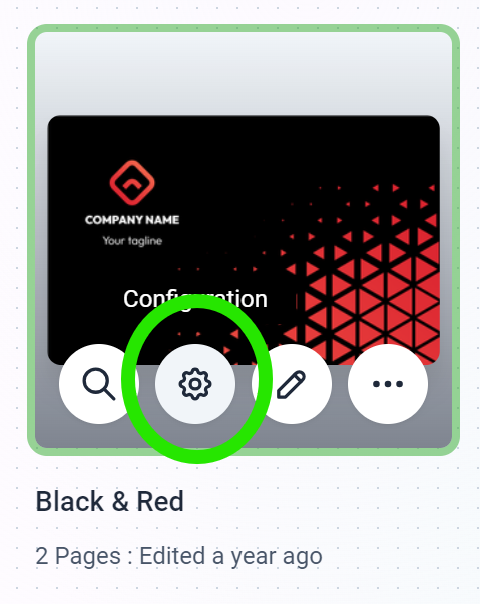
Still within the Designs page, click the Configuration button against a Design you want to assign the profile to.
Save your Profile and close the resource profiles panel.
### Assign your Profile to a Design Template
Still within the Designs page, click the Configuration button against a Design you want to assign the profile to.
 In the new window, select the Resource Profiles tab.
click the plus button and select the profile you created earlier to assign it to this Design.
In the new window, select the Resource Profiles tab.
click the plus button and select the profile you created earlier to assign it to this Design.
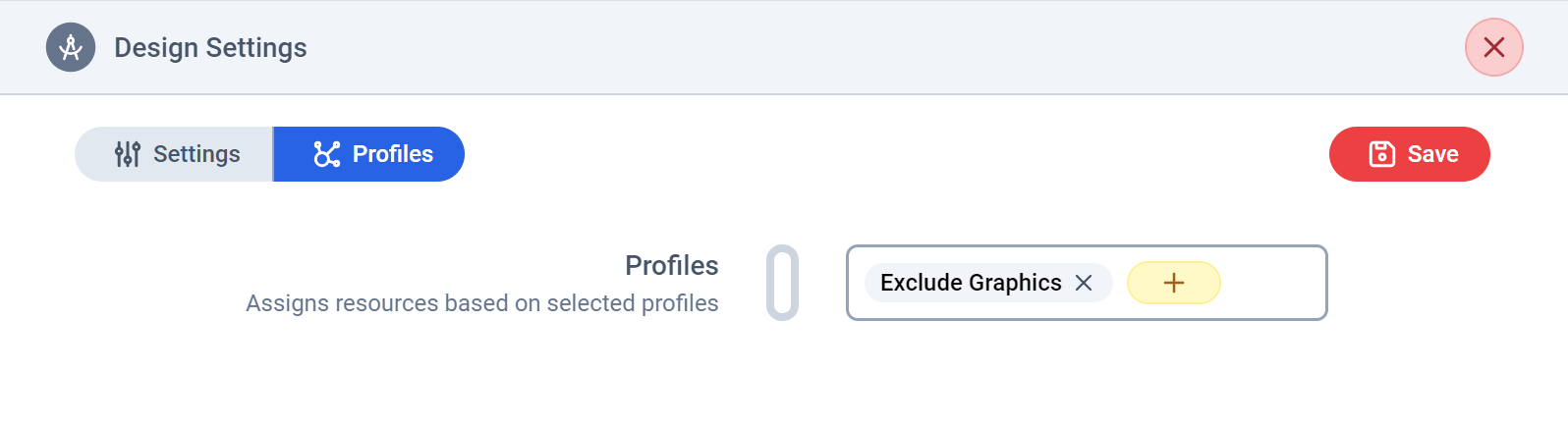 Save and close the window. Your Design Template now has the resources you've assigned to it.