> ## Documentation Index
> Fetch the complete documentation index at: https://print.app/docs/llms.txt
> Use this file to discover all available pages before exploring further.
# The customer flow
> What your customers see in the Gang Sheet Builder, from the first upload to Preview & Save — the design list, sizes and quantities, the resolution check, auto-nesting and the order summary.
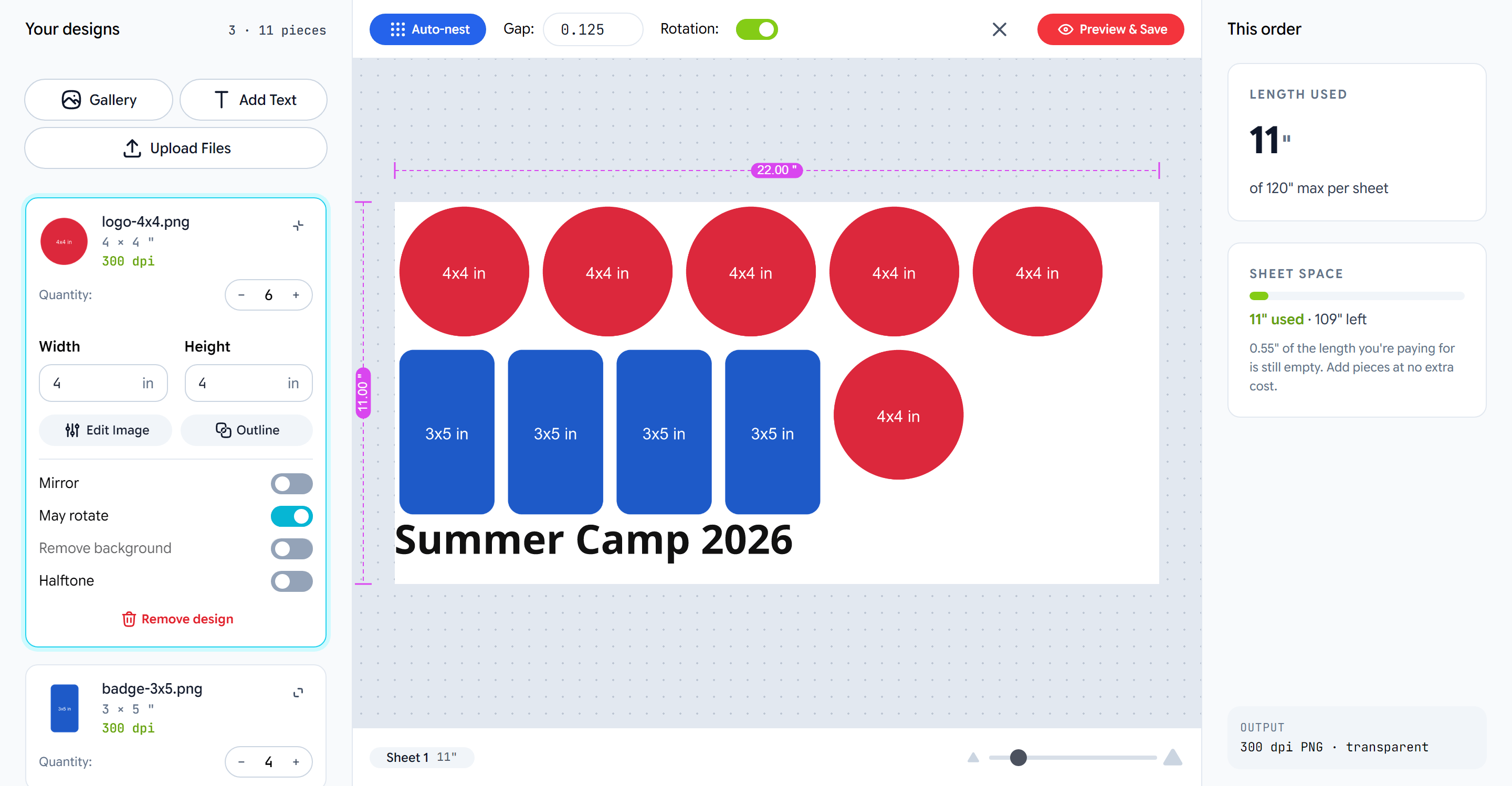
The builder has three areas: the **design list** on the left, the
**sheet** in the middle and the **order summary** on the right. Customers
work in the list; the sheet and the summary follow.
 ## Adding designs
The list starts with your welcome message and three ways in:
* **Upload Files** — one or many at once. Each file becomes a row with a
thumbnail, its size at the shop's resolution floor, and a resolution
verdict.
* **Add Text** — types a text piece in your fonts. See [Design tools](/docs/gangsheet/design-tools#add-text).
* **Gallery** — picks a graphic from the folders you allow.
A new upload lands at the largest size that meets the DPI floor, so it
starts out printable.
## Size, quantity and options
Opening a row shows its controls:
| Control | What it does |
| ------------------------ | ------------------------------------------------------------------------------------------------------------------------------------------------ |
| **Quantity** | Copies of this design on the sheet. |
| **Width / Height** | The printed size. Editing one keeps the design's proportions; the resolution verdict updates as they type. |
| **Edit Image / Outline** | The design tools, when enabled. |
| **Mirror** | Flips the piece — for transfers that are pressed face down. |
| **May rotate** | Lets the packer turn this piece sideways. |
| **Remove background** | Cuts the background out of an opaque upload. Disabled on files that are already transparent. While the cut-out is being made the row is blocked. |
| **Halftone** | Screens the piece at print resolution. |
| **Remove design** | Takes it off the list and the sheet. |
## The resolution check
Every raster design shows its resolution at the current size, in green when
it passes and red when it does not. A design under the floor is also marked
on the sheet and listed in the summary with the largest size that passes:
## Adding designs
The list starts with your welcome message and three ways in:
* **Upload Files** — one or many at once. Each file becomes a row with a
thumbnail, its size at the shop's resolution floor, and a resolution
verdict.
* **Add Text** — types a text piece in your fonts. See [Design tools](/docs/gangsheet/design-tools#add-text).
* **Gallery** — picks a graphic from the folders you allow.
A new upload lands at the largest size that meets the DPI floor, so it
starts out printable.
## Size, quantity and options
Opening a row shows its controls:
| Control | What it does |
| ------------------------ | ------------------------------------------------------------------------------------------------------------------------------------------------ |
| **Quantity** | Copies of this design on the sheet. |
| **Width / Height** | The printed size. Editing one keeps the design's proportions; the resolution verdict updates as they type. |
| **Edit Image / Outline** | The design tools, when enabled. |
| **Mirror** | Flips the piece — for transfers that are pressed face down. |
| **May rotate** | Lets the packer turn this piece sideways. |
| **Remove background** | Cuts the background out of an opaque upload. Disabled on files that are already transparent. While the cut-out is being made the row is blocked. |
| **Halftone** | Screens the piece at print resolution. |
| **Remove design** | Takes it off the list and the sheet. |
## The resolution check
Every raster design shows its resolution at the current size, in green when
it passes and red when it does not. A design under the floor is also marked
on the sheet and listed in the summary with the largest size that passes:
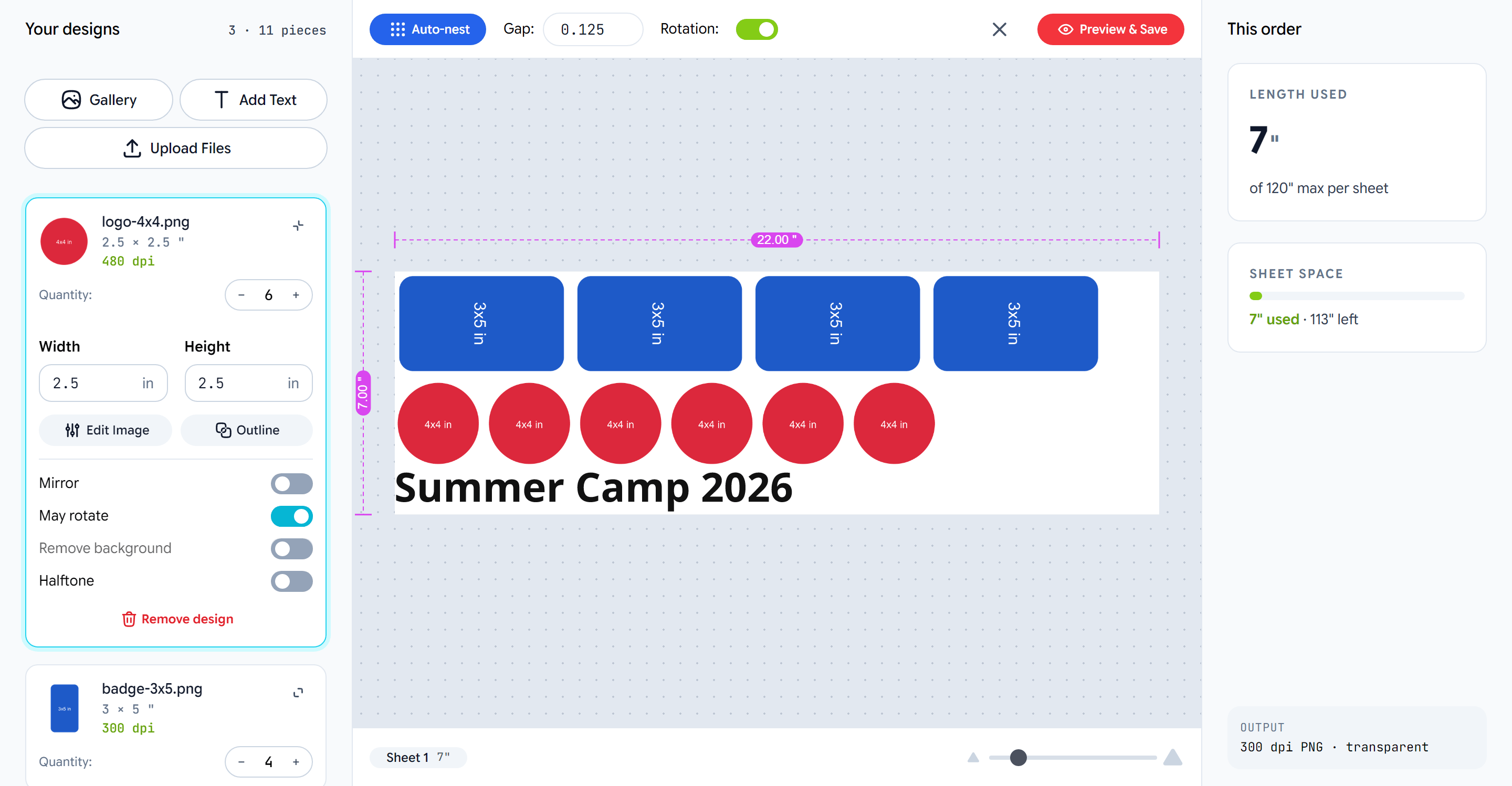 With **Low DPI blocks checkout** on, Preview & Save stays disabled until
the design is shrunk or replaced. The sheet keeps packing meanwhile so the
customer always sees the real layout.
## Auto-nesting
Every change to the list re-packs the sheet on its own after a moment.
**Auto-nest** in the top bar re-runs it on demand, and, when the shop
allows, the customer can change the **gap** and switch **rotation** off for
the whole sheet. An order longer than one sheet continues on *Sheet 2*;
the tabs at the bottom switch between sheets.
If the shop allows it, pieces can also be selected, moved and resized on
the sheet itself. A resize there changes the design's size in the list.
## The summary
* **Length used** — the billed length of the sheet against the maximum.
* **Sheet space** — a bar of the film used, and how much of the length the
customer is already paying for is still empty. Pieces added there cost
nothing more.
* **Price** — the store's live price, when the shop has connected it.
* **Blockers** — designs that stop checkout, with what to change.
## Preview & Save
The red **Preview & Save** button shows the finished sheet, then saves it
as the customer's project and returns them to the product page with the
price set. Saved sheets can be reopened and edited from the store's saved
designs until they are ordered.
## Transfers by size
In this mode the customer sees no sheet: the list takes a **print size**
and **copies** per design, and the summary shows total copies and total
print area. **Save & continue** returns to the product page with the copy
count set; the shop's nest happens behind the scenes.
With **Low DPI blocks checkout** on, Preview & Save stays disabled until
the design is shrunk or replaced. The sheet keeps packing meanwhile so the
customer always sees the real layout.
## Auto-nesting
Every change to the list re-packs the sheet on its own after a moment.
**Auto-nest** in the top bar re-runs it on demand, and, when the shop
allows, the customer can change the **gap** and switch **rotation** off for
the whole sheet. An order longer than one sheet continues on *Sheet 2*;
the tabs at the bottom switch between sheets.
If the shop allows it, pieces can also be selected, moved and resized on
the sheet itself. A resize there changes the design's size in the list.
## The summary
* **Length used** — the billed length of the sheet against the maximum.
* **Sheet space** — a bar of the film used, and how much of the length the
customer is already paying for is still empty. Pieces added there cost
nothing more.
* **Price** — the store's live price, when the shop has connected it.
* **Blockers** — designs that stop checkout, with what to change.
## Preview & Save
The red **Preview & Save** button shows the finished sheet, then saves it
as the customer's project and returns them to the product page with the
price set. Saved sheets can be reopened and edited from the store's saved
designs until they are ordered.
## Transfers by size
In this mode the customer sees no sheet: the list takes a **print size**
and **copies** per design, and the summary shows total copies and total
print area. **Save & continue** returns to the product page with the copy
count set; the shop's nest happens behind the scenes.