> ## Documentation Index
> Fetch the complete documentation index at: https://print.app/docs/llms.txt
> Use this file to discover all available pages before exploring further.
# Generate Embed Code
> How to generate an Embed code for the Print.App Editor
An Embed code is a quick way to get the Print.App Editor on your website.
It's a simple piece of code that you can copy and paste into your website's HTML.
This code will display the Print.App Editor on your website, allowing your users to create and customize their own designs.
 ## How to Generate an Embed Code
Navigate to Designs page on the [Print.App Admin Panel](https://admin.print.app/designs)
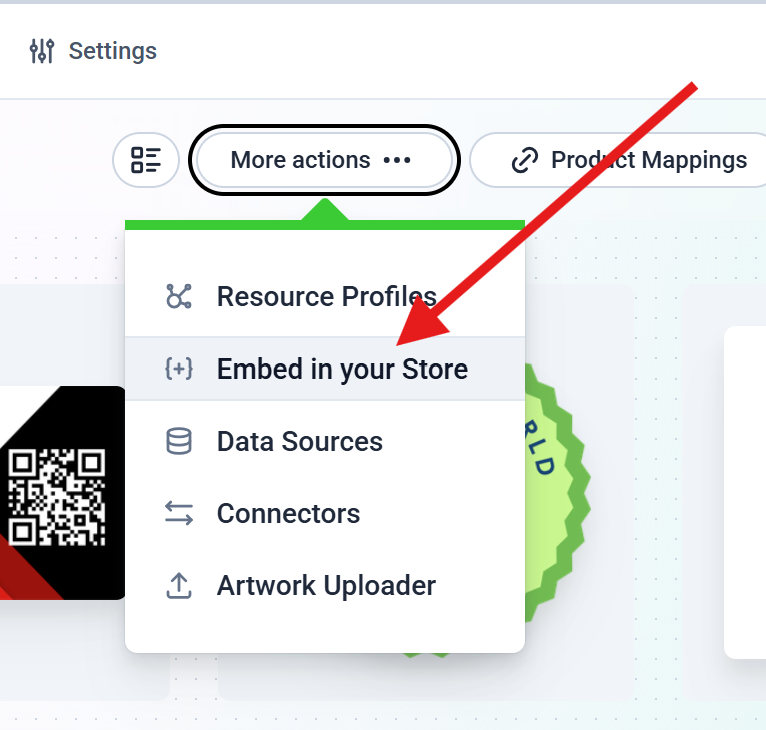
On the top menus, you will find More Actions menu. Click it to open a drop down menu. Click on the Embed Code option as shown below.
## How to Generate an Embed Code
Navigate to Designs page on the [Print.App Admin Panel](https://admin.print.app/designs)
On the top menus, you will find More Actions menu. Click it to open a drop down menu. Click on the Embed Code option as shown below.
 A Side bar will open on the right side of the screen. Click on the New Embed Code button to create a new Embed Code.
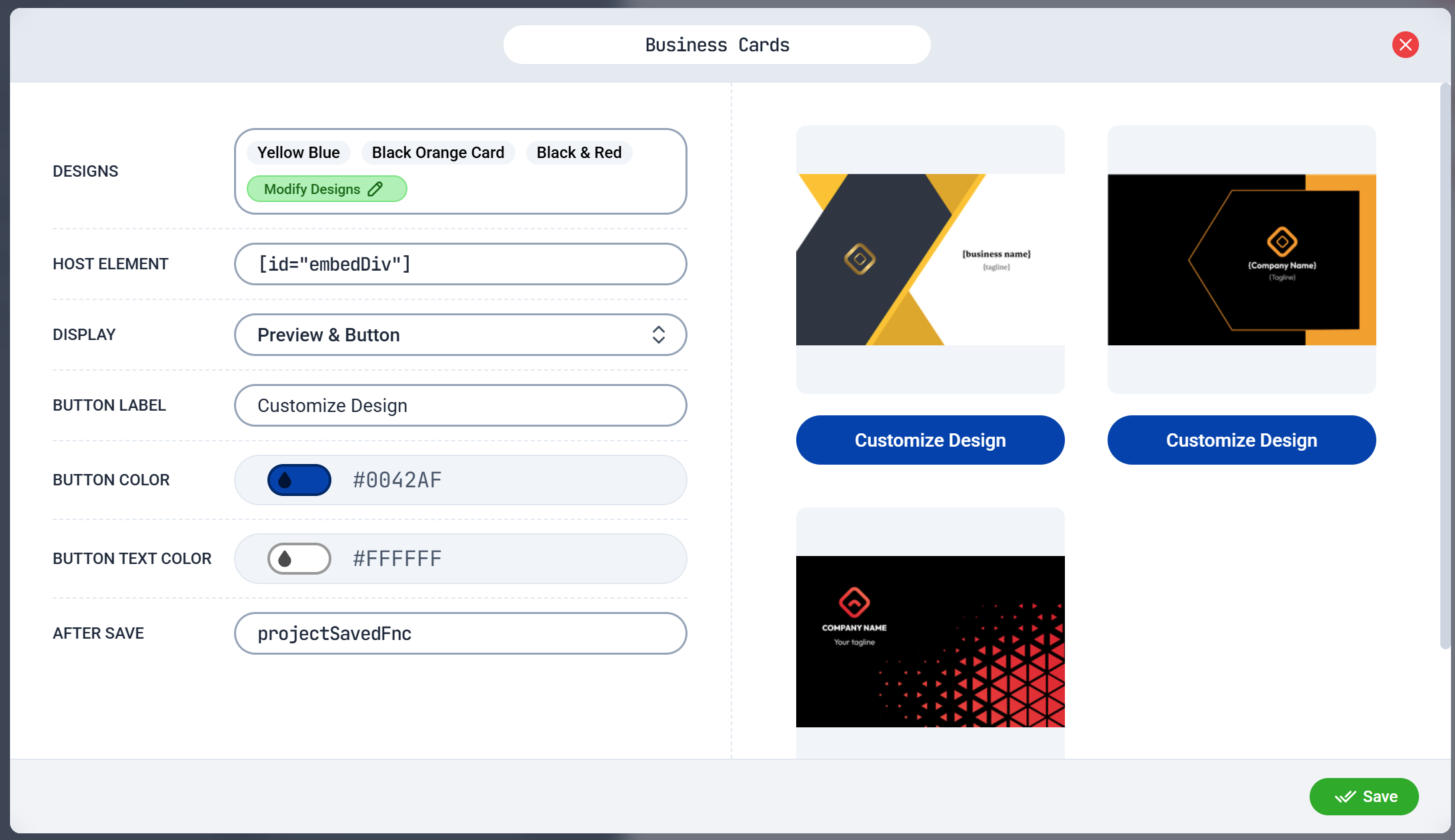
Enter the name of the Embed Code and select the Design you want to show.
* **Name**: Enter a name for the Embed Code.
* **Designs**: Select the Designs you want to show in the Editor.
* **Host Element**: You need to provide a standard HTML Query Selector for the element where you want to embed the Editor. For example, if you want to embed the Editor in a div with the id `editor`, you should enter `#editor` in this field.
* **Display Mode**: You can optionally show a Preview image, a Button or a combination of both.
* **Button Text**: If you choose to display a Button, you can enter the text you want to display on the button.
* **Button Color**: You can choose the color of the button.
* **Button Background Color**: You can choose the background color of the button.
* **After Save Function**: You can optionally provide a JavaScript function that will be called after the user saves the design. The function will receive the design data as an argument. This function should be asccessible from the global (window) scope.
Click the Save button to save the Embed Code.
After saving, you will see the Embed Code on the Side bar list. Click the Copy button to copy the code to your clipboard.
Paste the Embed Code into your website's HTML where you want the Editor to appear.
## Github Sample Code
You can find a sample working code on [Github](https://github.com/PrintApp/print-app-samples/tree/main/embed) that demonstrates how to embed the Print.App Editor on a simple html page named index.html
You can clone the repository and run the sample code on your local machine to see how the Embed Code works.
To run the sample code, run the following commands in your terminal:
```bash theme={null}
cd embed
npm install
npm run dev
```
Then open your browser and navigate to [http://localhost:5173](http://localhost:5173)